# How to Use the API
This page shows how to start using the Eskimi DSP API: create an API client, get an access token and make your first call. For what the API can do, see [API Overview](https://manual.eskimi.com/books/api/page/api-overview).
### Create an API Client
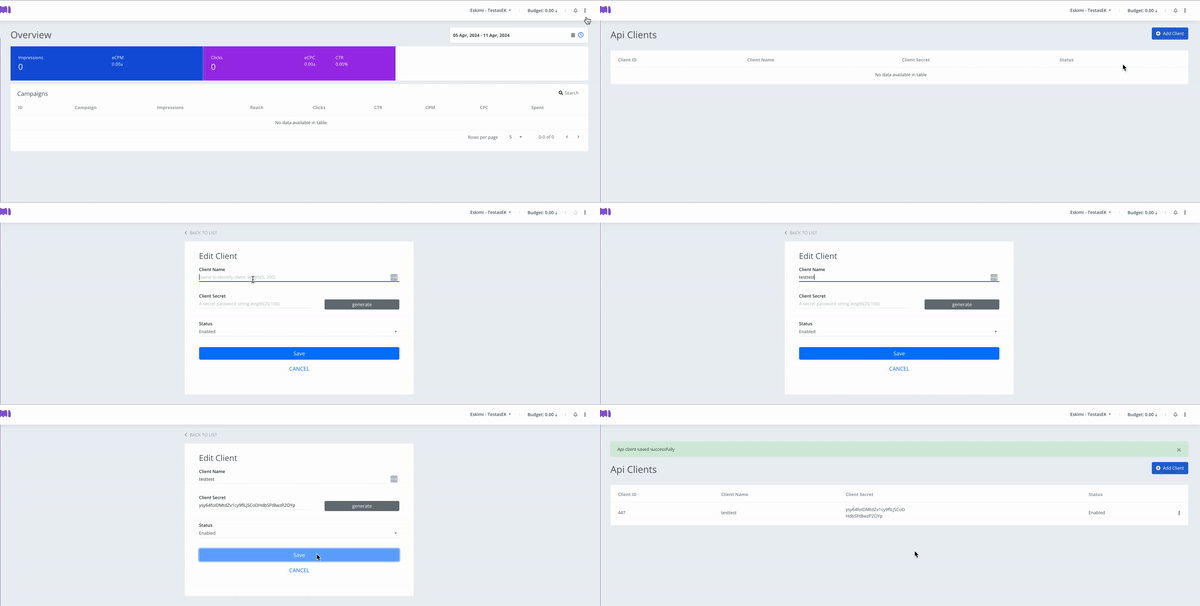
1. In the DSP, click the **three-dot icon** in the top right corner.
2. Click **API Clients**.
3. Click **Add Client** in the top right corner.
4. Enter a **Client name** (any name; it is not used in the token) and click **Generate** next to Client Secret.
5. Click **Save**. The client is created, and you can now get an access token for it.
### Get an Access Token
There are two ways to get a token. Both give a token that is valid for one year.
#### a. In the DSP
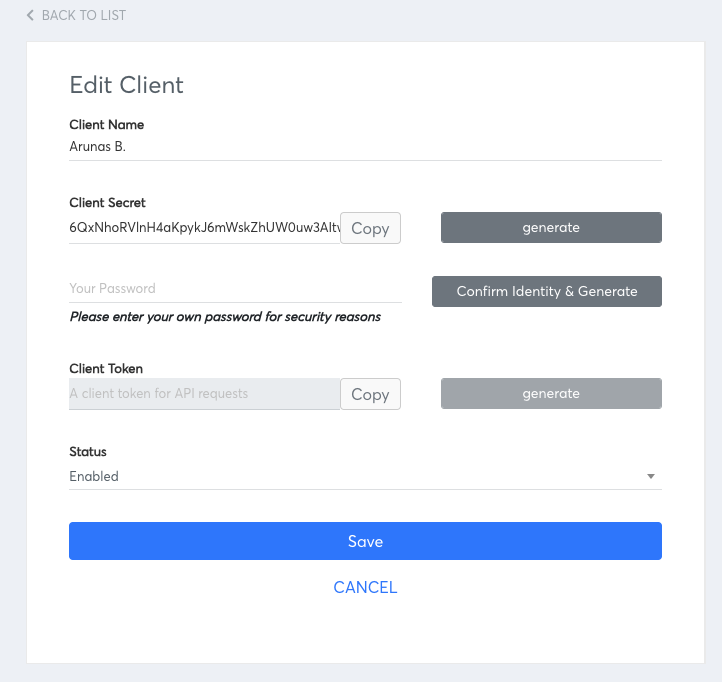
1. Click the **three-dot icon** next to your client, then **Edit**.
2. Click **Generate Client Token**.
3. Enter your account password and click **Confirm Identity & Generate**.
4. Click **Copy** to keep the token, then click **Save**.
[](https://manual.eskimi.com/uploads/images/gallery/2024-10/cybEFQ5smLd32A7X-image.png)
#### b. With an HTTP Request
Send a `POST` request to `https://dsp-api.eskimi.com/api/oauth/token` with this body (documentation: [https://dsp-api.eskimi.com/docs/api/auth/](https://dsp-api.eskimi.com/docs/api/auth/)):
```json
{
"grant_type": "eskimi_dsp",
"username": "your DSP login email",
"password": "Password",
"client_id": client_id,
"client_secret": "client_secret"
}
```
The response contains the `access_token` and its lifetime in seconds (`expires_in`). Request a new token the same way before it expires.
### Make Your First Call
Send the token in the `Authorization` header. For example, a campaign report:
```bash
curl 'https://dsp-api.eskimi.com/api/v1/report/campaigns/get?advertiserId=1&byDate=1&byCampaign=1&dateFrom=2026-01-01&dateTo=2026-01-30' \
-H 'authorization: Bearer {ACCESS_TOKEN}'
```
The token belongs to your user and works for every advertiser your user has access to. Choose the advertiser with the `advertiserId` parameter in each request.
All endpoints, parameters and examples are in the API documentation: [https://dsp-api.eskimi.com/docs/api/v1/](https://dsp-api.eskimi.com/docs/api/v1/). To try them without writing code, import the [API Postman Template](https://manual.eskimi.com/books/api/page/api-postman-template).
Watch the video for a walk-through:
### What the API Can and Cannot Do
- Campaigns, packages, creatives, audiences, brand safety sets and optimisation (start or stop by exchange, creative, operating system, browser, operator, site or app, placement or package) can all be managed through the API. See [API Overview](https://manual.eskimi.com/books/api/page/api-overview) for the full list.
- Video campaigns can be created through the API, but video creatives must first be uploaded in the DSP: the API uploads banner and native assets only.
- Not every reporting split in the DSP is available in the API. The available splits are listed [here](https://dsp-api.eskimi.com/docs/api/v1/#api-Report).
- Total reach for a period comes from `/report/totals` and matches DSP reporting. Do not add up the daily `reach` values from the split reports: one user is counted again on every day they were reached.
- Reports return spend in USD or in the advertiser's local currency, depending on the `spentBased` parameter.
### Summary
Create an API client in the DSP, get a token (in the DSP or with an HTTP request), and send it with every call. Renew the token before it expires after one year.