Once you have created API Client you can create Access Token for it.
#### Create Access Token There are 2 ways on creating Access Token: #### 1. Create Access Token through Eskimi DSP: 1. 1. 1. After saving press the **three dot icon** on the right of the desired **Client.** 2. Click on **"Edit".** 3. Now you should be able to click "**Generate Client Token**" button. 4. Enter your account password for security reasons and click "**Confirm Identity & Generate**" 5. **Client's Token** will be generated and click **"Copy"** to save and use it later. 6. Click Save [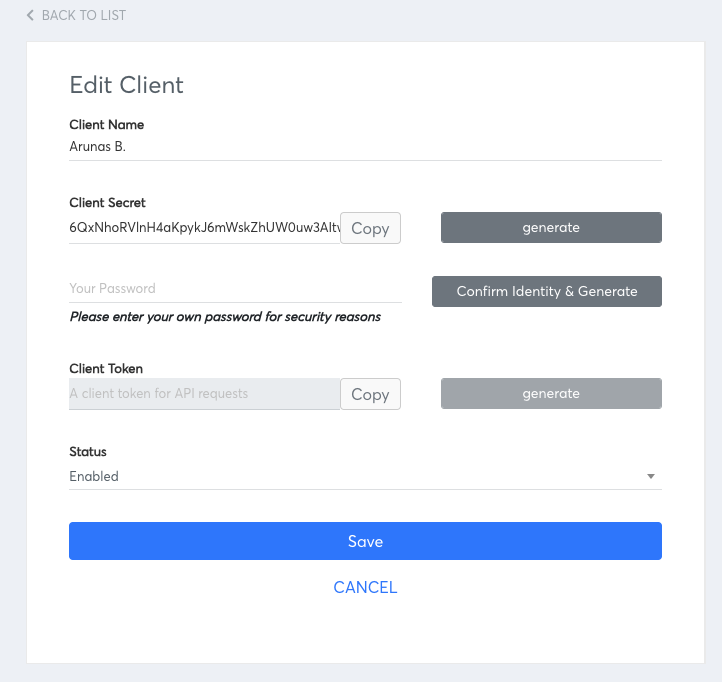](https://manual.eskimi.com/uploads/images/gallery/2024-10/cybEFQ5smLd32A7X-image.png) Token expiration term: 1 year. #### 2. Create Access Token through HTTP Request - Get access token. For getting access token the documentation is provided here: [https://dsp-api.eskimi.com/docs/api/auth/](https://dsp-api.eskimi.com/docs/api/auth/) ```json { "grant_type": "eskimi_dsp", "username": "dsp_username", "password": "Password", "client_id": client_id, "client_secret": "client_secret" } ``` A request example for reporting endpoints: ```bash curl 'https://dsp-api.eskimi.com/api/v1/report/campaigns/get?advertiserId=1&byDate=1&byCampaign=1&dateFrom=2026-01-01&dateTo=2026-01-30' \ -H 'authorization: Bearer {ACCESS_TOKEN}' ```From your parent account, you can access your child account data via API.
--- - After getting the access token API can be used using the access token. The API documentation: [https://dsp-api.eskimi.com/docs/api/v1/](https://dsp-api.eskimi.com/docs/api/v1/) - Please watch the video to understand the process better: --- **API Limitations:** - Video campaigns can be created via API. However, video creatives must first be uploaded in the DSP UI, as the API does not currently support video or VAST asset uploads. - Not all reporting splits are available in the reporting API endpoints, you can see all available splits [here](https://dsp-api.eskimi.com/docs/api/v1/#api-Report). - Total reach can be retrieved via API and should match the DSP reporting. Please note that daily `reach` values from split endpoints should not be summed. - Reports can return spend in USD or the advertiser’s local currency, depending on the `spentBased` parameter.