Contextual Targeting
How to enable Contextual Targeting on a campaign level
Contextual targeting matches a brand's ad to the content that the user is consuming, ensuring brand safety and suitability. This is accomplished by utilizing page's categories or keywords and matching them to the content on the page and/or URL.
Contextual Targeting for your campaigns
Eskimi DSP offers four contextual targeting options within the Contextual Targeting section of your campaign:
- Default Contextual Targeting - Sets a baseline rule for how broadly or narrowly ads are matched to page content.
- Apps/Sites Category Targeting - Targets ads based on predefined market verticals such as Finance, Sports, or Gaming.
- Keyword Targeting - Targets ads based on specific words found in the URL or page content.
- Sentiment Targeting - Targets ads based on the emotional tone of the content (Positive, Negative, or Neutral).
All options complement each other and help refine your ad placements. You can enable one or all options for your campaign.
Default Contextual Targeting
The Default Contextual Targeting setting gives you control over how broadly or narrowly your ads are matched to page content at a campaign level. It acts as a baseline targeting rule that applies automatically, even before any keyword, category, or sentiment targeting is configured.
To set it, open your campaign, scroll to the Contextual Targeting section, and select one of the four available options from the Default Contextual Targeting dropdown.
Available options:
- None - No contextual filtering is applied. Ads serve across all placements regardless of page content. This is the default selection.
- Strict - Ads are served only on pages that match the campaign's exact product category. For example, a beverages brand assigned to the "Food & Drinks" category would only appear on "Food & Drinks" pages. Use this when precise contextual alignment is a priority.
- Best Match - Ads are served on pages matching the product category and closely related categories. For example, a beverages brand under "Food & Drinks" could also appear on pages categorised as "Hobbies", "Online Communities", or "People & Society". This option balances contextual relevance with broader reach.
- Custom - This option is selected automatically when you manually choose specific categories under Target apps/sites categories. It indicates that targeting is driven by your own category selection rather than an automated match.
Note: If you are using Strict or Best Match, ensure your campaign's product category is correctly configured, as this determines which pages your ads will be eligible to serve on.
How to enable Apps/Sites Categories targeting for your campaigns
The apps/sites category feature helps users target ads based on the market verticals of the page. Apps/sites categories contain already pre-created lists of domains and app bundles of related topics such as Finance, Sports or Games. These categories cover 98.6% of supply. Categories are grouped into two bigger groups - General topics & Sensitive topics.
To set up category targeting, you need to:
- Open your selected campaign.
- Scroll down to the Contextual Targeting section.
- Under Target apps/sites categories, select the relevant categories.
- Click Save.
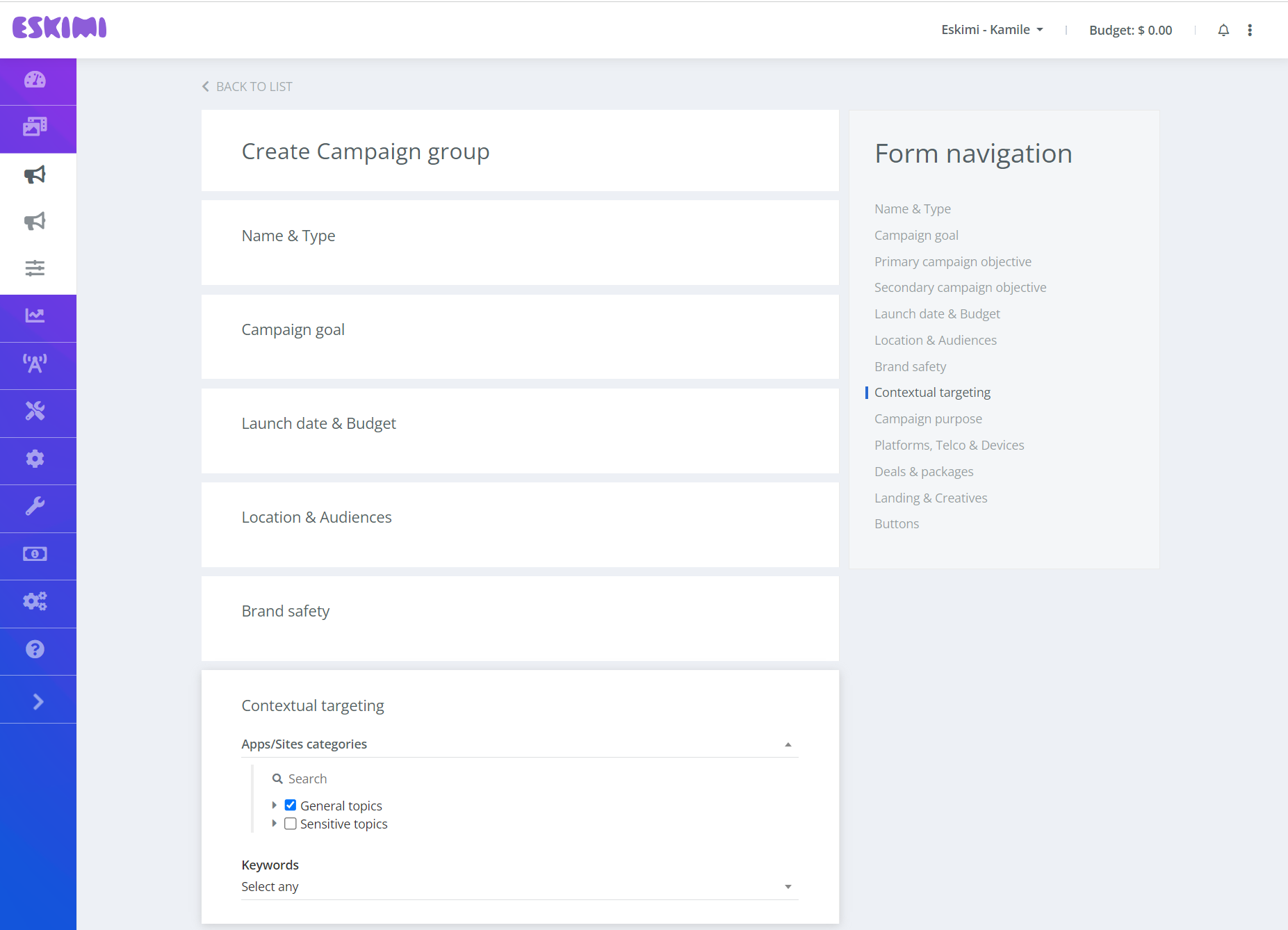
Keep in mind that if apps/sites categories targeting is also enabled under Brand Safety on the same campaign, both settings will be taken into account. If both brand safety and contextual targeting have the same categories selected, the matching domains or app bundles will be excluded. Eskimi ensures that the Brand Safety setting is always prioritized.
Our categorization system works on two levels: Page-level: Our AI engine analyzes individual page content to determine precise categories (e.g., a sports article on a news site will be categorized as "Sports"). Domain/app bundle level: Used as a fallback when page-level analysis is not yet available. The system prioritizes page-level categorization for better targeting precision, while maintaining domain-level categorization for comprehensive coverage.
Enabling Keyword Targeting for your campaign
Step 1: Preparing and creating a Keyword List
Before enabling keyword targeting in a campaign, you must first prepare and create a Keyword List.
Step 1.1: Preparing a Keyword List
- Determine your target keywords
- Identify relevant keywords based on your brand, campaign goals, and audience.
- Avoid single letters or very short words, as this may result in overly broad targeting. E.g. if you added letter 'a' to the set and chose 'contains type match', all sites containing letter 'a' would be included.
- Consider variations of key terms to capture a wider audience.
- Organize keywords in a spreadsheet
- Create a CSV file with a list of keywords.
- Ensure that each keyword is in a separate row without duplicates.
Step 1.2: Creating a Keyword List in Eskimi DSP
- Go to the Keywords page under the Tools menu.
- Click Create (top right corner).
- Enter a Title for your keyword list.
- Select at least one Context Option:
- Find in URL: The system checks if the keyword appears in the full URL.
- Find in Content: The system crawls website content and only shows ads if the page contains the selected keywords.
- Note: You can select both options to target ads based on both URL and page content.
- Select a Match Option:
- Contains Type Match: Finds words with similar meanings (e.g., if you target "photo," it will also match "photography" and "photographer.")
- Exact Word Type Match: Targets only the exact word (e.g., if you have 'photo' in the set, it will only look for 'photo', not 'photography' or 'photographer').
- Upload your prepared keyword list from your CSV file.
- Click Save.
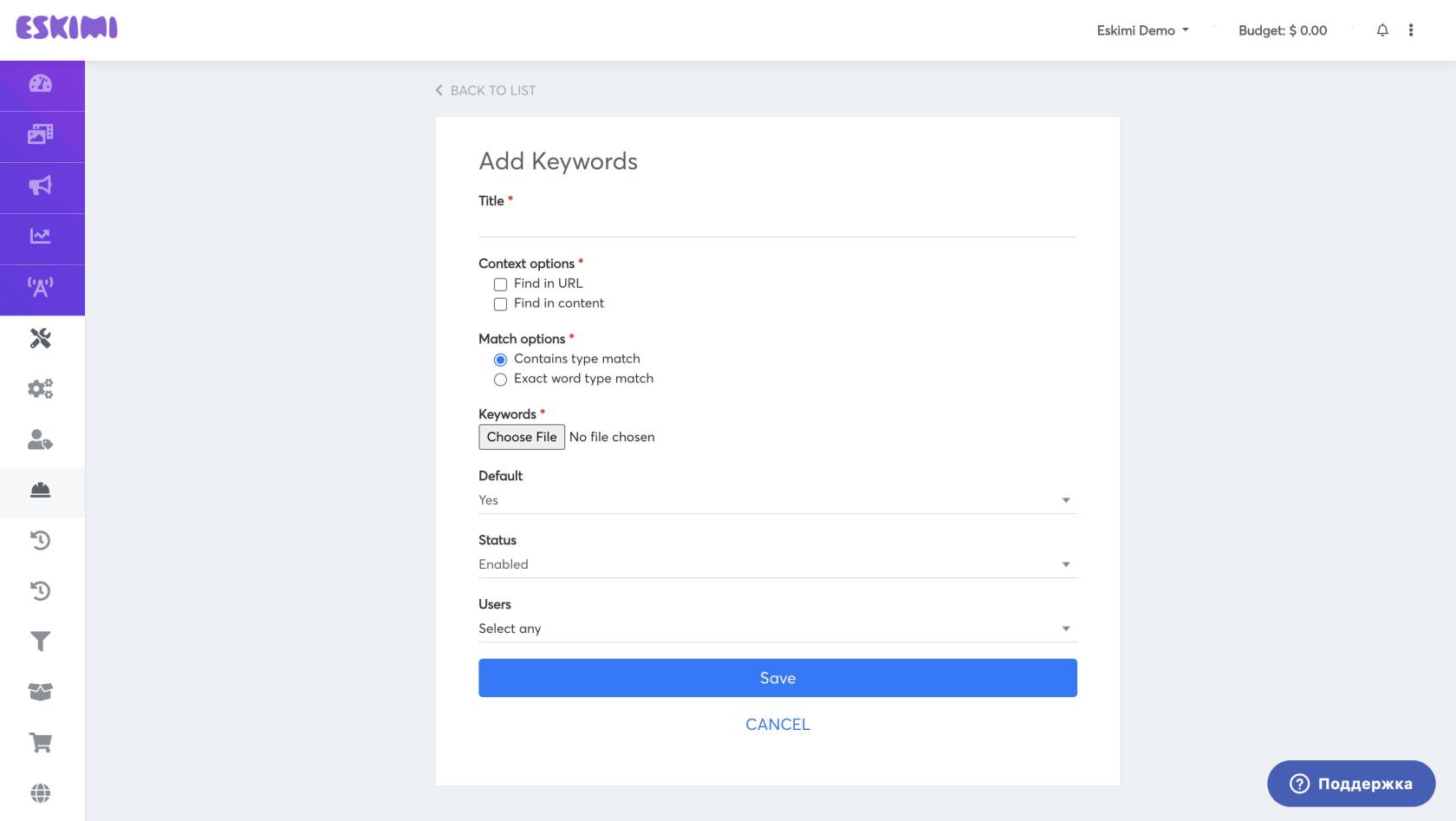
If you choose Contains Type Match, be careful with broad keywords, as they can significantly increase traffic volume.
Keywords only work on full URLs. E.g. randomsite.com/randomsite, randomsite.com/notsorandom, and randomsite.com are treated as 3 different sites.
If you select both Find in URL and Find in Content, your campaign will only target placements where the keyword appears in either the URL or the page content.
Step 2: Enabling keyword targeting on a campaign
Once you have created a keyword list, you can add it to your campaign:
- Open the selected campaign.
- Scroll down to Contextual Targeting.
- Select one or more keyword sets under Target keywords.
- Click Save.
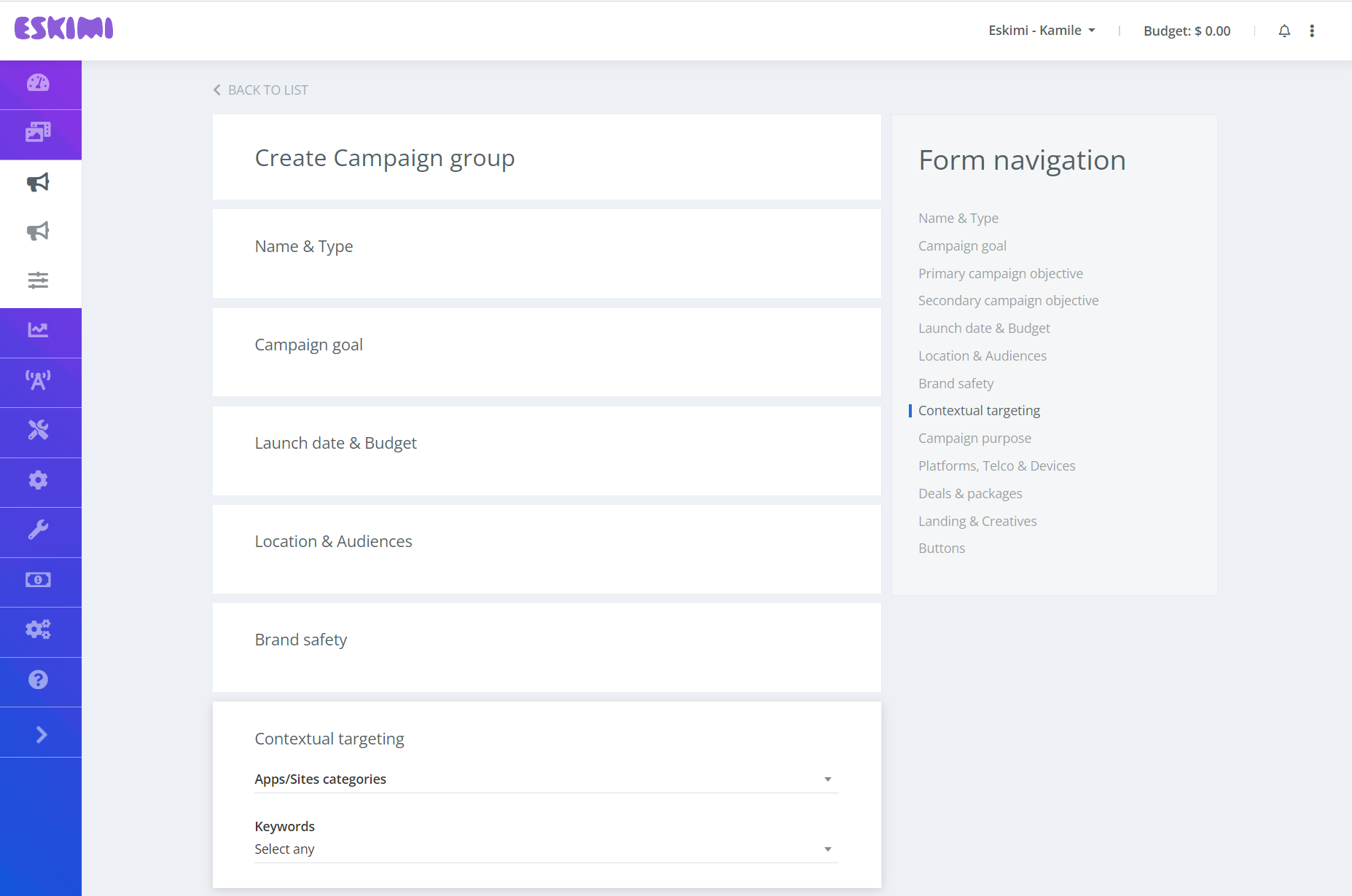
Keep in mind that if brand safety is enabled on the same campaign, both settings will be taken into account. If both brand safety and contextual targeting keyword sets have the same words, the matching keywords will be excluded. Eskimi ensures that the Brand Safety setting is always prioritized.
How to enable Sentiment targeting for your campaigns
The sentiment targeting feature helps users target ads based on the emotional tone of the content. Our AI analyzes page content to determine if the overall tone is Positive, Negative, or Neutral, allowing you to align your campaigns with content that matches your brand's messaging goals.
To set up sentiment targeting, you need to:
- Open your selected campaign.
- Scroll down to the Contextual Targeting section.
- Under Target sentiments, select the relevant sentiment options:
- Positive: Ideal for campaigns that benefit from association with uplifting or inspiring content.
- Negative: Useful for specific strategies or, more commonly, for exclusion.
- Neutral: Targets informational, objective, or educational content.
- Unknown: Targets inventory that has not yet been analyzed by our sentiment engine.
- Click Save.
Keep in mind that if sentiment targeting is used alongside brand safety settings on the same campaign, both settings will be taken into account. Eskimi ensures that the Brand Safety setting is always prioritized.
Our sentiment analysis works at the page level, analyzing the actual content to determine its emotional tone. This provides precise targeting based on the context in which your ads will appear, ensuring better alignment with your campaign objectives.