Frequently asked questions
Creative production comes with plenty of questions, especially when technical requirements affect what can be built, how long it will take, and what assets are needed. This chapter brings together clear answers to the questions Creative Studio receives most often. It covers common topics including open files, image quality, banner resizing, GIFs, minimum media investments, AI-generated concepts, usage rights, 3D production and client feedback. Use it as a practical reference when preparing briefs, managing client expectations or explaining why certain production requirements and limitations exist.
- What are Client Tiers?
- What are creative Minimum Investments, and why do we have them?
- What are Tokens, and how do they work?
- How Creative Studio can help brainstorm your idea
- Why are my banners pixelating?
- Creative Studio Glossary
What are Client Tiers?

*Read company positioning on Tiers here.
CHOOSING CLIENT TIERS IN CREATIVE BRIEFS
Client tiers help Creative Studio understand the strategic importance of the client relationship. They do not describe:
- How urgent the brief is
- How difficult the creative is
- How much attention the client personally requests
- How important the opportunity feels to the salesperson
When briefing, choose the tier based on the client or agency relationship, not the urgency of the individual brief.
🥇 TIER 1
- Clients under Big 5 agencies (previously Big 6) (and Simply Black in Africa) or Top Global brands
- The "Big 6" refers to the six largest global advertising and marketing holding companies that control a vast majority of worldwide media spending, creative campaigns, and public relations
- Even small clients count as Tier 1 if they belong to a Big 6 agency
- Why this matters - these relationships may involve:
- Global or multinational accounts
- Important agency partnerships
- Opportunities across multiple markets
- High long-term retention value
- Strong strategic value to Eskimi
*Read our Big 5 (previously Big 6) overview here.
Not sure whether an agency belongs to the Big 5? Check the approved agency list below before selecting the tier.
🥈 TIER 2
- Important local or regional clients that do not qualify for Tier 1
- This includes:
- Recognised top clients in your local market
- Large independent agencies
- Important regional clients
- Established accounts with high local strategic value
- Why this matters - these clients may offer:
- Strong local or regional relationships
- Repeat business
- High retention value
- Important revenue within a specific market
- Opportunities to strengthen Eskimi’s local position
If you are unsure whether an account qualifies, confirm it with your regional or commercial lead.
🥉 TIER 3
- When the client does not qualify for Tier 1, Tier 2 or Tier 7
-
This usually includes:
-
Smaller independent agencies
-
Smaller direct clients
-
Standard accounts without a confirmed strategic classification
-
Tier 3 clients generally don't qualify for custom creative work, as the goal it to move them to a low touch environment. However, if there is an opportunity to grow the client, or there is a high media investment value attached, let's talk!
🏅 TIER 7
- Gambling and performance clients which were handed over to Roigen
Tier 7 is a special routing category. It does not mean “seventh priority.”
🌿 GROWTH CLIENT
- Accounts in active growth phase, or with high upsell potential
- There is clear evidence that the account is actively growing or has a realistic, near-term upsell opportunity
- This may include:
- Confirmed additional campaigns
- A documented increase in planned spend
- Active expansion into new markets
- A confirmed opportunity to add products or formats
- A specific upsell already being discussed with the client
- Why this matters:
- Growth clients may have additional commercial potential
- Strong creative support can help Eskimi deepen the relationship and convert confirmed opportunities into future business
🆕 NEW CLIENT
- First custom Rich Media brief with Creative Studio
- Why this matters - the first Creative Studio project establishes the client’s expectations of our:
- Creative quality
- Communication
- Process
- Reliability
- Overall service
- First impressions matter; new clients get elevated treatment on their first brief regardless of size
The New Client flag applies only to the first custom Rich Media brief. Remove it from future briefs for the same client.
Growth Client and New Client are additional priority flags. They do not replace the client’s main tier.
HOW ESKIMI WORKS WITH BIG 5 AGENCIES
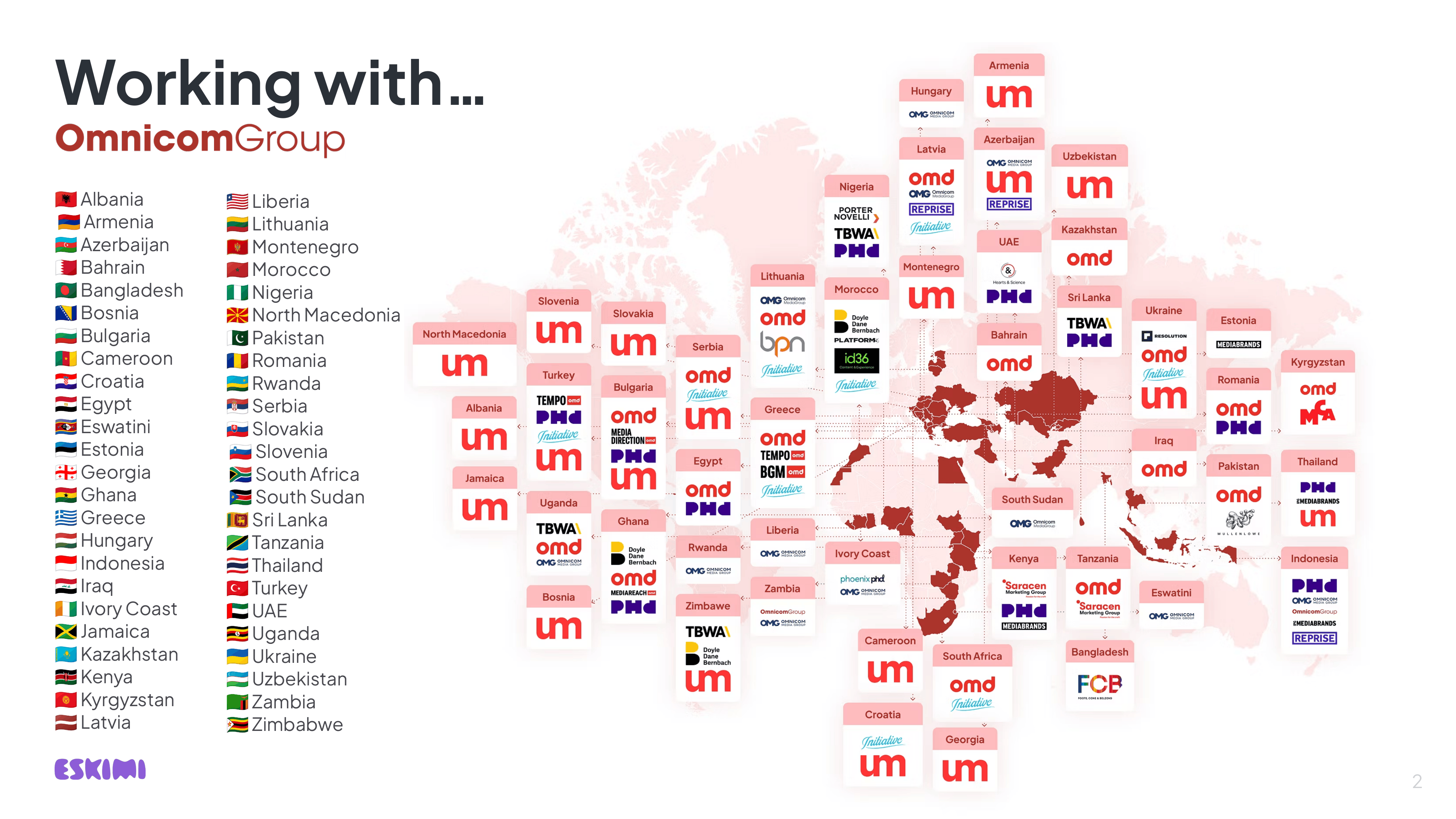
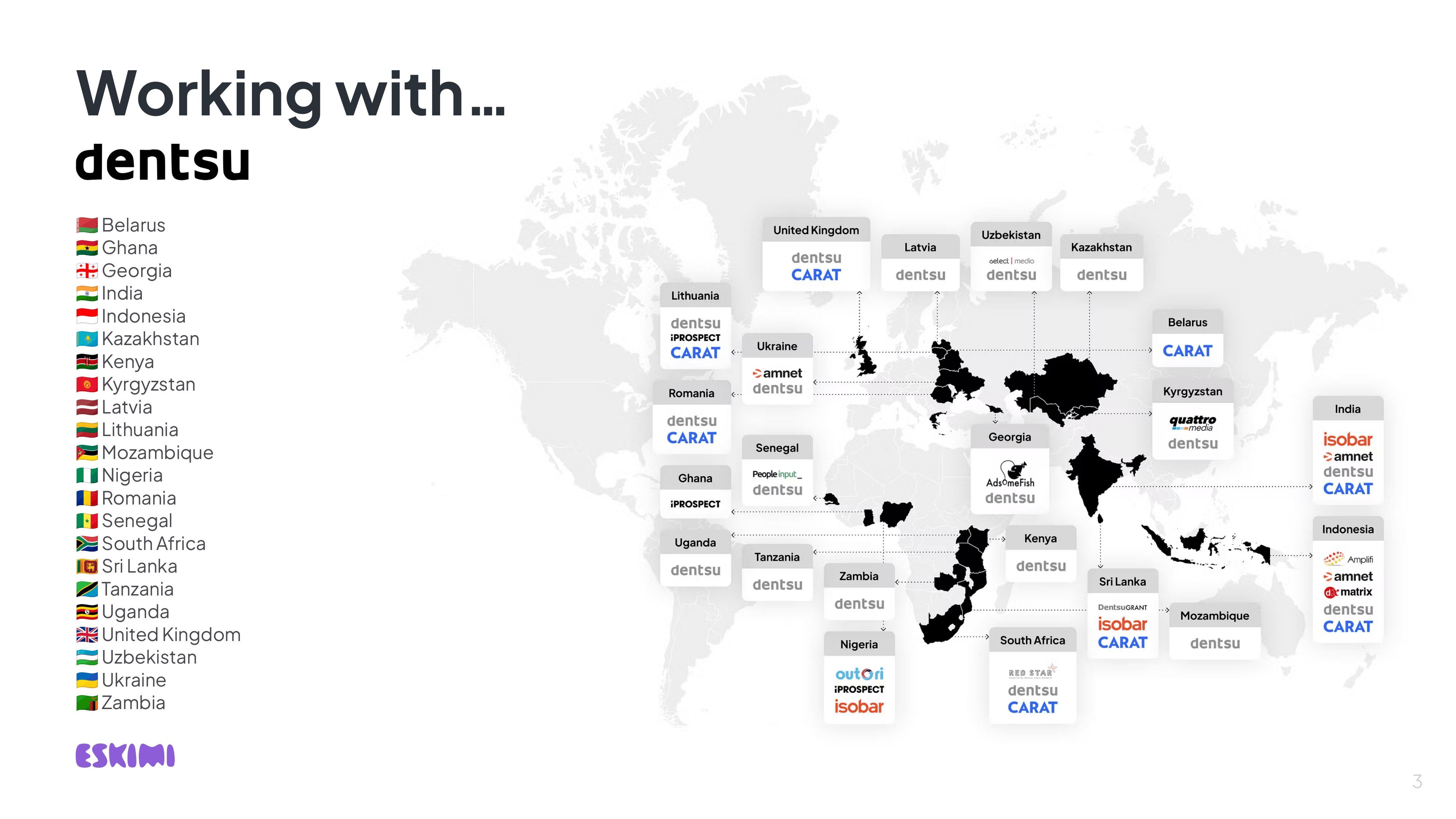
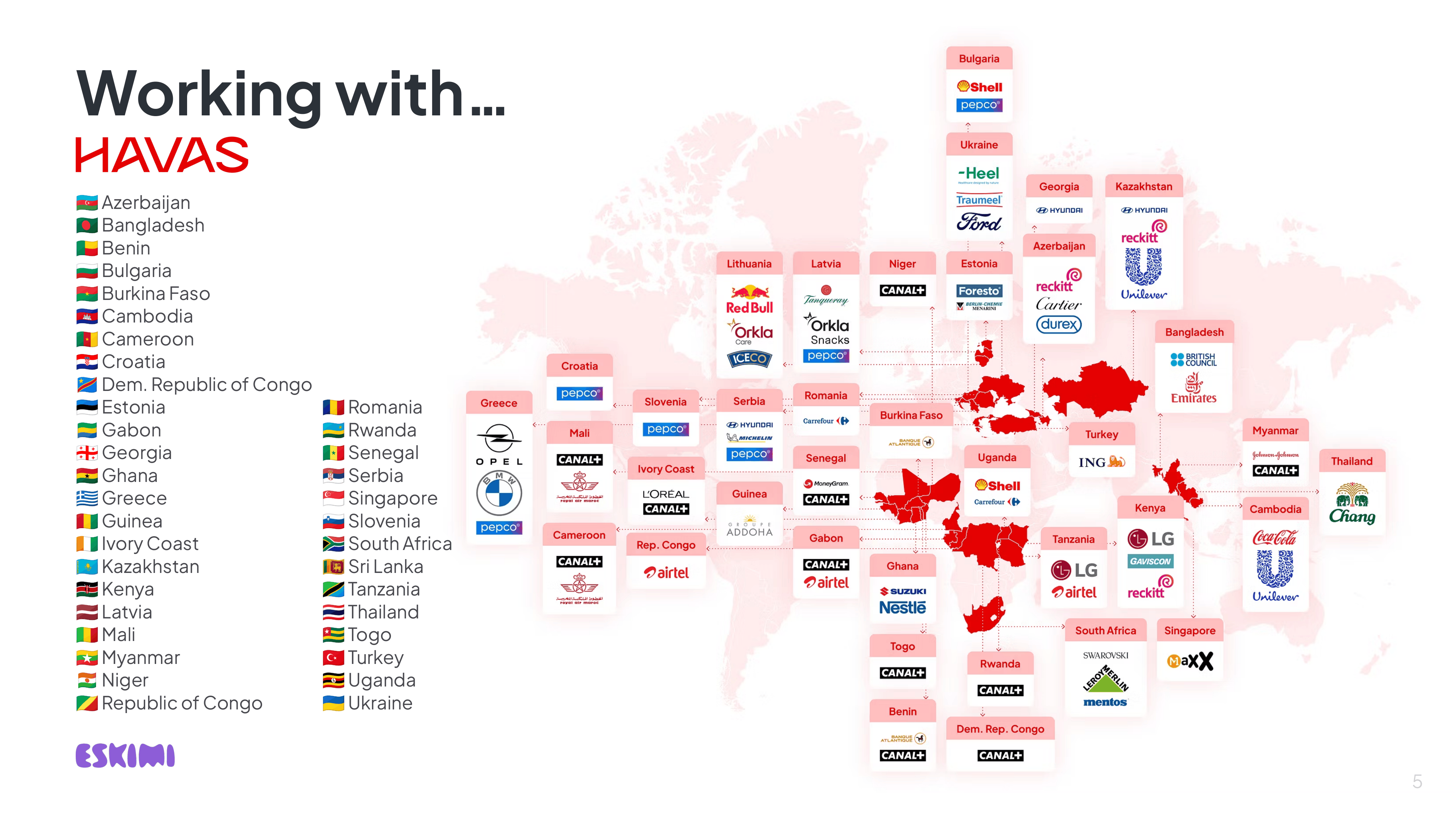
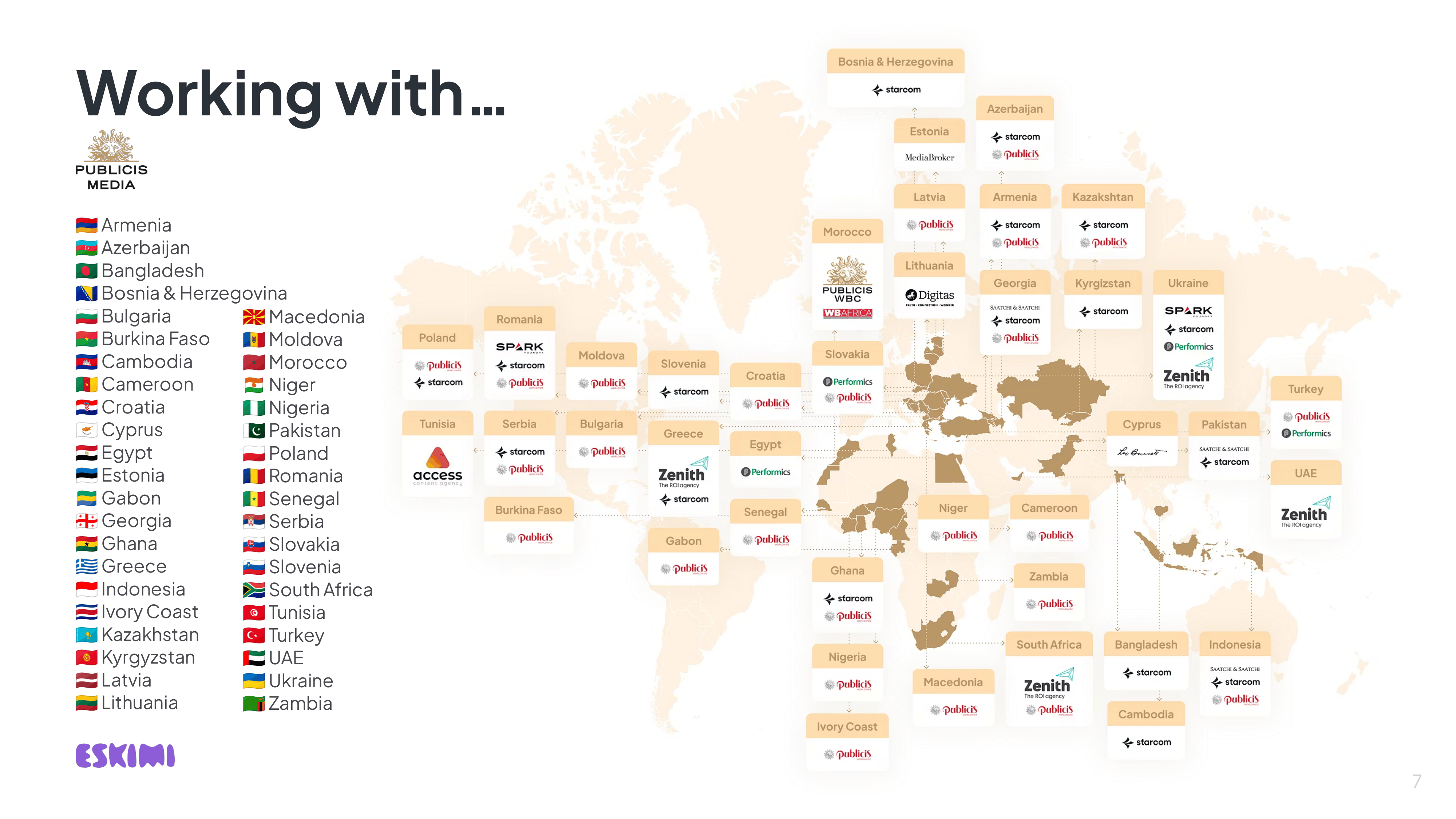
There’s this thing in the advertising world called the “Big 6,” which refers to the biggest ad agency holding companies around the world. Before starting to navigate this ecosystem, one often has no idea how complicated it is.
Agency holding companies are “live organisms” that rapidly change, expanding and acquiring new members or losing some of them along the way.
Most of us see hundreds of agencies worldwide as individual players in the industry. However, all of them fall under the giant umbrellas of slightly more than ten agency holding companies (parent advertising agency groups that own smaller agencies).
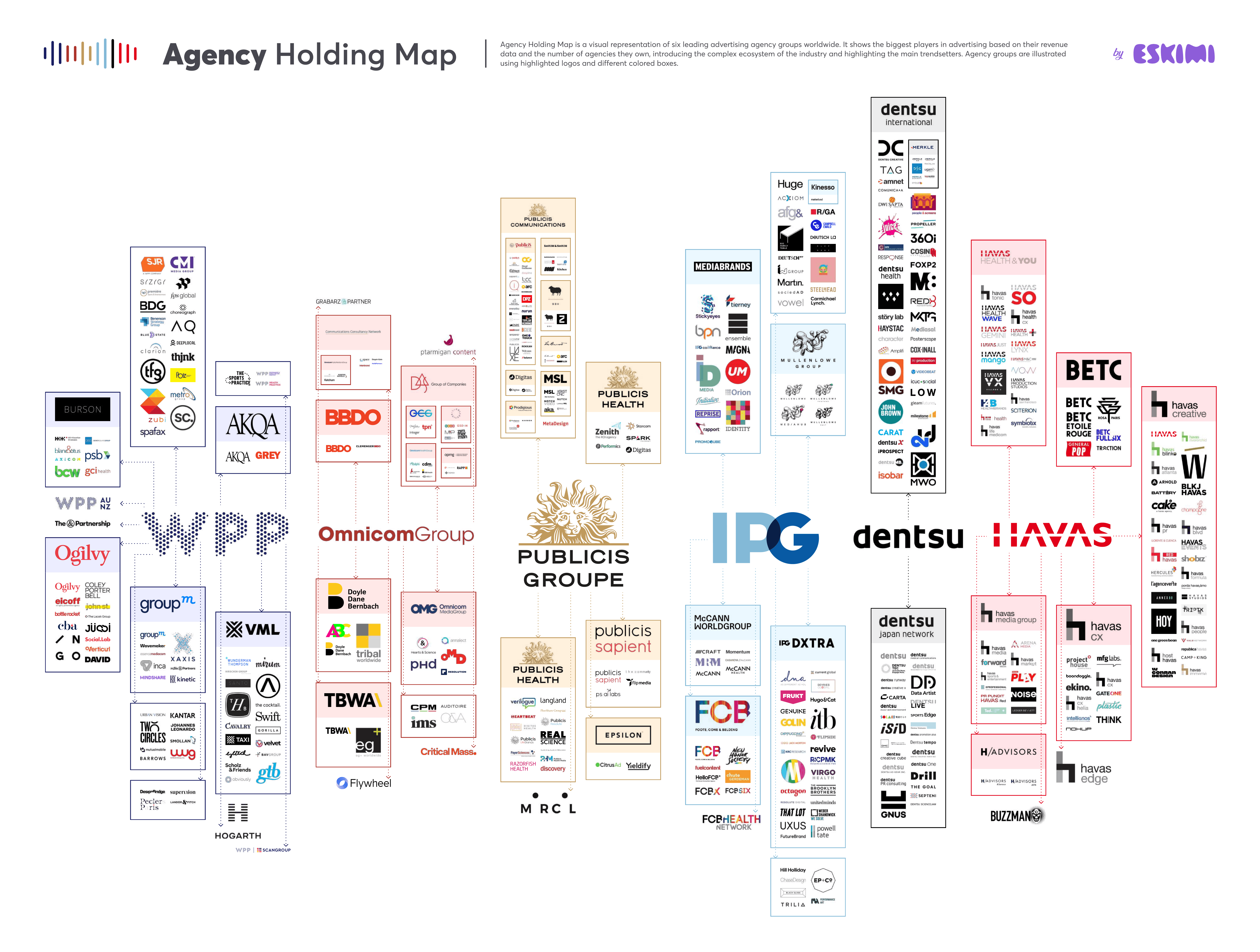
Read our blog post on the Big 5 (previously Big 6) here.
What are creative Minimum Investments, and why do we have them?
WIP
What are Tokens, and how do they work?

⚡ QUICK ANSWER
Creative Tokens give regional teams access to Creative Studio production time for promising opportunities that do not yet have an approved media budget.
They allow Sales to show clients what Eskimi could create, bring proactive ideas to existing clients and strengthen important pitches before a campaign has been confirmed.
💡A Token is a unit of Creative Studio production capacity. It is not money, a discount or an approved campaign budget.
*Check your region's available Tokens here.
✅ USE A CREATIVE TOKEN WHEN
- There is no approved IO or confirmed media budget
- The work is proactive and could help win or grow business
- The potential opportunity is worth at least $5,000
- Your Regional Manager supports the request
- You have submitted a complete brief
- Your region has enough Tokens available
❌ DO NOT USE A TOKEN WHEN
- The campaign already has an approved IO
- The client is already going to buy the campaign
- The request is routine campaign production
- The brief is incomplete
- The request has little realistic commercial potential
- You need delivery in less than 7 days
BEFORE SUBMITTING A TOKEN REQUEST
Confirm that:
- ☑️ The work is genuinely proactive
- ☑️ The campaign does not already have an approved IO
- ☑️ The opportunity is worth at least $5,000
- ☑️ The requested creative matches the potential value
- ☑️ Your Regional Manager has approved the request
- ☑️ Your region has enough Tokens available
- ☑️ The purpose of the pitch is clear
- ☑️ The requested delivery date allows 7 - 14 days
- ☑️ The client meeting or pitch date is confirmed
Need more detail? Read the explanations below👇
🍭 WHAT IS A CREATIVE TOKEN?
🍭 WHAT IS A CREATIVE TOKEN?
A Creative Token allows a region to request proactive creative work without a confirmed campaign budget.
Creative Studio reserves a limited amount of production time for this work each quarter. Each region receives a Token allocation based on factors such as:
- Market size
- Market maturity
- Pitching activity
- Previous Token usage
- Demand for proactive work
- Available Creative Studio capacity
Regions decide which opportunities are important enough to support with their available Tokens.
Because production capacity is limited, Tokens should be used thoughtfully on opportunities with genuine commercial potential.
✅ WHAT CAN TOKENS BE USED FOR?
- New business pitches: Use creative examples to strengthen a proposal, open a conversation or help a client understand what Eskimi can produce
- Proactive client ideas: Present a new idea to an existing client before they request it. This may help grow the account, introduce a new format or encourage an upsell
- More ambitious creative: Support a valuable opportunity where the available media budget does not meet the normal minimum investment for the requested format
- Detailed creative exploration: Request more detailed brainstorming, a creative concept, storyboard or demonstration when informal advice is not enough
❌ WHAT TOKENS ARE NOT FOR
Tokens should not be used to replace the normal production process. They are not intended for:
- Campaigns that already have an approved IO
- Standard work that the client has already agreed to buy
- Basic campaigns presented as proactive work
- Requests with no clear opportunity or client need
- Incomplete ideas that Creative Studio must develop from nothing
- Several costly concepts for one small opportunity
- Avoiding the minimum media investment without a strong commercial reason
- Urgent requests that have not been planned properly
If the campaign already has an approved budget, do not use a Token. Submit the brief through the normal Creative Studio process.
Business-as-usual campaign production continues as normal and does not use the regional Token allocation.
🧭 DO I NEED A TOKEN FOR PROACTIVE WORK?
🧭 DO I NEED A TOKEN FOR PROACTIVE WORK?
| SITUATION | TOKEN REQUIRED? | WHAT TO DO |
| The campaign has an approved IO | NO | Submit a normal production brief |
| The client has approved the campaign and budget | NO | Submit a normal production brief |
| You want creative for an unconfirmed pitch | YES | Request Regional Manager approval; submit a Token brief |
| You want to present a proactive idea | YES | Request Regional Manager approval; submit a Token brief |
| The budget is below the minimum for the requested format | MAYBE | Upsell, choose another format, or request a Token |
| You only need informal advice from a Project Manager | NO | Discuss the idea before submitting a Token brief |
| You need a storyboard, concept or demo for an unconfirmed opportunity | YES | Request Regional Manager approval; submit a Token brief |
| You need full strategic pitch support | NO | Contact Theshlin and follow the strategic pitch requirements |
🎟️ HOW MANY TOKENS DOES A REQUEST USE?
🎟️ HOW MANY TOKENS DOES A REQUEST USE?
| REQUEST | TOKEN COST |
| Proactive static creative concept | 1 Token |
| Custom Rich Media banner for confirmed campaign below the normal minimum investment | 1 Token |
| Proactive detailed creative brainstorming or concept development | 2 Tokens |
| Proactive storyboard or demo | 2 Tokens |
| 3D Forced Perspective / Augmented Reality banner for confirmed campaign below the normal minimum investment | 2 Tokens |
The Token cost may increase if the request includes:
- Several different concepts
- Several complex formats
- A storyboard and a working demo
- 3D production
- Custom animation
- Complex interactive functionality
- A large number of sizes or versions
One Token does not automatically cover every item included in a pitch. Creative Studio will confirm the Token cost after reviewing the complete brief.
🔎 TOKEN ALLOCATION & T'S & C'S
🔎 CHECK YOUR TOKEN ALLOCATION AND USAGE
Each region receives a new Token allocation for the quarter.
FIND YOUR QUARTERLY ALLOCATION
Check the Creative Tokens presentation to see how many Tokens have been allocated to your region for the current quarter.
The presentation shows the starting allocation before any Tokens are used, returned or transferred.
TRACK TOKENS USED AND REMAINING (COMING SOON)
Use the Creative Token tracking dashboard to check:
-
Which Token requests have been submitted
-
How many Tokens your region has used
-
How many Tokens your region has remaining
-
Whether Tokens have been returned after a successful campaign
💰 MINIMUM OPPORTUNITY VALUE
A Token request should support a potential media opportunity worth at least $5,000.
The potential value should also make sense for the format being requested.
For example, an expensive 3D concept should support an opportunity that could realistically meet the usual minimum media investment for that type of execution if the pitch is successful.
This prevents Creative Studio from spending a large amount of production time creating several high-cost demonstrations for a small or guaranteed campaign.
The scale of the creative request should match the realistic value of the opportunity.
📋 TOKEN BRIEFS STILL NEED TO BE COMPLETE
A Token gives access to production time. It does not remove the normal briefing requirements.
The Sales Team must please confirm:
- Who the client is
- What the opportunity is
- Whether the campaign is confirmed or still being pitched
- The potential media value
- What the client needs
- When the pitch or client meeting will take place
- What Creative Studio is expected to deliver
A strong Token brief gives the team enough information to understand the opportunity and recommend the right creative approach.
⏱️ LEAD TIMES AND WEEKLY CAPACITY
The standard lead time for Token work is 7 -14 days.
The exact delivery date depends on:
- The complexity of the request
- Whether all assets have been supplied
- Current campaign workload
- Available Token production slots
- The amount of work already scheduled
Shorter delivery times may occasionally be possible, but they cannot be guaranteed.
Creative Studio can deliver a maximum of four Tokens of work per week across the whole company.
During busy periods, Token work may be limited, paused or scheduled for a later date.
🔄 WHAT HAPPENS IF THE PITCH BECOMES A CAMPAIGN?
If the proactive work results in a paid campaign and an IO is assigned, inform Creative Studio.
The Token used for that opportunity will be returned to the region’s available allocation. This allows the region to invest the Token in another proactive opportunity.
Win the campaign, get the Token back.
The Token is only returned once the campaign and IO have been confirmed. A positive client response or possible future campaign is not enough.
📆 TOKEN EXPIRY AND QUARTERLY ALLOCATIONS
Tokens are allocated per quarter.
Unused Tokens:
- Do not automatically carry over into the next quarter
- May result in a smaller future allocation
- May be transferred to another region before they expire
- Are lost if they are not used or reassigned
Token allocations may increase or decrease each quarter based on:
- Previous usage
- Regional demand
- Commercial potential
- Creative Studio workload
- Seasonal production requirements
Regions may agree to exchange or transfer Tokens. Any transfer must be confirmed by the relevant Regional Managers and communicated to Creative Studio.
If your region has run out of Tokens, speak to your Regional Manager. Additional capacity may sometimes be available from another region or from the central overflow allocation.
Tokens should not be saved indefinitely for a perfect opportunity. Use them carefully, but use them while they are available.
🎄 Q4 AND PEAK-SEASON AVAILABILITY
Creative Studio has less capacity for proactive production during Q4 because of increased campaign demand and the holiday season.
Token availability may therefore be reduced or paused during Q4. Token briefs are not accepted during the Christmas production period unless capacity has been agreed in advance.
Plan important Q4 pitches early and submit them before the communicated cut-off date.
📉 WHAT IF A CONFIRMED CAMPAIGN DOES NOT MEET THE MINIMUM SPEND?
Minimum media investments help ensure that the income from a campaign covers the cost of producing the creative.
Creative production includes costs such as:
- Staff time
- Freelancer support
- Specialist production
- Software
- Hardware
- Quality assurance
- Operational costs
If the media investment of a confirmed campaign does not cover production, Creative Studio may be required to complete the work at a loss. Repeatedly doing this is not sustainable to the business.
If a proposed campaign does not meet the minimum investment, you have three options:
- UPSELL THE CLIENT: try negotiate to increase the proposed media investment so that it meets the minimum required for the format.
- RECOMMEND A DIFFERENT FORMAT: Choose an execution that is available within the client’s confirmed budget.
- REQUEST A TOKEN: if the opportunity is strategically valuable and meets the Token requirements, ask your Regional Manager to approve the use of a Token, and submit a Token brief.
A Token is an exception for a valuable opportunity. It should not become the standard way to sell formats below their minimum investment.
🚨 NOTE: there are NO approved lower minimums in any regions. Anything that comes in below minimum investment is assessed and approved on a case by case basis. All exceptions need to be approved by Lee.
⭐️ EXAMPLES & FAQ'S
🌟 EXAMPLE: USING A TOKEN TO OPEN A DOOR
The Turkey team wanted to secure a meeting with Coca-Cola after trying to open the conversation for more than a year.
Creative Studio produced a proactive “Share a Coke” banner that displayed client names.
This is a good Token use because:
- There was a clear commercial objective
- The creative was specific to the client
- It demonstrated Eskimi’s capabilities
- It helped the team access an opportunity that had previously been difficult to reach
A Token does not need to produce an immediate campaign to be valuable. However, it should have a clear purpose and a realistic chance of helping the business.
❓FREQUENTLY ASKED QUESTIONS
- DOES A CAMPAIGN WITH AN IO NEED A TOKEN?
- No; campaigns with an approved IO follow the standard production process
- CAN I USE A TOKEN FOR A CAMPAIGN THE CLIENT HAS ALREADY AGREED TO BUY?
- Normally, no; Tokens are intended for proactive work and unconfirmed opportunities, not guaranteed business
- CAN I USE A TOKEN WHEN THE BUDGET IS BELOW THE FORMAT MINIMUM?
- Yes, if the opportunity is strategically valuable, meets the Token eligibility requirements and is approved by your Regional Manager
- DOES ONE REQUEST ALWAYS COST ONE TOKEN?
- No; simple concepts may cost one Token, while storyboards, demos, 3D work or more complex requests may cost two or more
- CAN I REQUEST SEVERAL DEMOS USING ONE TOKEN?
- Not automatically; the Token cost depends on the total amount and complexity of the requested work
- CAN CREATIVE STUDIO DEVELOP THE IDEA FOR ME?
- Creative Studio can help develop a clear starting idea, but the local team must provide the client context, opportunity, objective, available assets and expected outcome
- HOW QUICKLY WILL I RECEIVE THE WORK?
- Standard production time is 7 -14 days after the complete brief has been accepted
- CAN TOKEN WORK BE COMPLETED URGENTLY?
- Urgent delivery cannot be guaranteed; confirmed campaign work takes priority
- WHAT HAPPENS IF WE WIN THE CAMPAIGN?
- Once the campaign receives an IO, tell Creative Studio and the Token will be returned to your region
- CAN UNUSED TOKENS MOVE TO THE NEXT QUARTER?
- No; Tokens expire at the end of the quarter unless a different arrangement has been approved
- WHAT IF MY REGION HAS NO TOKENS LEFT?
- Speak to your Regional Manager; they may request a transfer from another region or ask whether central overflow capacity is available
- ARE TOKENS AVAILABLE DURING Q4?
- Availability is limited during Q4 and may be paused during the festive production period; always check the current allocation and cut-off dates before submitting a request
🔗 USEFUL LINKS
- Submit a Creative Token brief
- Creative Token overview and allocation information
- Quarterly Token activity tracking dashboard
How Creative Studio can help brainstorm your idea
💬 LEVELS OF PROACTIVE SUPPORT
Not every conversation requires a Token.
| SUPPORT LEVEL | WHEN TO USE IT | REQUIREMENTS |
| Informal brainstorming | You need quick advice about possible formats or available assets | Speak to a Creative Project Manager |
| Creative Token support | You need a concept, storyboard, demo or proactive creative production | Regional approval, complete brief and available Tokens |
| Full strategic pitch support | You need deeper strategy, data, storytelling and pitch development | Qualifying media opportunity and confirmed availability |
The difference:
- Informal brainstorming helps you explore possibilities.
- Tokens give you access to Creative Studio production time to create something for the opportunity.
- Strategic support helps develop the pitch direction and story.
✅ CHOOSING THE RIGHT SUPPORT: QUICK ANSWER
| IF YOU NEED | START WITH |
| A quick opinion on formats or assets | 💡 Creative Project Manager |
| Initial strategic ideas for a possible opportunity | 🧠 Brainstorming with a strategist |
| A concept, storyboard or demo | 🎟️ Creative Tokens |
| Help developing a specific client pitch | 🎯 Pitch Assistance with a strategist |
| A reusable resource for an industry | 📚 Vertical Playbook with a strategist |
| A client or internal learning session | 🎤 Events or Workshops with a strategist |
Need more detail? Read the explanations below👇
💡 INFORMAL BRAINSTORMING
💡 INFORMAL BRAINSTORMING
Creative Project Managers can help you review assets and discuss possible creative formats. This is useful when you need initial guidance before deciding whether to submit a full brief. This can happen directly on Slack in the #creative-forum channel, or via our new briefing form COMING SOON.
Helpful resources include:
Informal advice does not include the production of a finished concept, storyboard or demo.
🎟️ TOKENS
🎟️ TOKENS
Creative Tokens are used when you need Creative Studio to produce something for a proactive opportunity that does not yet have an approved IO or confirmed creative budget.
Unlike informal brainstorming or strategic advice, Token support may include an actual creative output, such as:
- A static creative concept
- More detailed concept development
- A storyboard
- A demo
- Proactive Rich Media production
- A more complex format that does not meet the usual minimum media investment
| TOKEN SUPPORT | DETAILS |
|---|---|
| 1 Token | Static concept, detailed concept development or eligible Rich Media production |
| 2 Tokens | Storyboard, demo or eligible 3D Forced Perspective production |
| Lead time | Normally 7 - 14 working days |
| Approval | Regional approval and available Tokens required |
Token requests must include a complete brief, the available client assets and a clear explanation of the commercial opportunity. Tokens are not required for campaigns that already have an approved IO. These follow the normal Creative Studio production process.
*For more details, read "What are Tokens, and how do they work?"
💡 FULL STRATEGIC PITCH SUPPORT
💡 FULL STRATEGIC PITCH SUPPORT
For qualifying opportunities, our Creative Strategist can help turn a business challenge or early idea into a clearer creative direction, client story or pitch approach.
| POTENTIAL MEDIA INVESTMENT | POSSIBLE SUPPORT |
| From $5,000 | Data, examples, creative discussion and initial brainstorming |
| From $7,500 | More detailed strategic involvement and pitch development |
Allow a minimum of five working days. The required time and level of support must be confirmed for each opportunity.
Strategic pitch support is separate from the Creative Token production process. If the pitch also requires concepts, storyboards or demos, Tokens may still be required.
Creative Strategy support is divided into four broad categories:
| SUPPORT TYPE | USE IT WHEN YOU NEED |
| 🧠 Brainstorming | Help exploring ideas, formats or possible creative approaches |
| Strategic support for a specific client opportunity | |
| A reusable sales resource for a particular industry | |
| A structured session for clients or internal teams |
*Request strategic assistance here.
🧠 BRAINSTORMING
Brainstorming is an early-stage discussion used to explore what may be possible before a full pitch or brief has been developed.
This may include:
- Exploring possible campaign ideas
- Recommending suitable creative formats
- Identifying ways to use the available client assets
- Discussing how different formats could support the campaign objective
- Reviewing examples from previous campaigns
- Helping develop a clearer starting direction
*See Castle Lite example here.
Brainstorming helps shape the idea. It does not include production of a finished concept, storyboard, demo or pitch deck.
🎯 PITCH ASSISTANCE
Pitch Assistance is for a specific, active client opportunity that needs deeper strategic support.
The strategist may help with:
- Developing the central pitch idea
- Building a clear campaign story
- Connecting the creative recommendation to the client’s objective
- Selecting relevant formats and examples
- Adding supporting data or industry insights
- Structuring Creative Studio content within the pitch
- Preparing talking points for the client presentation
- Joining a pitch meeting where agreed in advance
📚 VERTICAL PLAYBOOKS
A Vertical Playbook is a reusable sales resource built around a specific industry or client category. Examples may include:
- FMCG
- Automotive
- Finance
- Travel
- Retail
- Gaming
- Telecommunications
A playbook may include:
- Common challenges in the industry
- Relevant audience or market insights
- Recommended creative approaches
- Suitable Eskimi formats
- Campaign examples
- Pitching angles
- Key talking points
- Questions to ask clients
- Opportunities for cross-selling or upselling
Vertical Playbooks are designed to support several Sales teams or opportunities.
🎤 EVENTS AND WORKSHOPS
The strategist can help plan or deliver sessions that educate, inspire or develop ideas with clients and internal teams. This may include:
- Client creative workshops
- Campaign ideation sessions
- Format training
- Industry or vertical presentations
- Conference or event content
- Internal Sales training
- Collaborative planning sessions
Support may include:
- Defining the session objective
- Developing the agenda
- Preparing presentation content
- Selecting examples
- Creating discussion exercises
- Facilitating the session
- Summarising recommended next steps
*See Event Presentation example here.
Events and workshops require preparation time. Please involve the strategist before the date or agenda has been promised to the client.
Why are my banners pixelating?

WHY ARE MY BANNER IMAGES PIXELLATING, AND HOW DO WE FIX THIS
The reason the banners are pixellated is because the file sizes and dimensions are simply just small.
We usually prefer to deliver them in double the dimensions to account for this - here’s how it works using a standard 300x250 banner as an example:
-
The actual “slot” on the website is 300x250 pixels
-
If we provide a file that is exactly 300x250, it can look blurry on those sharp screens
-
To fix this, we create the image at 600x500 (double the size)
-
The website then “squeezes” those extra pixels into that original 300x250 slot
This isn’t about making the banner physically bigger on the page - it’s a compression tactic to make sure the image stays crisp and sharp.
WHY CAN’T WE DO THIS IF WE DON’T HAVE OPEN FILES
We can't upscale banners without open files - it's always easier to make things smaller, but to make things bigger isn't as easy because you can't just stretch it; it will make pixelation worse.
Think of it like this: A .JPG is like taking a photograph of a cake.
-
If you want to make the photo smaller, that's easy; you're just shrinking the picture
-
If you want to make it much bigger, the camera didn't capture any extra detail
-
Stretching the photo doesn't create new pixels - it just makes the existing pixels bigger and blurrier
AI can help upscale and sharpen things, however it's not good with text - it warps it quite often so it can become unusable, so we could try this approach, but it’s not always successful.
To fix this, we need open files - files that end in .AI or .PSD.
TO UNDERSTAND WHY WE NEED THIS IF YOU NEED HELP EXPLAINING IT TO YOUR CLIENT
-
A .JPG is a single, flattened image - everything has been merged together into one layer
-
The logos, text, products, backgrounds, and effects are all "baked together" into one picture - like a printed out photo of the cake example from above
-
An open file is like having the original cake recipe and all of the individual ingredients laid out separately. We can:
-
Resize the logo without affecting the background
-
Replace a product with a higher-resolution version
-
Reposition individual elements
-
Export each asset at the correct size
-
Rebuild the artwork at a larger resolution while keeping it sharp
With only a .JPG, none of those individual elements exist anymore. We can't "fill in" the missing detail because that information was removed when the design was flattened into a single image.
You can also think of it like stretching out fishnet stockings. Out of the packaging, they look like this:
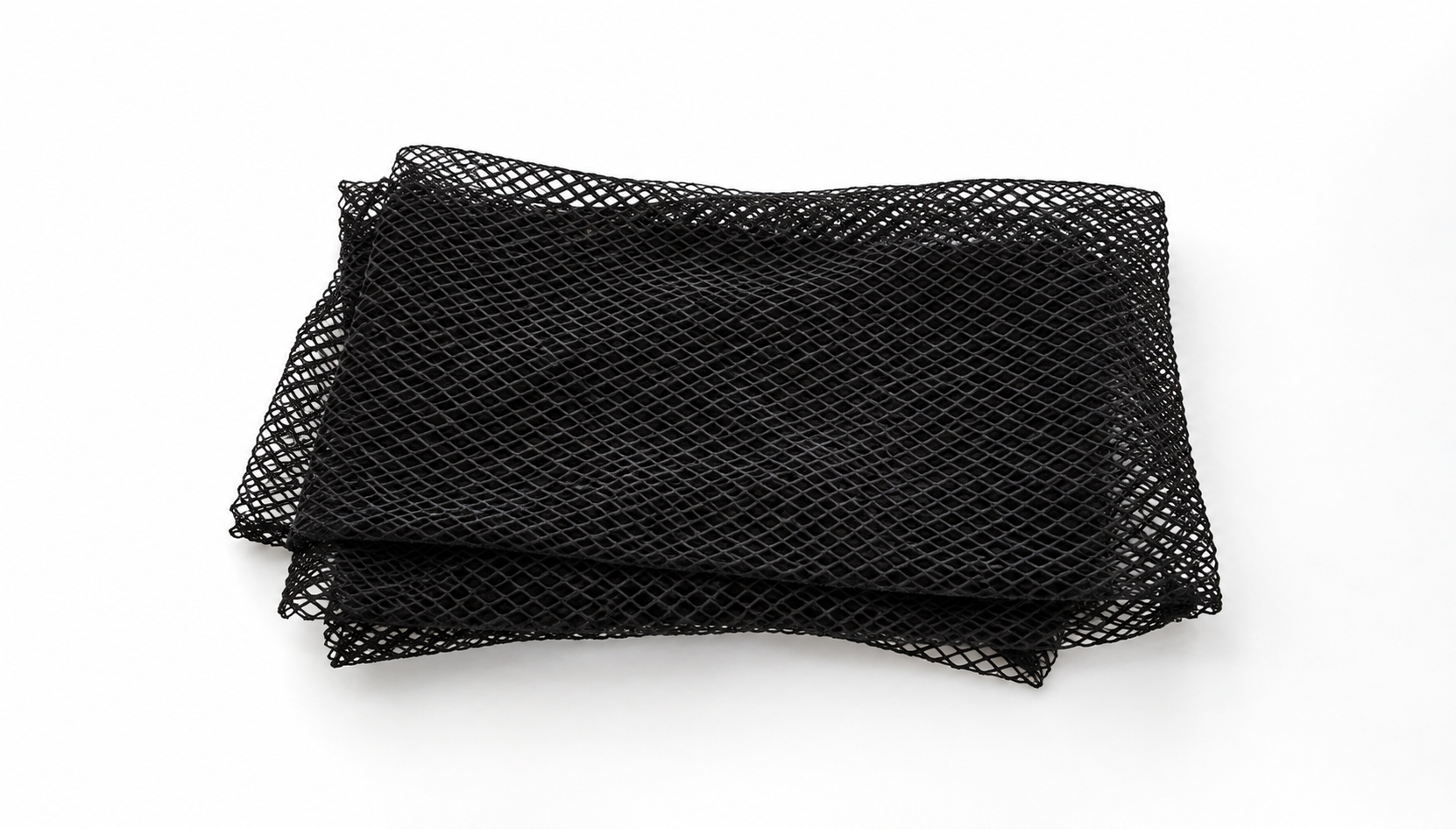
When you stretch them, they look like this:
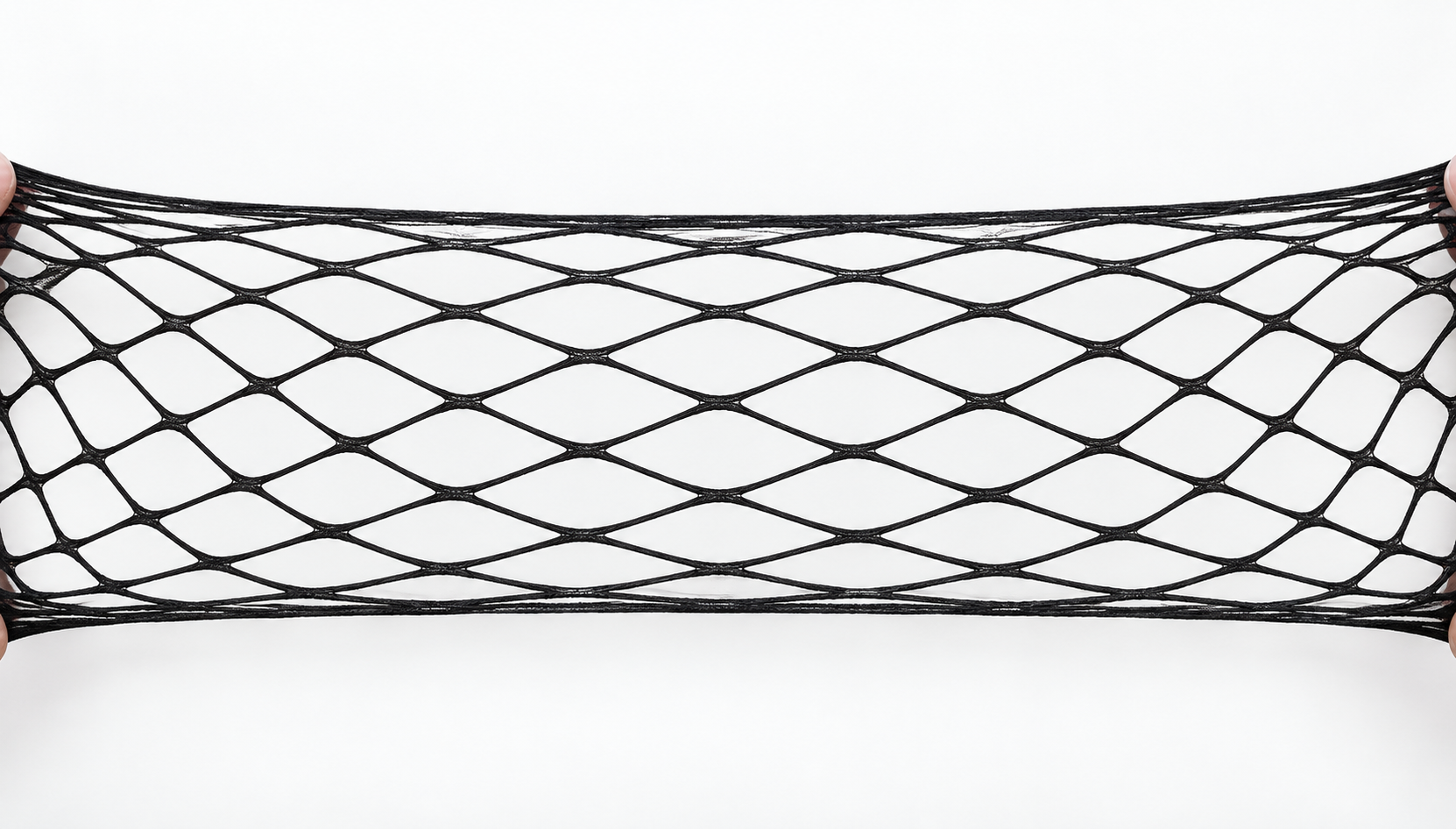
We can’t fill in the gaps because nothing exists to fill the gaps with.
Creative Studio Glossary
CREATIVE FILES
| FILE TYPES | EASY DEFINITION |
| .AEP | An editable animation project created in Adobe After Effects |
| .AI | An editable design file created in Adobe Illustrator |
| .CDR | A CorelDRAW design file; Creative Studio doesn't support this format |
| .EPS | A design file commonly created or opened in Adobe Illustrator |
| .FBX | A common 3D file format used to move models between different 3D programs |
| .FIG | An editable design file exported from Figma |
| .GIF | An image format that can display simple animation; .GIFs have limited colours and may produce larger, lower-quality files |
| .GLTF / .GLB | A 3D model format designed to load efficiently on websites and digital experiences |
| .JPG / .JPEG | A common image format without separate editable layers |
| .MOV | A finished video file; it's not the original editable animation project |
| .MP4 | A common finished video format; it doesn't contain separate editable layers |
| .OBJ | A common 3D model format containing an object’s shape; texture files may need to be supplied separately |
| A document file designed mainly for viewing and sharing; it may not preserve original layers, fonts, assets or effects | |
| .PNG | An image format that supports transparent backgrounds but doesn't contain the original editable design layers |
| .PSB | An Adobe Photoshop file used for very large or detailed layered designs |
| .PSD | An editable, layered design file created in Adobe Photoshop |
CREATIVE STUDIO TERMS
| TERM | EASY DEFINITION |
| 3D model | A digital version of an object that can be viewed or rotated from different angles |
| 3D modelling | The process of building the shape of a product or object in 3D software |
| 3D rendering | Turning a 3D model into a finished image or animation |
| AI disclosure | Text or an icon that tells the audience AI was used to create or change content |
| AI policy | A client’s rules explaining whether and how AI may be used for their brand |
| AI-assisted content | Content mainly created by a person, with AI used to help with certain parts |
| AI-generated content | Images, text, video or other content created partly or fully using AI |
| Animated banner | A digital banner that includes movement |
| Animation | Movement created from design elements, such as making text fade in, a product grow or a button pulse |
| Animation project file | The original editable file used to create an animation |
| Animator | A specialist who creates new or more advanced animated content |
| API | A connection that allows different systems to automatically exchange information |
| Aspect ratio | The relationship between an asset’s width and height; for example, 16:9 is a common video aspect ratio |
| Asset | Any file supplied for a project, such as a logo, image, video, font or product photograph |
| Banner dimensions | The width and height of a banner, normally measured in pixels |
| Big 6 agency | One of the world’s largest advertising and marketing agency groups; clients managed by these agencies are treated as Tier 1 |
| Bitrate | The amount of data used by video or audio; a higher bitrate can improve quality but also increases file size |
| Brief | The information Creative Studio needs to understand what must be created |
| Call to action (CTA) | The words telling the audience what to do next, such as “Shop Now” or “Learn More” |
| Click-through URL | The webpage opened when someone clicks or taps an advert |
| Client tier | A priority category based on the client’s strategic importance, size or relationship with Eskimi |
| Code | Instructions written by a developer that control how a digital creative looks, moves or responds |
| Colour banding | Visible lines or blocks between colours where a smooth colour change should appear |
| Commercial usage rights | Permission to use an image, font, video or other asset in advertising or business activity |
| Companion banner | A banner displayed alongside a video advert to support the message and provide another way to click |
| Compression | Reducing a file’s size; too much compression can lower its visual quality |
| Concept | An early creative idea showing the proposed direction; it is not the finished banner |
| Connected TV (CTV) | Television content watched through an internet-connected television or streaming device |
| Consolidated feedback | One complete list containing feedback from all client stakeholders |
| Creative | The advertisement or visual content shown to the audience |
| Creative format | The type of advert being created, such as a static banner, Rich Media banner or video advert |
| Creative Token | A unit of Creative Studio time allocated for approved proactive work without a confirmed production budget; it is not money |
| Crop | To remove parts from the outside edges of an image or video so it fits a different shape or size |
| Custom Rich Media | A specially designed interactive advert built for a particular campaign or idea |
| Demo | A working example showing how a proposed creative idea or interaction could function |
| Developer | A technical specialist who builds digital creatives and can add movement to supplied design elements using code |
| Dieline | A flat template showing the cuts, folds and panels of product packaging |
| Direct client | A client working with Eskimi directly rather than through an advertising agency |
| Dynamic ad | An advert that automatically changes some of its content using supplied data or rules |
| Editable | A file that can still be opened and changed |
| Exported file | A finished file created from the original working file; it usually no longer contains all the separate editable parts |
| File extension | The letters after a filename that identify its format, such as .PSD, .JPG or .MP4 |
| File format | The type of file and the software or purpose it is designed for |
| File size | The amount of digital storage a file uses, normally measured in KB or MB |
| Flattened image | An image in which all the separate design elements have been combined into one layer and can no longer be edited separately |
| Font file | A file containing a typeface used in the design; it allows Creative Studio to use the correct lettering |
| Footage | Video content supplied by a client, usually showing something that was filmed or already produced. |
| Forced Perspective (3D FP) | A creative format that uses perspective to make a 3D object appear to come out of or extend beyond the advertising space |
| Frame | One individual still image within an animation or video |
| Frame rate (FPS) | The number of frames shown every second; a higher frame rate normally creates smoother movement |
| Generative AI (GenAI) | AI technology that creates new content, such as images or text, from instructions provided by a person |
| Growth client | A client with genuine current growth or upselling potential |
| High Impact ad | A large, prominent or interactive advert designed to attract more attention than a standard banner |
| HTML5 banner | A web-based banner that can include animation, video or interaction while maintaining better quality than a .GIF |
| In-banner video | Video that plays inside a display banner |
| In-game ad | An advert placed inside a digital or mobile game |
| Insertion Order (IO) | The formal document confirming that a client has approved the campaign and its media budget |
| Intellectual property (IP) | Legally protected creations such as logos, artwork, products, characters and brand designs |
| Interactive creative | An advert the audience can actively use, such as by swiping, tapping, playing or selecting something |
| Layer | One separate part of a design, such as the logo, text, product or background |
| Layered file | A file in which the different design elements remain separate and can be edited individually |
| Lead time | The working time required to complete a project after the full brief and correct assets have been received |
| Linked asset | An image or other file used inside a design but stored separately from the main open file |
| Media investment | The amount a client plans to spend on running the advertising campaign |
| Minimum media investment | The lowest campaign spend required for a particular creative format so production costs can be supported |
| Mockup | A visual example showing how an idea might look. It is not necessarily a finished or technically working advert |
| Native ad | An advert designed to match the look and layout of the website or app where it appears |
| New client | A client submitting their first custom Rich Media brief to Creative Studio |
| Occasion Playbook | A reusable sales resource created around an event or occasion, such as Black Friday or Valentine’s Day |
| Open file | The original editable design file; it allows Creative Studio to access and change separate parts of the artwork |
| Pixel | A tiny square of colour that forms part of a digital image |
| Pixelation | Visible square pixels that appear when an image is too small, low quality or enlarged too much |
| Playback time | The point or period during a video or animation when something appears or happens |
| Proactive work | Creative work produced before a confirmed campaign exists, usually to support a pitch, upsell or client conversation |
| Product feed | A file or data source containing product information such as names, prices, images and availability |
| Production slot | Reserved time in the Creative Studio schedule for completing approved work |
| Prompt | The written instruction given to an AI tool to tell it what to create |
| Quality assurance (QA) | The final checks performed to confirm that a creative works correctly and meets the requirements |
| Raster image | An image made from pixels; it may become blurry or pixelated when enlarged |
| Reference image | An example used to explain the desired style, layout, mood or creative direction |
| Resize | To change the width and height of a creative or one of its elements |
| Resolution | The amount of visual detail in an image or video, usually based on its pixel dimensions |
| Responsive creative | A creative that adjusts its layout to fit different screen or advertising-space sizes |
| Revision round | One stage in which the client reviews the work and sends one consolidated set of changes |
| Rewarded video | A video advert that gives the user an in-app or in-game reward after they watch it |
| Rich Media | A digital advert that can include animation, video, sound or interactive features |
| Safe area | The part of a design where important content can be placed without being cropped or covered |
| Scope | The agreed work, features and deliverables included in a project |
| Scope change | A request that adds or changes important functionality, structure or deliverables after the scope was agreed |
| Source file | Another name for an open or working file |
| Static asset | A visual element that does not already move, such as a logo, product image or background |
| Static banner | A banner made from one still image with no animation |
| Static design | A design made from still visual elements rather than existing video footage; it can still be animated |
| Sticky ad | An advert that remains visible in a fixed position while the user scrolls |
| Storyboard | A sequence of images showing what will happen during an animation or interactive experience |
| Templated Rich Media | An interactive advert created using an existing Creative Studio format or structure |
| Texture | An image applied to a 3D model to give it colour and surface detail |
| Tier 1 client | A client connected to a Big 6 agency, Simply Black in Africa or a top global brand |
| Tier 2 client | A major local or regional client, or a large independent agency |
| Tier 3 client | A smaller agency or direct client that does not fall into another priority tier |
| Tier 7 client | A gambling or performance client managed through Roigen |
| Token allocation | The number of Creative Tokens assigned to a region or team for a quarter |
| Upsell | Encouraging an existing client to purchase a larger campaign, higher-value format or additional service |
| Usage guidelines | Instructions explaining how an asset, disclosure, logo or brand element must be displayed |
| UV mapping / UV wrapping | The process of showing 3D software where each part of a flat texture should appear on a 3D model |
| VAST video | A video advert supplied with standard technical instructions that tell an advertising platform how to play and track it |
| Vector artwork | Artwork made from editable shapes and paths; it can be resized without becoming pixelated |
| Vertical Playbook | A reusable sales resource created for a particular industry, such as finance, retail or automotive. |
| Video | In this manual, recorded footage supplied by the client; creative Studio can use or adjust approved elements, but does not create replacement footage |
| Working file | Another name for the original editable file in which the design or animation was created |
*Read more company-wide terminology here.