**MINIMUM MEDIA INVESTMENT: $10,000**
**Add it to your presentation using our Pitch-ready slides [here](https://app.pitch.com/app/presentation/2e8f851c-3a9e-4cac-81cb-06f3b3d51c87/e2df45dd-d8cd-4e44-a85f-3669842e0b51 "Break Out Ads Pitch Slides").**
**See Creative Requirements [here](https://manual.eskimi.com/books/eskimi-creative-studio-101/page/3d-and-high-impact-format-ts-cs "Creative Requirements").**
**Requirement: SSP availability is strictly mandatory for this implementation. Creative planning and discussions will remain on hold until SSP is supported in the market.**
**SSP CAMPAIGN WORKFLOW**| **STEPS** | **CLARIFICATION** | **OWNERSHIP** |
| **1. Make a deal with the client** | - | BDM |
| **2. Receive a brief from the client** | - | AM / BDM *(Depends on the market and client, based on the internal agreement between the AM and BDM teams)* |
| **3. Check the availability of placements in the Eskimi SSP inventory** | **Scenario 1:** If client wants placement on specific sites with whom we didn't make deal yet: - Inform the client that this will postpone the campaign start, as we need to make deals with the named publishers - Find the publisher contacts and introduce the publisher to the Eskimi SSP team, together with information about the types of creative that will be potentially launched **Scenario 2:** If no specific sites mentioned or publishers are exist in our Eskimi SSP inventory: - Check with the SSP team whether the existing publishers can commit | AM / BDM *(Depends on the market and client, based on the internal agreement between the AM and BDM teams)* |
| **4. Create the placement and send the tag to the publisher** | - This is mandatory only when a new publisher or placement must be created - In all other cases, confirm with the SSP team whether the previously shared pixels are still valid on the publisher side | SSP team |
| **5. Prepare the campaign media plan** | - Once the placement is confirmed by the SSP team, the AM must prepare the media plan - Estimates can be based on information from the [SSP spreadsheet](https://docs.google.com/spreadsheets/d/1pMGPoAvQxSTBYn-M4zDM7_6kbr-_qHVNjS6Vr9LFXes/edit?usp=sharing "SSP spreadsheet") and historical campaign results | AM |
| **6. Develop creatives** | The process depends on the creative type: **Scenario 1:** static banners or templated Rich Media: - AdOps receives the images from the client, AM or BDM, and uploads them to the system - AdOps shares the preview with the client for confirmation **Scenario 2:** Custom Rich Media or high-impact ads: - The AM or BDM collects the client's creative workflow expectations, and [all materials needed for development](https://manual.eskimi.com/books/eskimi-creative-studio-101/page/what-are-open-files "What are Open Files") - The AM or BDM [sends the collected materials and scenario to the Creative team](https://eskimicreativestudio.fillout.com/brief "Creative Studio briefing form") - The Creative team prepares the creative, ensures all requested event measurement is included, and confirms that it works correctly in the actual creative environment at [display.eskimi-creatives.com](http://display.eskimi-creatives.com/ "http://display.eskimi-creatives.com/") - The Creative team provides the preview link to the AM or BDM, who sends it to the client for confirmation | **Scenario 1:** AdOps **Scenario 2:** AM / Creative team |
| **7. Confirm creatives with the publisher (optional; depends on the agreement with the publisher)** | For some high-impact campaigns: - The creative preview must also be shared with the publisher - Some publishers approve the campaign only after seeing the actual creative - This also allows the team to confirm that the banner displays correctly on the live site without any issues When the creative is ready: - The Creative team provides the preview link to AdOps and the SSP team - AdOps sets up a test campaign for the publisher - The SSP team requests test traffic from the publisher and obtains confirmation to run the creative - When the test campaign is live, the Creative team checks that the banner looks and works as expected in the live environment | AdOps / SSP team / Creative team *(Responsibilities are described in the clarification column)* |
| **8. Set up the campaign** | Once the media plan and creative preview have final approval, the campaign is ready for setup | AdOps |
| **9. AdOps informs the SSP Operations Specialist about the campaign** | Request traffic in the Slack channel [\#ssp\_adops](https://eskimi.slack.com/archives/CHWSS89UL "#ssp_adops"), or in the channel for the specific market, EG: [\#ssp\_croatia](https://eskimi.slack.com/archives/C04AZHCHX9C "#supply-adriatic") or [\#ssp\_greece](https://eskimi.slack.com/archives/C02D9KJFUKZ "#supply-gr") - include: - Campaign name - Country - Creative type, such as standard sizes, floating or takeover - Campaign duration - Required publishers, if the client supplied a list or you want to choose the publishers - Required daily impressions Publisher availability must be checked and confirmed with the SSP team before this step *(See Step 3)* | AdOps |
| **10. Check traffic and delivery** | - During the live campaign, AdOps monitors delivery in the DSP report and ensures the campaign receives enough traffic to meet the client's needs - The SSP team controls supply and ensures the campaign fill rate meets the publisher's needs and agreement | AdOps / SSP team |
| **11. Request screenshots from all publishers** | - Campaign screenshots can usually be requested directly from the publisher - Screenshots may be requested according to the client's needs and depending on who manages communication with the publisher - Usually, AdOps communicates with the client and passes the request to the SSP team, which manages communication with the publisher | AdOps / SSP team |
| **12. Campaign ends** | - Reporting - Invoicing This follows the usual process for any other Eskimi DSP campaign | AdOps |
**NOTE: Inform the SSP team about the traffic you will need as far in advance as possible. This allows time for traffic ordering, implementation and optimisation where required. Weekends and national holidays may delay traffic opening by SSP partners.**
**NOTE: Allow up to 24 hours for creative testing after the creative has been approved. This time is needed to confirm that the creative performs correctly and that all required metrics are measured accurately.**
--- ##### **SSP CAMPAIGN SETUP FOR ADOPS** Eskimi SSP campaigns are set up differently from standard Eskimi DSP campaigns. Follow these steps: 1. Start with the usual campaign setup and creative upload 2. Check SSP publisher prices in the online document: [https://bit.ly/384waVQ](https://bit.ly/384waVQ) - You must have access from the SSP team to open this file - The campaign bid after margin must not be lower than the amount listed in the document 3. Do not select targeting options for SSP campaigns unless the campaign is running too quickly or the client does not allow targeting to be removed; do not add impression capping or auto-optimisation 4. Create a package containing the required domains - If the site list is large, one common package may be used - If you need to control delivery separately for each publisher, create a separate package for each publisher - Find site IDs here: [https://stats.eskimi.com/admin/adops/AppsSitesLookup/](https://stats.eskimi.com/admin/adops/AppsSitesLookup/) - Select IDs for the required exchange and add them to the package - In some cases, **placement\_id** must be added instead of **site\_id** - This is used when several campaigns run with one publisher at the same time, helping to keep trackers organised and control delivery by campaign or placement - The SSP team will confirm which ID is required 5. If delivery is required on specific subdomains or site sections: - Prepare a keyword list containing the section names used by the subdomain, such as lifestyle or sports - In targeting settings, select **Context options**, then **Find in URL** - Under **Match options**, choose **Exact word type match** - Upload the keyword list in CSV format - Set Default to **No** and Status to **Enabled** - Assign the targeting to the relevant account user 6. If the publisher provides traffic through a PMP Private Marketplace deal, AdOps must contact the publisher and request: - Buyer ID - Brand - Country - Creative type and sizes - Campaign duration - Position and targeting, if required 7. After the publisher confirms the setup and provides the Deal ID, complete the deal setup in the DSP - Select the exchange where the deal was created instead of the default Eskimi exchanges - Use deal targeting in a separate campaign split where possible to improve performance control - Select **Allow multiple bids** for all SSP campaigns, unless the client specifically requests that ads are not shown this way 8. Select the correct exchange: - **Eskimi standard** for standard banners - **Eskimi floating** for floating banners - **Eskimi takeover** for takeover banners - **GroupM or GroupM floating** for campaigns running for WPP Kenya 9. Check the CPM for every publisher added to the campaign 10. Add and check the margin. The buying CPM must not be lower than the publisher CPM 11. When setup is complete, use the [following form](https://docs.google.com/forms/d/e/1FAIpQLSdLlGb3tF5jLTjI4JuSuw9zC_JLXGUOtr8SiAAYHnel0drFvg/viewform "SSP campaign form") to check whether anything has been missed --- ##### **SSP TEST CAMPAIGN SETUP FOR CREATIVE TEAM** An Eskimi SSP test campaign is set up in a similar way to a standard SSP campaign: 1. Upload the creatives 2. Create the package for the site or placement where the creative will be tested - Go to Tools > Packages > New package - Enter the package name - Select the package type and country - Upload a CSV file containing comma-separated values - Before uploading, confirm that you copied the correct publisher or placement ID for the creative type, such as takeover or floating - EG: To test a floating ad in Lithuania, copy the floating-ad publisher or placement ID, place it in Excel, save it as a CSV file, and upload it 3. Complete the **campaign setup page** as follows: - **Creative type:** Banner - **Campaign type:** Display Ads - **Name:** Enter the name of the test - **Campaign goal:** Awareness - **Primary campaign objective:** CPM, then enter the bid value - **Pre-optimisation based on historical placement stats:** Unselected - **Impression capping:** Removed - **Date:** Select the test date - **Total budget:** Enter a small test budget, for example USD 10 - **Daily Budget Pacing:** Spread daily budget ASAP - **Bid (CPM):** Enter the same value used for the primary campaign objective - **Country:** Select the relevant country - **Deals and packages:** Confirm that Eskimi floating or Eskimi takeover is selected, depending on the test - **Package:** Select the test package (test sites and placements for Lithuania and Latvia may be found in the pinned messages in [\#ssp\_lt](https://eskimi.slack.com/archives/C05HRLE1SSJ "#ssp_lt") and [\#ssp\_lv](https://eskimi.slack.com/archives/C05HRLE1SSJ "#ssp_lv")) - For a site package: - Select Include Only - Disable impression capping - Disable auto optimisation - Disable budget pacing for this package - Disable App/site category exclusion - For a placement ID package, select Include Only - **Click URL:** [https://www.eskimi.com/campaigns](https://www.eskimi.com/campaigns) - **Ad domain:** eskimi.com - **Selected creative sets:** Select the creatives - Select **Publish** The campaign will now have Pending status. The final step is to approve it: - Go to Approve page → **Ad Exchanges** - Scroll to the end and select **E-SSP Partners** - Select the exchange that matches the banner type: **Floating or Takeover** *\*Download Creative Requirements as a PDF [here](https://drive.google.com/file/d/1hptK39-5XKttg036HUnuPxduDOIIgFBW/view?usp=sharing "SSP Campaign Workflow and Campaign Setup").***Add it to your presentation using our Pitch-ready slides [here](https://app.pitch.com/app/presentation/2e8f851c-3a9e-4cac-81cb-06f3b3d51c87/e2df45dd-d8cd-4e44-a85f-3669842e0b51 "Break Out Ads Pitch Slides").**
**One banner automatically selects the creative version most relevant to the page.**
##### **💬 SIMPLE CLIENT EXPLANATION** > *Contextual Creative connects each impression with the most relevant pre-approved message available for that page. It allows one banner to adapt its visual or message according to the topic of the page. We create several approved versions in advance and connect each one to relevant keywords. When contextual keyword data is available, the banner automatically displays the best-matching version. If there is no match, it displays the approved default creative.* > > - **One campaign idea, multiple relevant versions** > - **One creative package, multiple contexts** > - **Built for different content moments** > - **Make every placement more relevant with Contextual Creative****Add it to your presentation using our Pitch-ready slides [here](https://app.pitch.com/app/presentation/2e8f851c-3a9e-4cac-81cb-06f3b3d51c87/816cdd16-ebd1-4b4a-a7ac-84262b145bb6 "Contextual Creative Pitch Slides").**
**MINIMUM MEDIA INVESTMENT: $10,000**
**Need more detail? Read the explanations below👇** --- #### **🧠 WHAT DOES “CONTEXTUAL” MEAN?** Contextual advertising uses the subject of the page to determine which advert or creative version to show. For example:| **PAGE CONTENT** | **CREATIVE SHOWN** |
|---|---|
| **Recipes, restaurants or food** | Food creative |
| **Football results or sports news** | Football creative |
| **Artists, concerts or playlists** | Music creative |
| **No matching topic** | Default creative |
| **IT IS** | **IT IS NOT** |
|---|---|
| One master banner containing several approved creative versions | A new banner generated live for every page |
| Based on the topic of the page | Based on the identity of the user |
| Controlled by predefined keyword lists | AI making independent creative decisions |
| Designed to improve contextual relevance | A guarantee that keywords will be available on every impression |
| Supported by a default fallback creative | Dependent on a match for the advert to display |
**The banner does not independently scan the page. It uses contextual keywords supplied by the advertising platform when they are available.**
--- ##### **🎯 WHAT IS IT GOOD FOR?** Dynamic Contextual Creative is useful when one campaign can connect naturally with several content categories. It can help advertisers: - Make one campaign relevant across different page topics - Adapt the visual message without creating separate campaign setups - Match products or messages to suitable content environments - Reduce the repetition of showing one visual everywhere - Test different creative approaches within one campaign - Scale a central campaign idea across multiple interests - Maintain a relevant fallback when no context matches **CONTEXT-LED CREATIVE SELECTION** Unlike standard creative rotation, which usually selects ads according to delivery rules or performance, Contextual Creative selects an approved version based on the content of the page where the ad appears.| **STANDARD CREATIVE OPTIMISATION** | **CONTEXTUAL CREATIVE** |
| Selects or prioritises creatives using rotation rules or performance data | Selects a creative using the content of the current page |
| May learn which version performs better overall | Checks whether available page keywords match a predefined creative version |
| Does not necessarily consider what the person is currently reading | Connects the message to the surrounding content |
| Usually requires separate uploaded creatives | Can hold the approved contextual versions inside one creative package |
| **CATEGORY** | **EXAMPLE KEYWORDS** |
|---|---|
| **Food** | Recipe, chicken, vegan, crispy, restaurant |
| **Football** | FIFA, match, striker, goalkeeper, Premier League |
| **Music** | Playlist, concert, festival, remix, Afrobeats |
**A suitable creative is always available, even when contextual keyword data is not.**
| **ELEMENT** | **WHAT CAN CHANGE** |
|---|---|
| Brand identity | **NO** |
| Main campaign idea | **NO** |
| Product | **YES** |
| Background | **YES** |
| Supporting images | **YES** |
| Headline | **YES** |
| Animation details | **YES** |
| CTA | **YES** |
| Legal copy | **NO** |
**The AI Mockup Tool helps you quickly create working examples of Eskimi creative formats for pitches, proactive proposals and client conversations.**
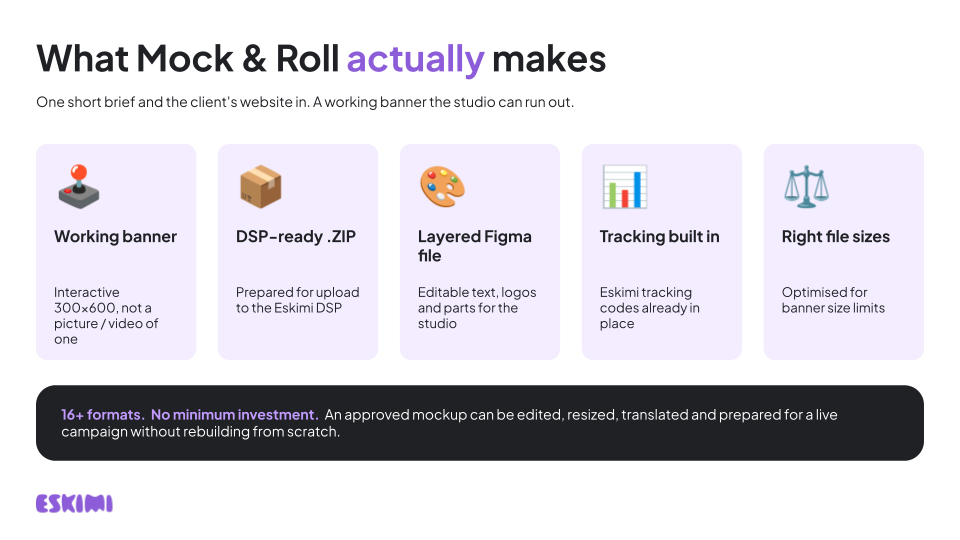
Unlike a previous AI-generated image or video mockups, this tool creates: - A working, interactive 300 x 600px banner - A .ZIP file prepared for upload to the Eskimi DSP - An editable, layered Figma file - Built-in Eskimi tracking codes - Files optimised for banner size limits This means an approved mockup can be edited, resized, translated and prepared for a live campaign without rebuilding everything from the beginning.**The tool currently includes 25+ new and popular Eskimi rich media banner formats. Ask the tool to show you the available formats before you begin.**
**NO MINIMUM INVESTMENT.**
**[](https://manual.eskimi.com/uploads/images/gallery/2026-10/BceNP7gHzq339NLx-mock-roll-built-to-run.png)**| **IF YOU NEED TO…** | **THE TOOL CAN HELP YOU…** |
|---|---|
| **Show a client how a format could look** | Create a visual, interactive example |
| **Support a proactive pitch** | Build a branded mockup quickly |
| **Explain an idea that is difficult to describe** | Show the proposed layout or interaction |
| **Confirm that you understood a brief** | Create an example for the client to review |
| **Suggest a creative refresh** | Show the client a possible new direction |
| **Prepare an approved idea for production** | Supply editable Figma files to Creative Studio |
**🔗 [Mock & Roll Skill link share](https://claude.ai/customize/skills/discover/plugin_01W83Gx1qVkPd8tjEJoxLGDr "Mock & Roll Skill link share")**
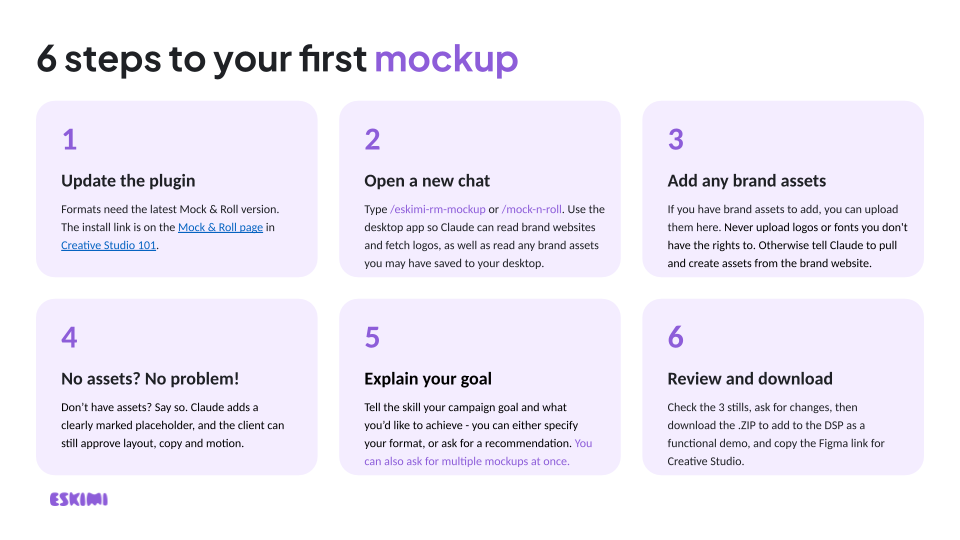
**STEP 2: INSTALL AND TURN IT ON** - Click **Install** - Items shared with you may arrive switched off. If you see a toggle, switch it on **STEP 3: START A NEW CHAT AND OPEN THE TOOL** - Open a new Claude chat. - Open a new Claude chat, type **/** and select **eskimi-rm-mockup** - The tool will open with its first question and guide you from there ###### **IF THE LINK DOESN'T WORK**| **PROBLEM** | **WHAT TO DO** |
|---|---|
| **The link opens a login page** | Log in with your Eskimi account, then open the link again |
| **"This item isn't available"** | You are logged into a personal Claude account rather than your Eskimi one. Switch accounts and try again |
| **The page loads but shows nothing** | Open **Customise** in the left sidebar, go to **Plugins**, and look under **Shared with you** |
| **You find it but it looks greyed out** | Shared items stay switched off until you enable them. Switch it on |
| **It is installed but does not appear when you type "/"** | Start a new chat. It will not appear in chats you opened before installing it |
| **Still nothing** | Use Option B below, or contact Creative Studio |
**A manually installed version does not update.** When Creative Studio adds formats or fixes problems, your copy stays as it is. You will need to download the new file and repeat these steps each time. Switch to Option A as soon as it works for you.
**STEP 1: DOWNLOAD THE SKILL FILE**🔗 [**Mock & Roll Skill V1**](https://drive.google.com/file/d/1eWYsGHe8nW1P0R6qHOMYNM5DyS7PTuIN/view?usp=sharing "Mock & Roll Skill V1")
- Save it somewhere you can find it - Do not unzip it **STEP 2: OPEN THE SKILLS PAGE** - In Claude, click **Customize** in the left sidebar, then open the **Skills** tab **STEP 3: UPLOAD THE FILE** - Click **Add** in the top right, then select **Upload skill** - Choose the file you downloaded **STEP 4: CHECK IT IS ON** - The tool will appear in your Skills list - If there is a toggle, make sure it is switched on **STEP 5: START A NEW CHAT AND OPEN THE TOOL** - Open a new Claude chat, type **/** and select **eskimi-rm-mockup****You do not need to write a long prompt. A short, clear description and the correct website or assets are normally more useful than several pages of detailed instructions.**
**Never assume that an AI-generated result is correct simply because it looks finished.**
**[](https://manual.eskimi.com/uploads/images/gallery/2026-10/wy8x5vHgDFWrQ7Jk-mock-roll-built-to-run-2.png)****If the client approves the mockup but requests changes, provide Creative Studio with the Figma link.**
--- ##### **3.** **PREVIEW** The preview lets you test how the banner looks and behaves on the DSP before it's shared or uploaded. [You can upload it to the DSP as usual.](https://manual.eskimi.com/books/javascript/page/javascript-creatives-html5 "How to upload ZIP's to the DSP") Test every interaction. Do not rely only on a still screenshot. [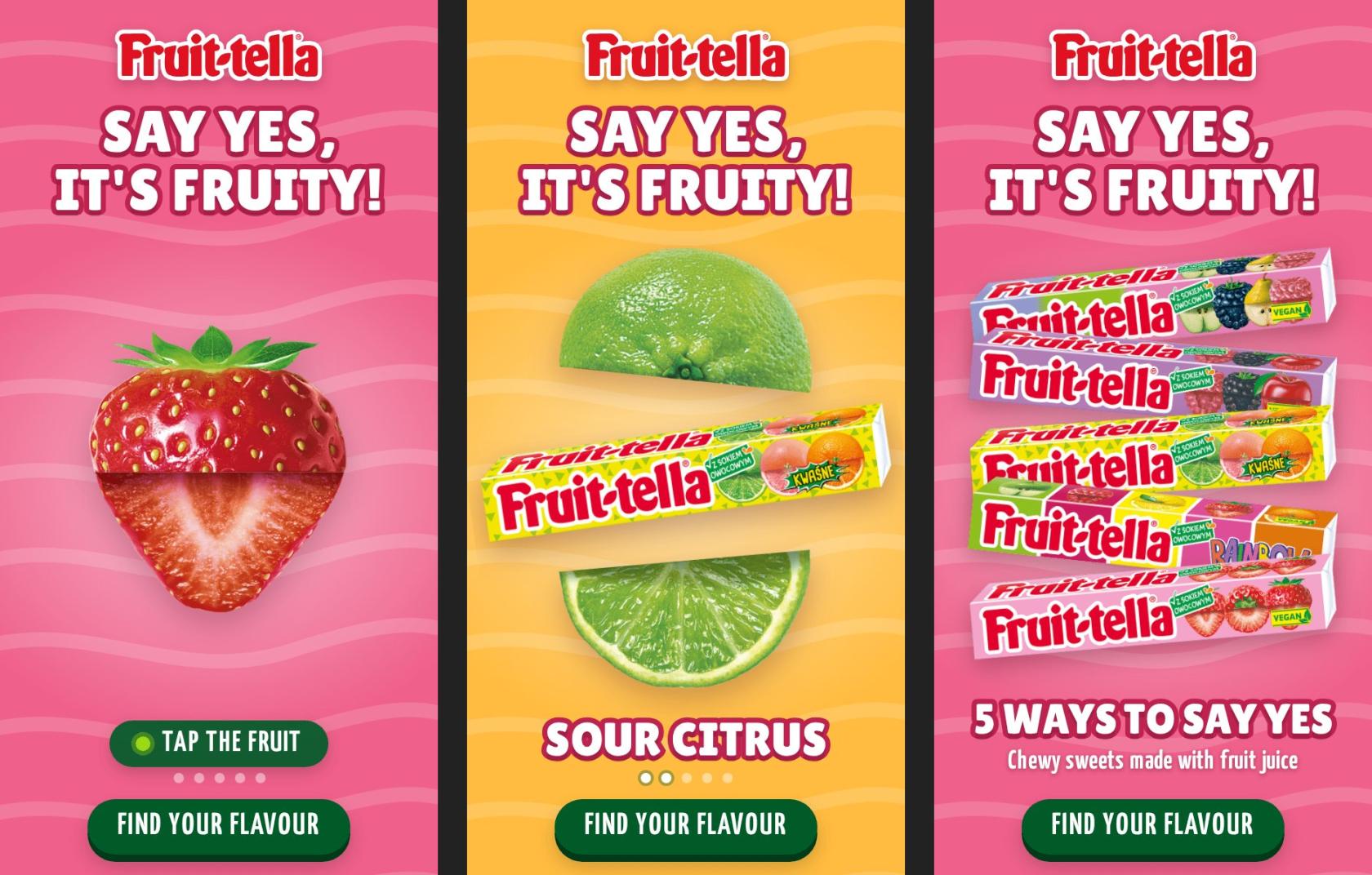](https://dsp.eskimi.com/preview/creative-set/73ltktns "Fruit-tella mockup") [*\*See all Fruit-tella interactive mockups here.*](https://dsp.eskimi.com/preview/creative-set/73ltktns "Fruit-tella interactive mockups")**Use the tool to make ideas easier to see, understand and approve. It supports the creative process - it does not replace the people, judgement and approvals required to deliver a successful campaign.**
The AI Mockup Tool is an optional resource. It does not mean that the sales team must become designers or develop creative ideas for every brief. If the client needs original creative thinking, strategic campaign ideas or expert recommendations, use the appropriate Creative Studio support: - Speak to a Creative Project Manager for initial guidance - Use a Creative Token for proactive concepts or demos - Request Creative Strategy support for qualifying opportunities - Submit a full brief when Creative Studio production is required [*\*Read about how to get proactive creative support.*](https://manual.eskimi.com/books/eskimi-creative-studio-101/page/how-creative-studio-can-help-brainstorm-your-idea "How to get proactive creative support")**The tool helps you communicate or demonstrate an idea. It does not replace creative strategy or professional creative judgement.**
**[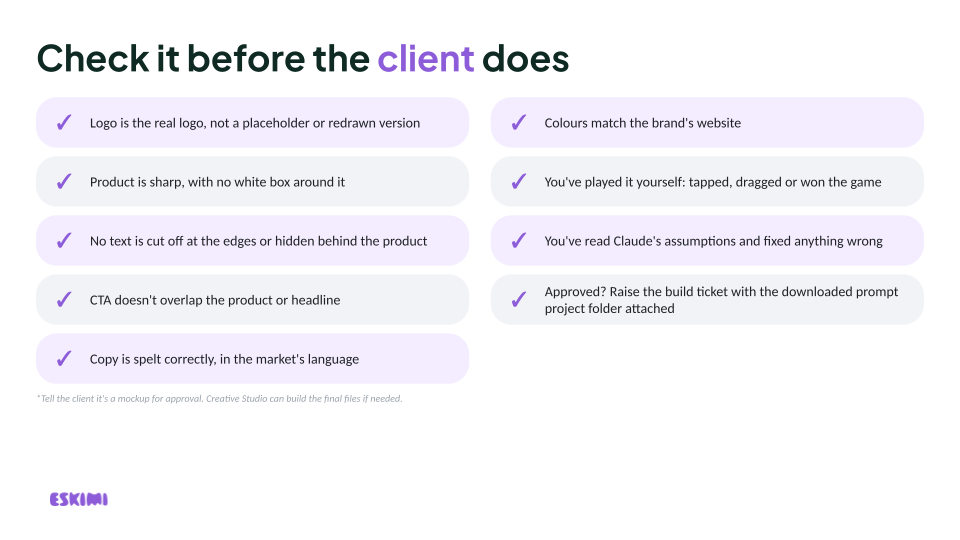](https://manual.eskimi.com/uploads/images/gallery/2026-10/NUEgmEBdiPYnYUu5-mock-roll-built-to-run-4.png)****Now, the Event Checker shows every event the moment it fires, so anyone can check a banner in a couple of minutes 🙌**
--- ##### **🛠️ HOW TO USE IT** - Open [the tool link](https://eskimi-creatives.com/creative-development/tools/event-checker/ "Event checker"). - Paste one or more Eskimi preview links into the box. To check several banners side by side, paste one link per line. Supported links: - [dsp.eskimi.com/preview/creative-set/ ](https://manual.eskimi.com/dsp.eskimi.com/preview/creative-set/ "dsp.eskimi.com/preview/creative-set/ ") - [dsp.eskimi.com/preview/campaign/](https://manual.eskimi.com/dsp.eskimi.com/preview/campaign/ "dsp.eskimi.com/preview/campaign/") - [dsp.eskimi.com/campaignPreview/](https://manual.eskimi.com/dsp.eskimi.com/campaignPreview/ "dsp.eskimi.com/campaignPreview/") - [dsp.eskimi.com/adsPreview/](https://manual.eskimi.com/dsp.eskimi.com/campaignPreview/ "dsp.eskimi.com/campaignPreview/") - Each banner plays live on screen. - Interact with the banner as a user would: **hover, tap, swipe, play the video, click**. On a laptop, use the **Simulate** buttons to mimic mobile actions. - Every signal pops up as an alert the moment it fires. - Watch the **Required Events Checklist** for each banner. The progress ring turns **green** once every required event has fired: - **tracker (`x-rm-alias`)** - **Main** - **Seen\_All** - **Mouse\_Over** - **Touch** - *\*The checklist can be edited if a specific format needs different events* - Every event is caught: - **Engagement events** - **The tracker** - **Video events (start → quartiles → complete)** - **Click-throughs** --- ##### **✋ ALSO HANDY** - **Error warnings:** Flags problems reported by the banner itself (**JS errors** and **"console.error")** like a **missing ticket ID** or **tracker** ⚡️ - **Live alerts:** On-screen alerts, a sound, optional desktop notifications, and an unread count in the browser tab 🔔 - **Live log:** a running list of every event, filterable by **Events, Video, Clicks or Errors**, with the full pixel URL for each 📊 - **CSV export:** download the log as a spreadsheet 📄 - **Simulate buttons:** **Hover, Touch, Swipe and Click,** so you can test mobile behaviour without a phone 👆 - **Mobile friendly:** works on phones, and swipe banners also work in Chrome’s mobile preview mode 📱 - **Dark mode** 🌑 --- ##### **✅ GOOD TO KNOW** - **Testing is safe:** Pixels fire in **test mode (`test=1`)**, the same as the official preview, so they won’t affect real campaign numbers - **Clicks don’t open the advertiser’s website:** They’re logged, but no new tab opens unless you switch on “Open clicks” - **Shortcut link:** add `?url=` followed by a preview link to the end of the tool link, and it opens with that banner already loaded: - EG: **?url=<preview-link>** - Useful for sending a ready-to-check link to someone else ---