Banner **samples** can be found [HERE](https://manual.eskimi.com/books/additional-creative-formats/page/static-banners-standard-display "Static Banners (standard display)") as well.
**Steps to follow:** Log in to your DSP account > Go to "***Creative Sets***" > on the new page click "***Add creative set***". [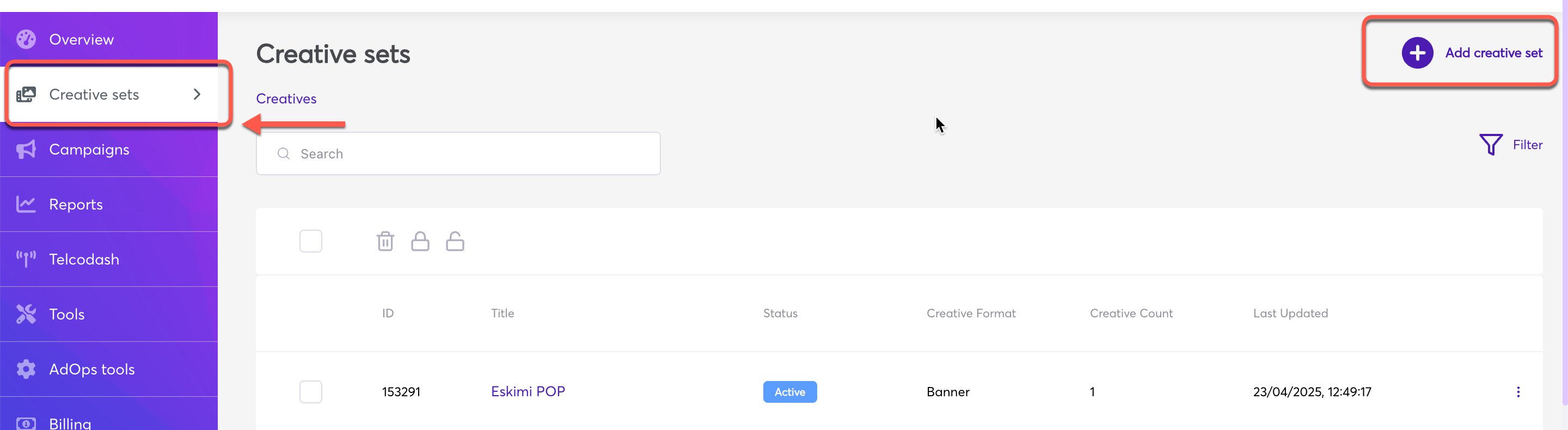](https://manual.eskimi.com/uploads/images/gallery/2025-04/rECBhmG6brP3woUG-1.png) Under **"*Creative set title*"** set the name > Select "***Creative Format***" and "***Banner Format***" > Click "***Save creative set***". [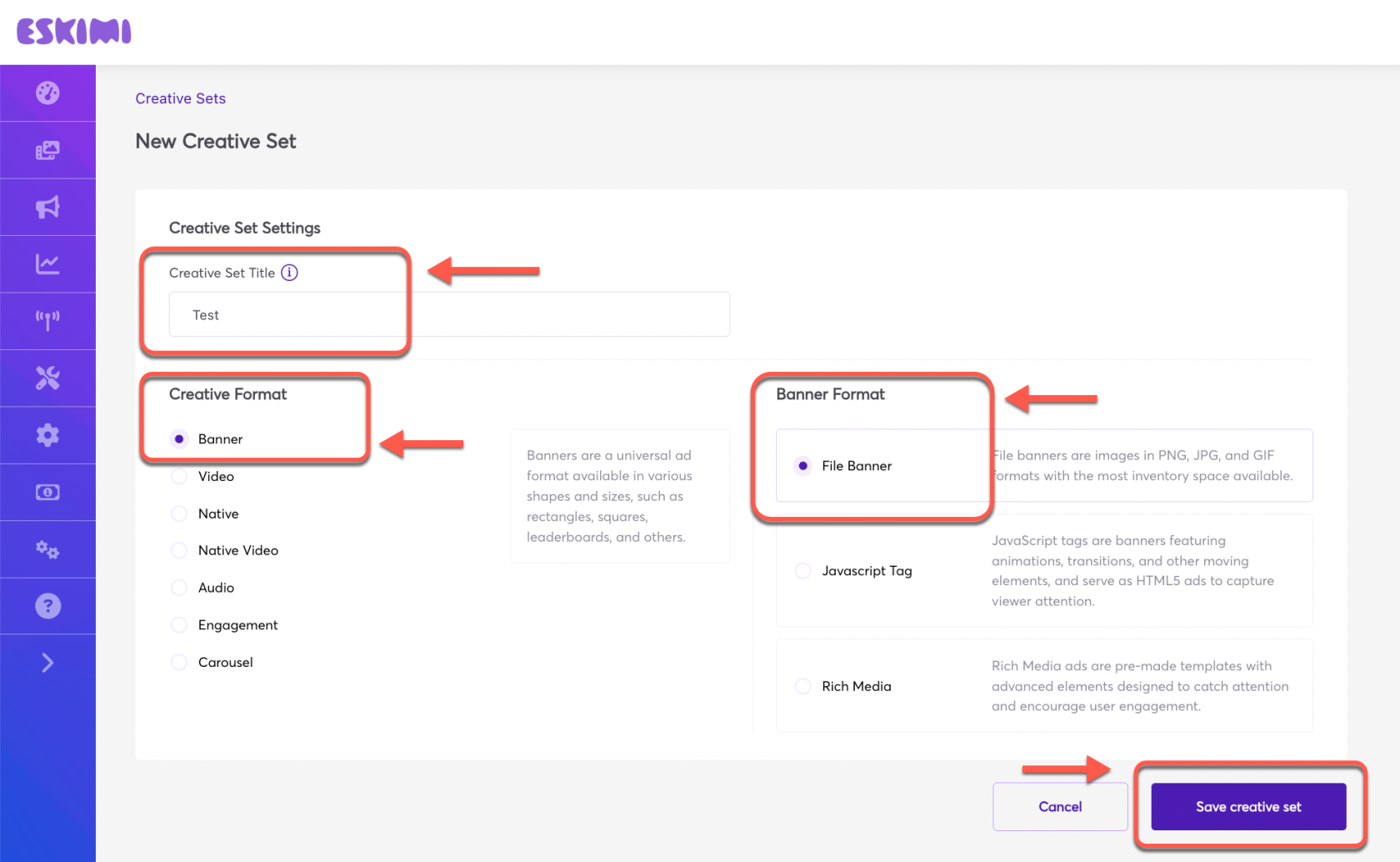](https://manual.eskimi.com/uploads/images/gallery/2025-04/IGHqVexY2KQXdndA-2.png) **Uploading Banner Creatives:** - **File Banners** - These are simple static images that can be uploaded from your computer. The specifications and requirements are shared above at the beginning of this article. - **Javascript Tag** - These are HTML format banners. Note that these ad servers must support https, comply with ad exchange policies, and technical requirements. Example: [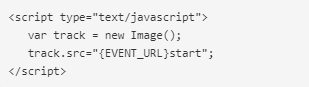](https://manual.eskimi.com/uploads/images/gallery/2021-01/image-1610548349196.png) - **Rich Media** - This are animated creatives. Find more about Rich Media creatives and how to create them "[**Here**](https://manual.eskimi.com/books/creatives/page/creating-standard-rich-media-in-eskimi-dsp-rich-media-builder-guide "Creating Standard Rich Media in Eskimi DSP (Rich Media Builder Guide)")" in the article. After selecting and uploading the desired creative format / creatives, click "Save" and and the Creative set will be created which can be selected later while setting up the campaign. --- ##### **Video Ads:** **You can find the requirements for Video Ads here: [Video ad formats](https://manual.eskimi.com/books/uploading-video-ads-and-their-requirements/page/what-are-video-ads-formats-and-what-do-i-see-in-report "What are video ads formats and what do I see in report?")** **Steps to follow:** Log in to your DSP account > Go to "***Creative Sets***" > on the new page click "***Add creative set***". [](https://manual.eskimi.com/uploads/images/gallery/2025-04/rECBhmG6brP3woUG-1.png) Under **"*Creative set title*"** set the name > Select "***Creative Format***" and "***Video format***" from the 04 provided options > Click "***Save creative set***". [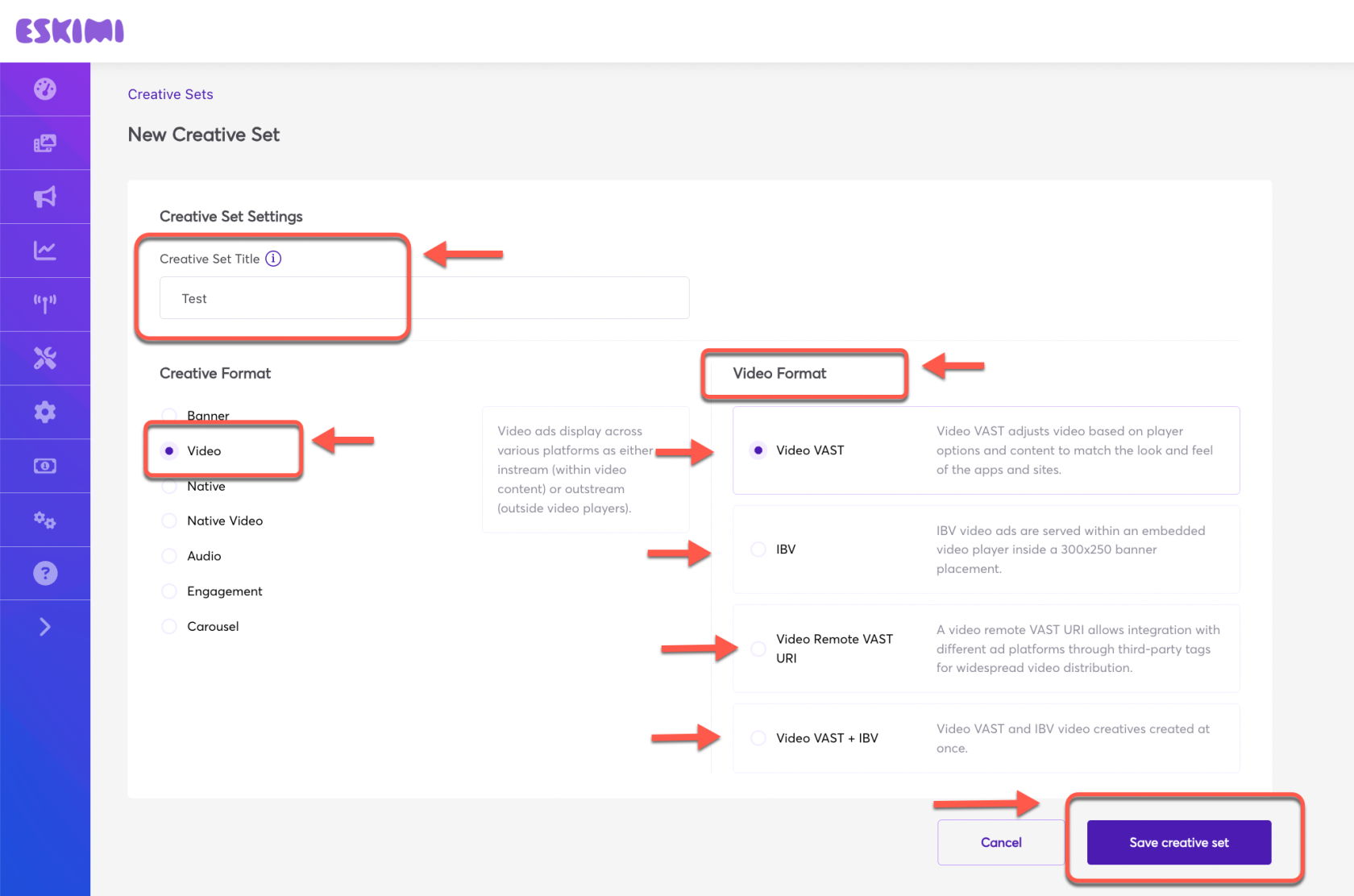](https://manual.eskimi.com/uploads/images/gallery/2025-04/HlswDGhzIJZEAWyO-3.png) If you select "***Video Vast***" or "***IBV***" or "***Video Vast + IBV***", the interface will take you to the next video file upload page. Now give it a name under "***Title***" > Click "***Choose files***" and upload the video files from your computer > and click "***Save***". The creative set will be saved. [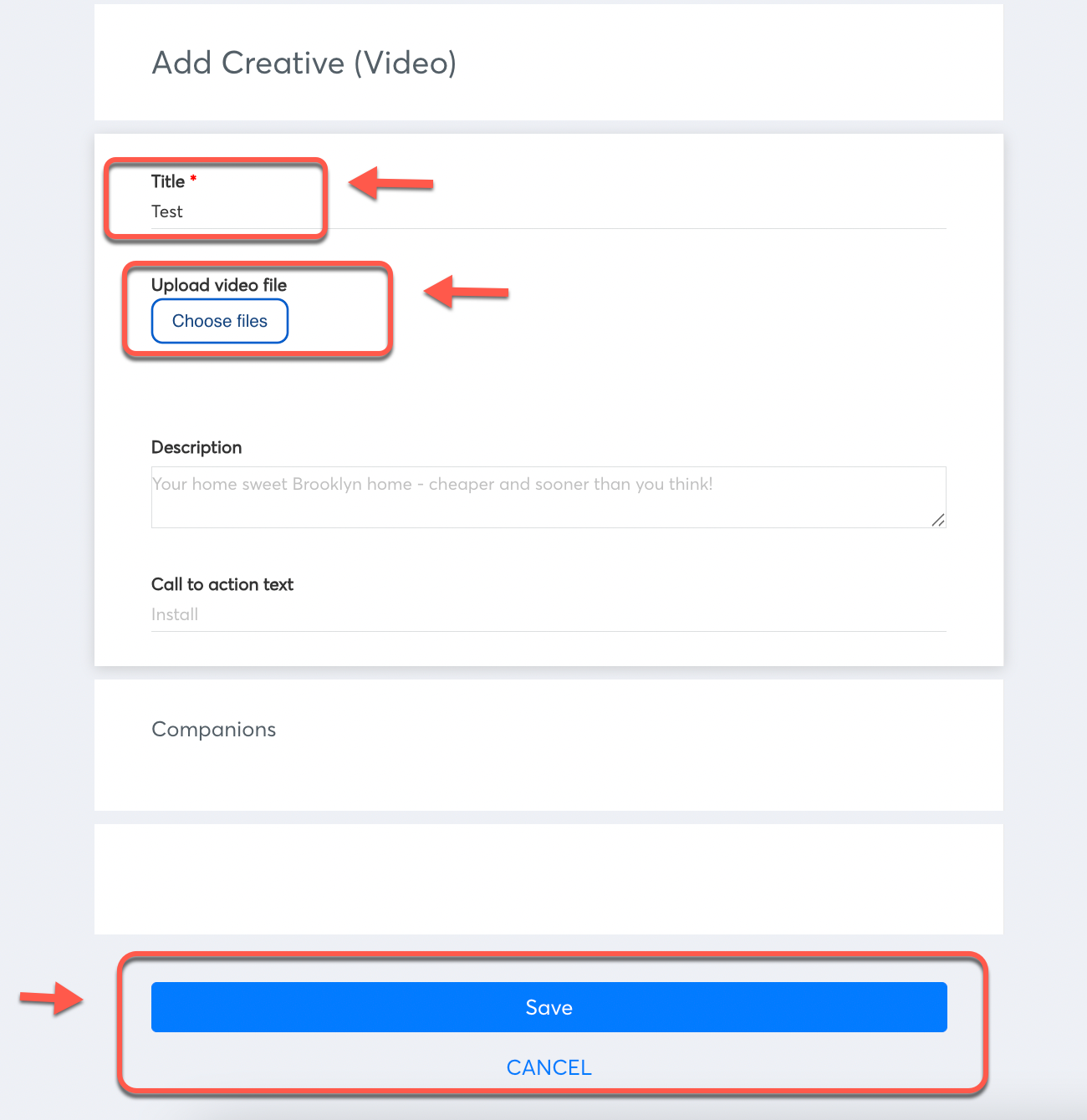](https://manual.eskimi.com/uploads/images/gallery/2025-04/9zmk0ZVSBdv39Hy8-04.png) Companion Banners can be upload as well, but the step is not necessary / not mandatory and can be skipped. Companion banners must contain at least one of the following sizes: 300x250 or 300x60. Write Call to action text. This text should be short and engaging, eg. Buy now. It will describe a call to action button for the destination URL. Can be skipped if not needed as well. If you select the "***Video Remote VAST URI***" option, it will take you to the next interface where you can upload your video creative tag. 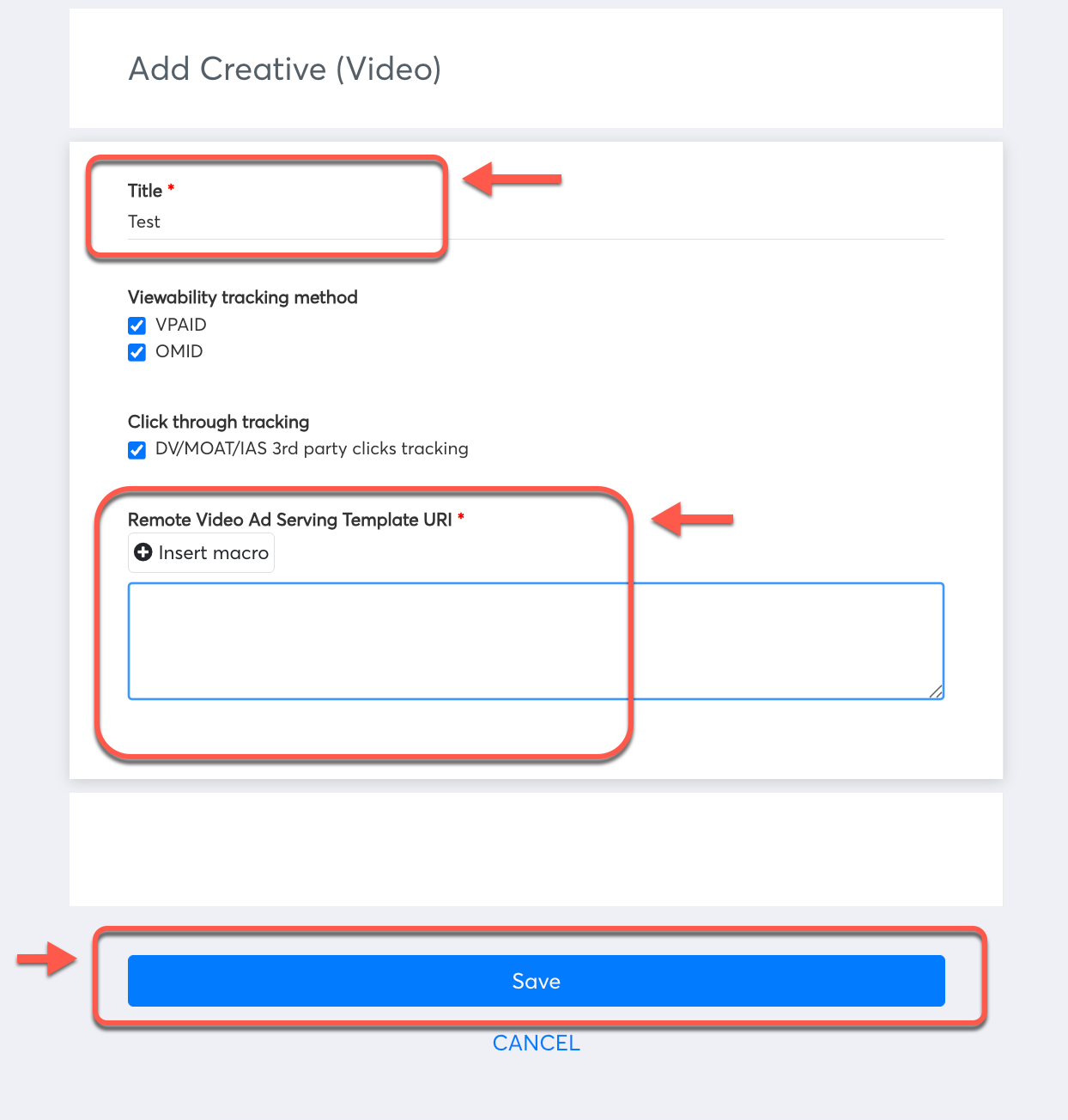 Click "***Save***". The creative set will be saved. ---