# JavaScript Creatives (HTML5)
HTML5 - a banner type of creatives, that created using JavaScript, HTML, and CSS. They can include images, animations, videos, or any combination of these elements. The creatives can support a variety of engagements: taps, shakes, clicks, etc.
---
#### **HTML5 (js) creative requirements:**
- Creative must be **full SSL compliant** (all requests from https). The landing page also https
- HTML file must be called as **index.html**
- HTML5 creative **must have ClickTag macros**, one of {CLICK\_URL}, {CLICK\_URL\_ENC}, {CLICK\_URL\_ASYNC}. Click tag has to be inserted in the main RM creative file (if it's HTML5 - index.html file; if it's a JavaScript tag - main JS tag).
- All creatives must open the landing page (click URL) in a new tab/window. The target window for the click-through URL must be set to **"\_blank"** so the click-through will open in a new window. Do not leave the target statement undeclared.
- Ads must remain static after **30 seconds.**
- Creatives may not exceed a **150K initial load**. The total download cannot exceed 5MB.
- HTML5 creative code has to be valid and pass validator - https://validator.w3.org. Also no errors in the browser console.
For Google Web Designer or GWD requirements. Please read this article: [Google Web Designer banner creation](https://manual.eskimi.com/books/google-web-designer/page/google-web-designer-gwd-banner-creation "Google Web Designer (GWD) banner creation").
---
#### **HTML5 (js) creative uploading process:**
**Step 1:** Log in to your DSP account, go to Creative Sets[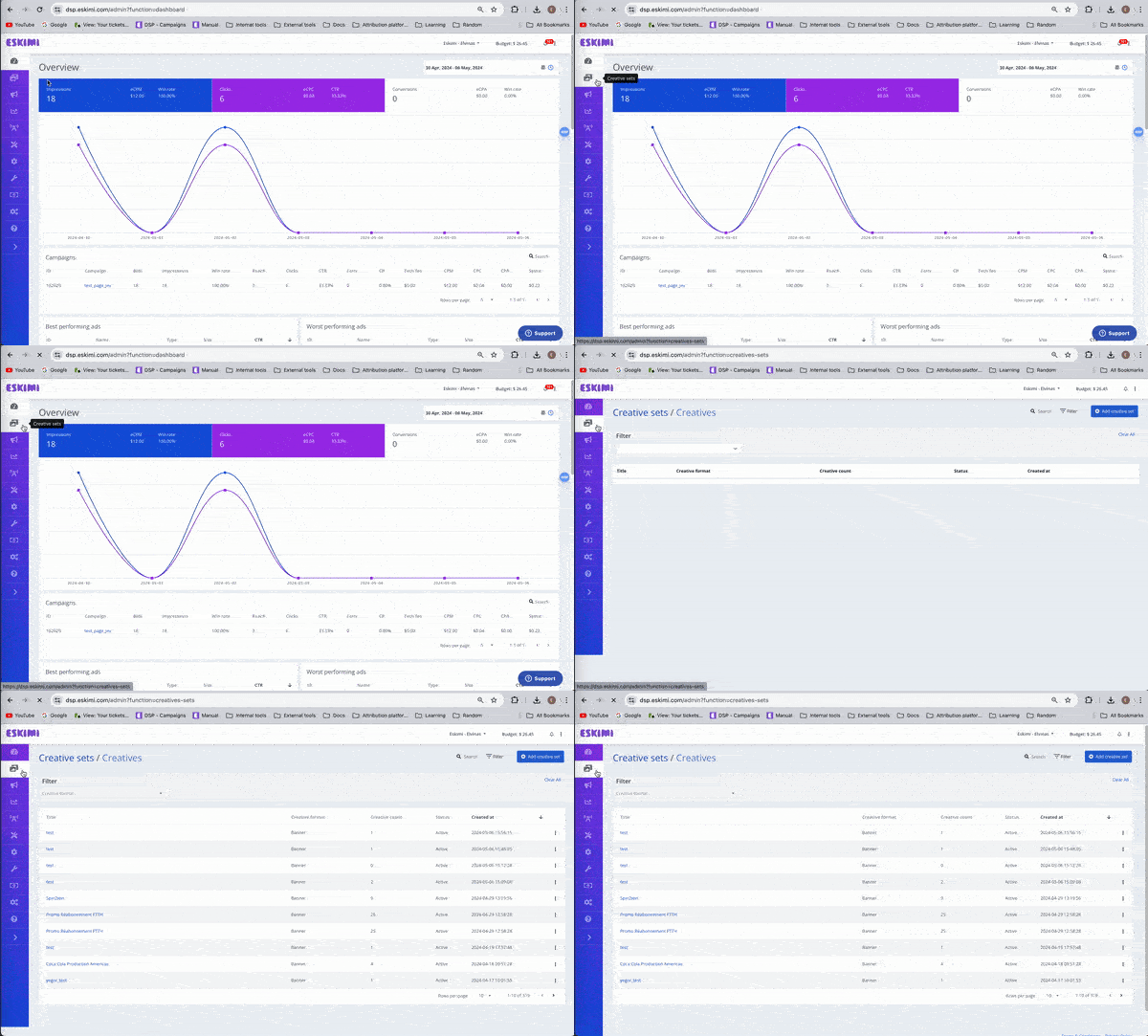](https://manual.eskimi.com/uploads/images/gallery/2024-05/XDb25owUbTIFumoF-screenrecording2024-05-06at16-09-12-ezgif-com-optimize-1.gif)
**Step 2:** On the new page click "Add creative set"
**Step 3:** On the next page indicate the creative sets Title and select the Banner format.
[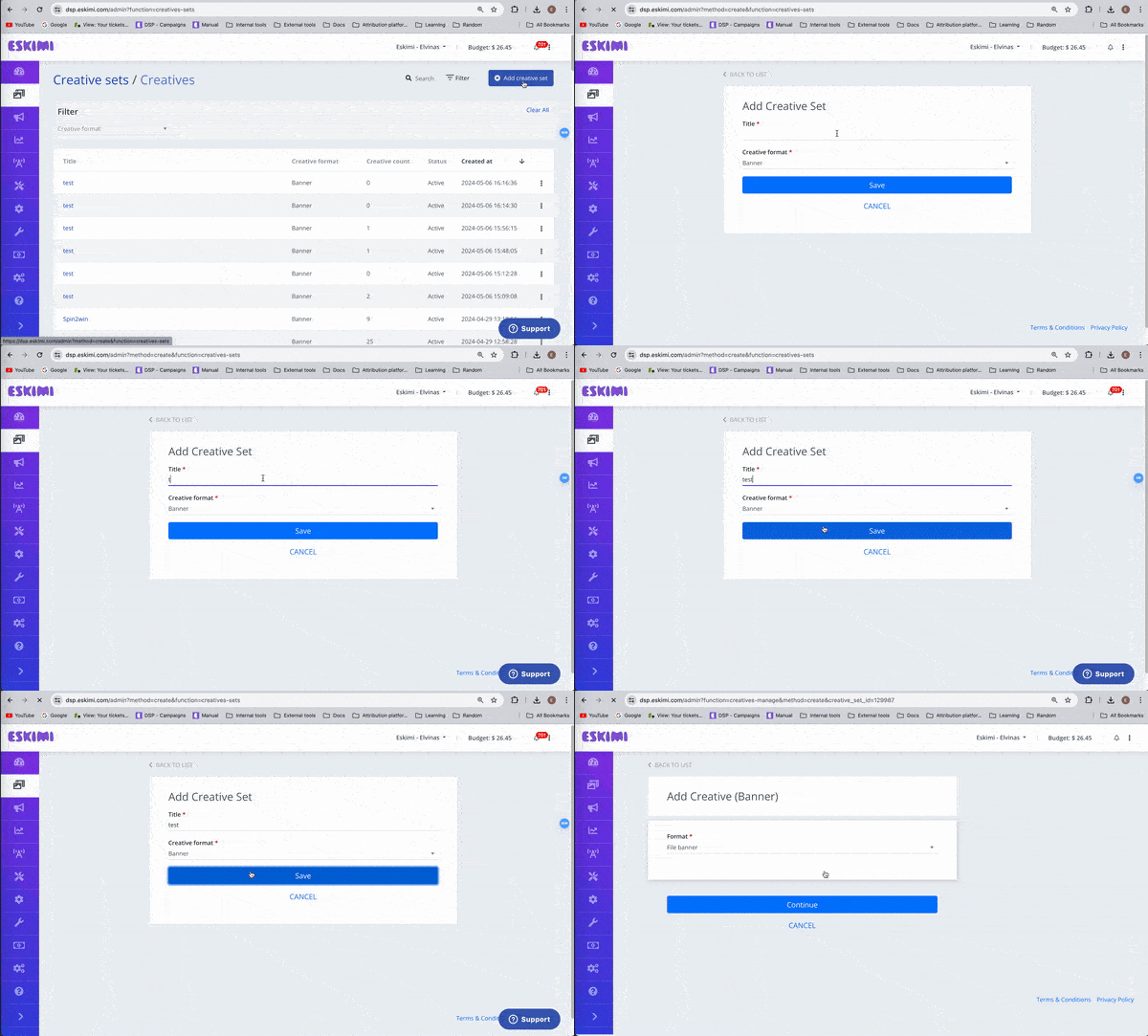](https://manual.eskimi.com/uploads/images/gallery/2024-05/4YFQy3ByQdbEItHZ-screenrecording2024-05-06at16-17-03-ezgif-com-optimize.gif)
**Step 4:** Then select Javascript tag format and click "Continue".
[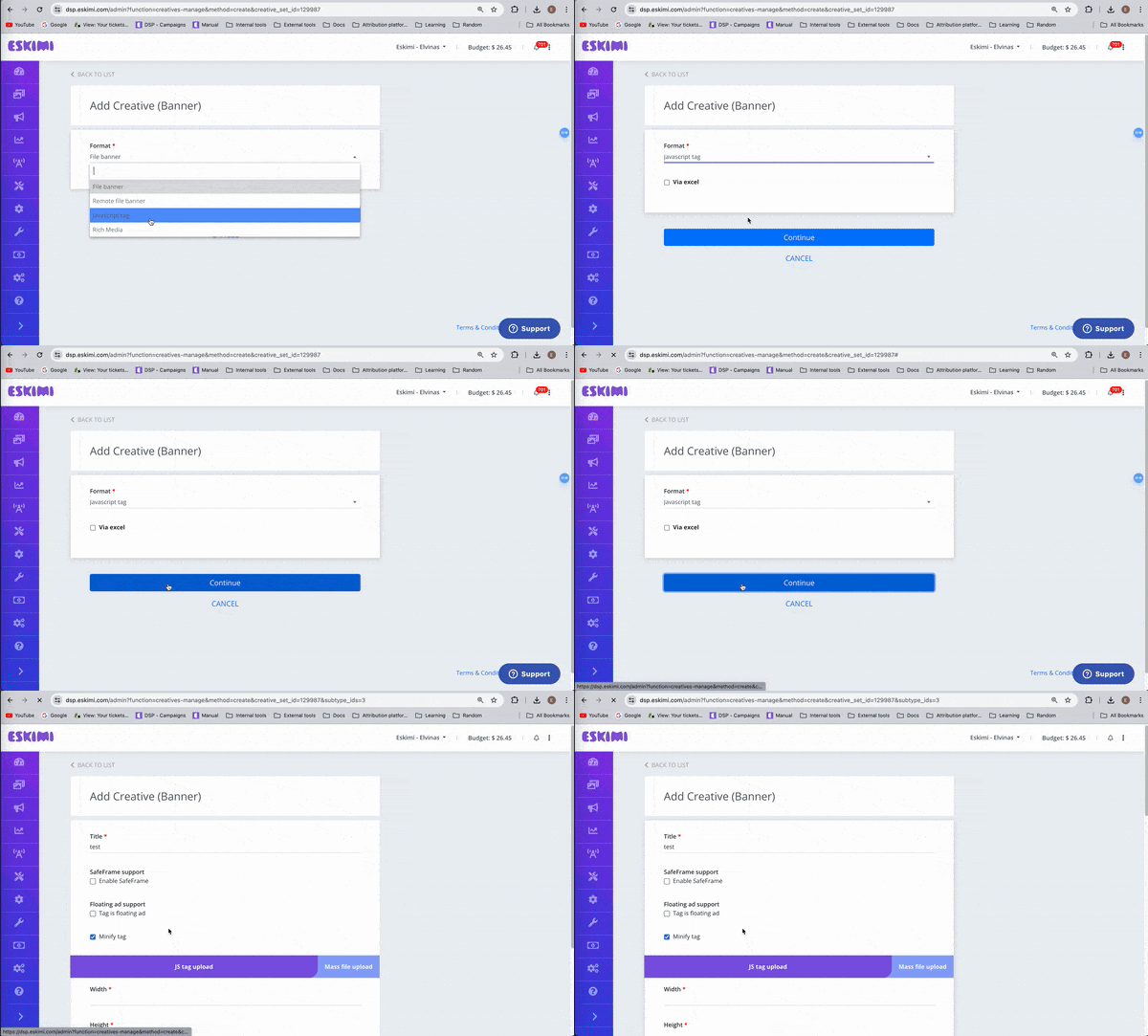](https://manual.eskimi.com/uploads/images/gallery/2024-05/MJxgtxDKZK7d5vzr-screenrecording2024-05-06at16-19-28-ezgif-com-optimize.gif)
**Step 5:** You will see 2 ways to upload the creatives.
1. **Direct JS tag upload** - For this method you just need to enter the size of the creative and PASTE the JS code in the code block.[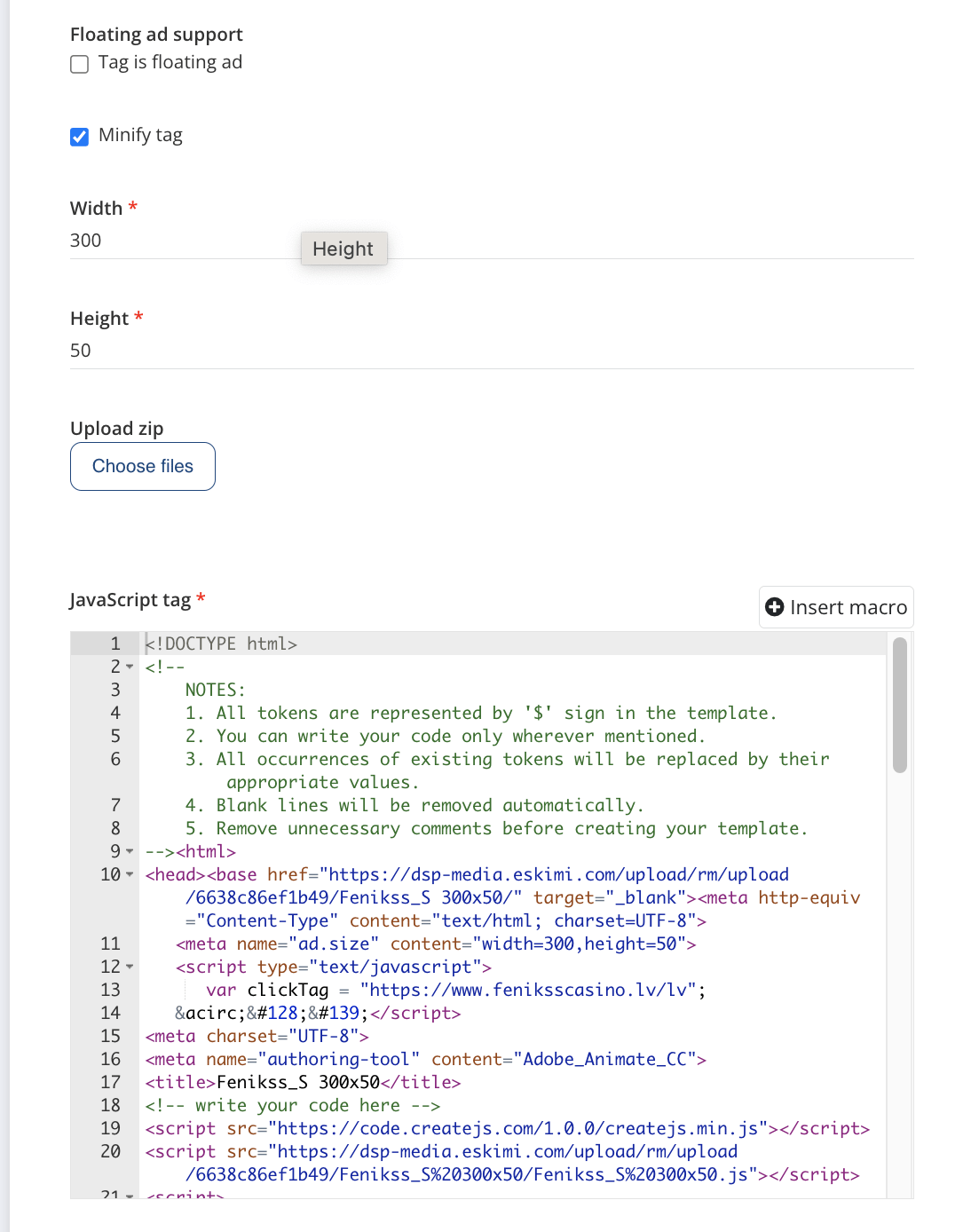](https://manual.eskimi.com/uploads/images/gallery/2024-05/9o8wDLC90zRM7OhD-screenshot2024-05-06at16-31-24-ezgif-com-optipng-min.png)
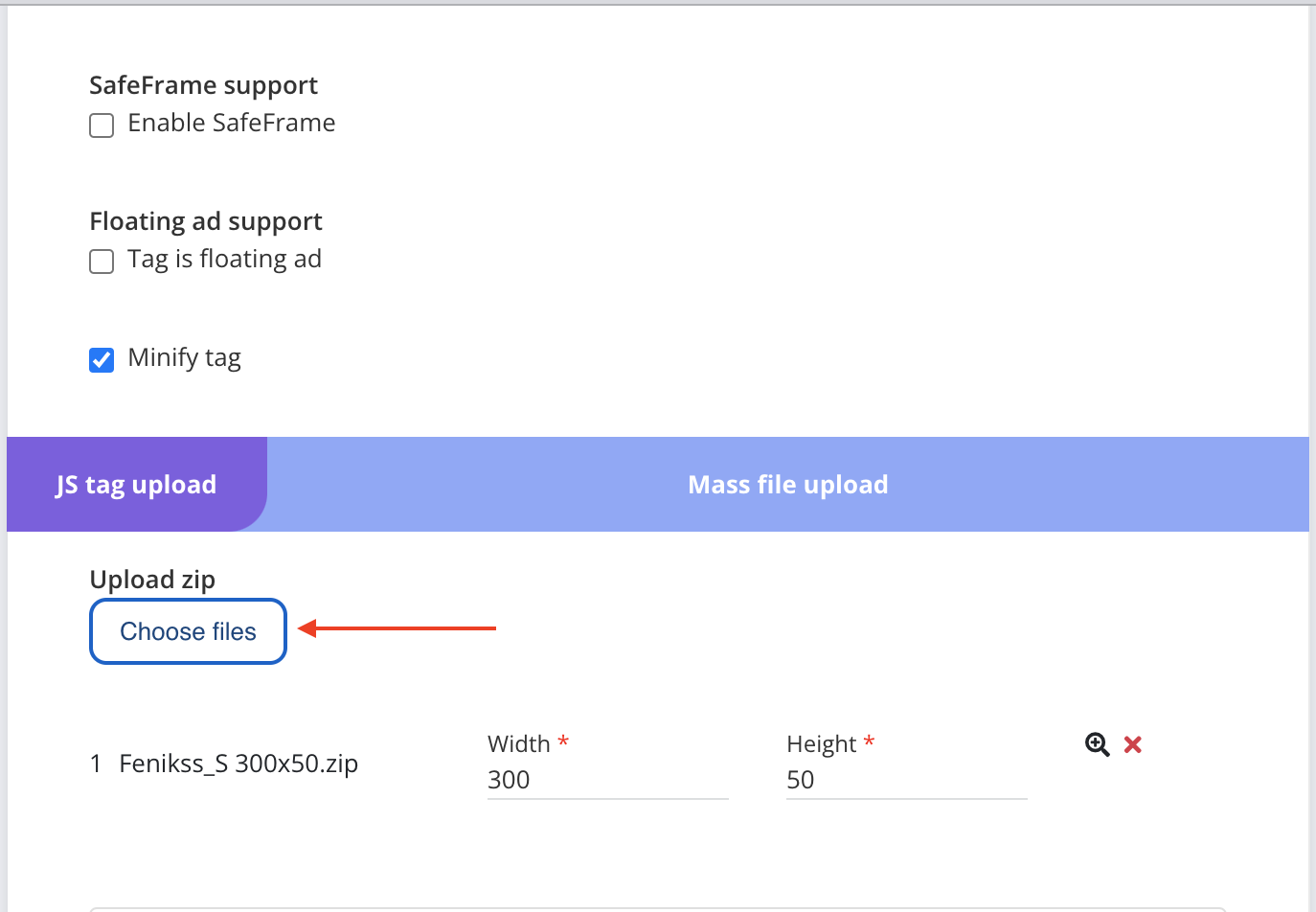
2. **Click on Mass File Upload** (used for single creative uploads as well) -> click on Choose File -> select creatives you want to upload. The creatives size will be detected automatically if it's visible in the index.html file.
[](https://manual.eskimi.com/uploads/images/gallery/2024-05/YqN69EMeKP3KTIGK-screenshot-2024-05-06-at-16-38-34.png)