**[VIDEO TUTORIAL: HOW TO CREATE A NEW APPS/SITES PACKAGE](https://www.youtube.com/watch?v=gIZXfKe26Pg)**
1. On the **Packages** page, click **New Package** to start creating a package. [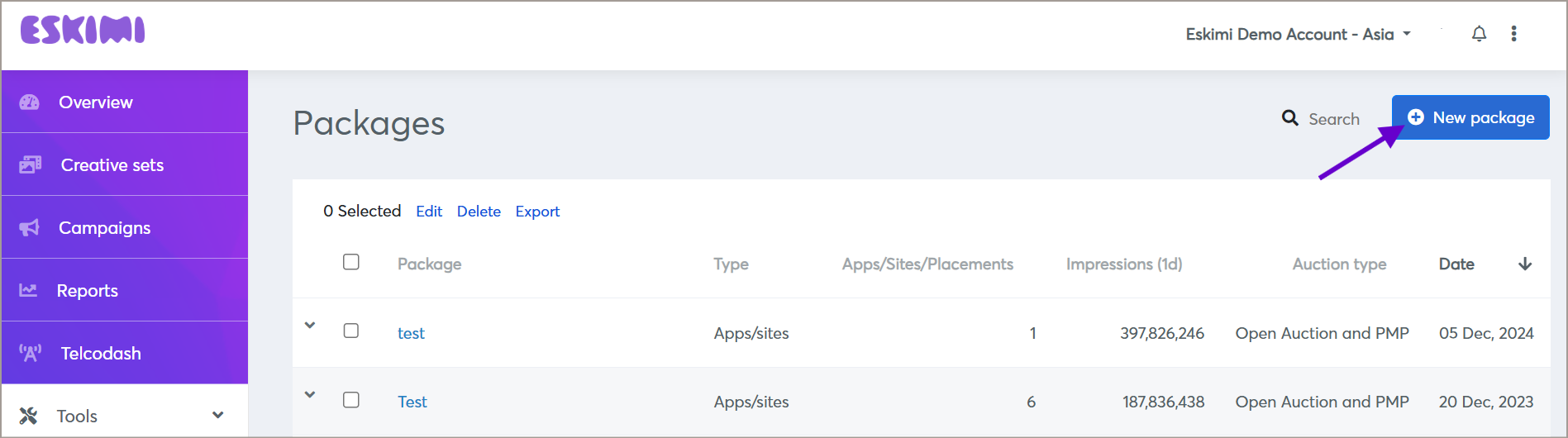](https://manual.eskimi.com/uploads/images/gallery/2025-09/BpawaKSVtdjPeLTB-image.png) 2. Fill in the required fields: - **Package Name**: Enter a descriptive name for your package. - **Country**: Select the country where the apps or websites will be sourced. - **Exchanges**: Choose which exchanges you want to include. If unsure, skip this step to allow the system to optimize across all available exchanges. - **Environment**: Specify whether you want to filter for **Apps** or **Websites**. After applying this field, the available apps and sites will appear in the **Apps/Sites** section. - **Apps/Sites**: Use the search function to select specific apps or websites to include in your package. 3. Once all details are entered, click **Save** to finalize your package. #### **[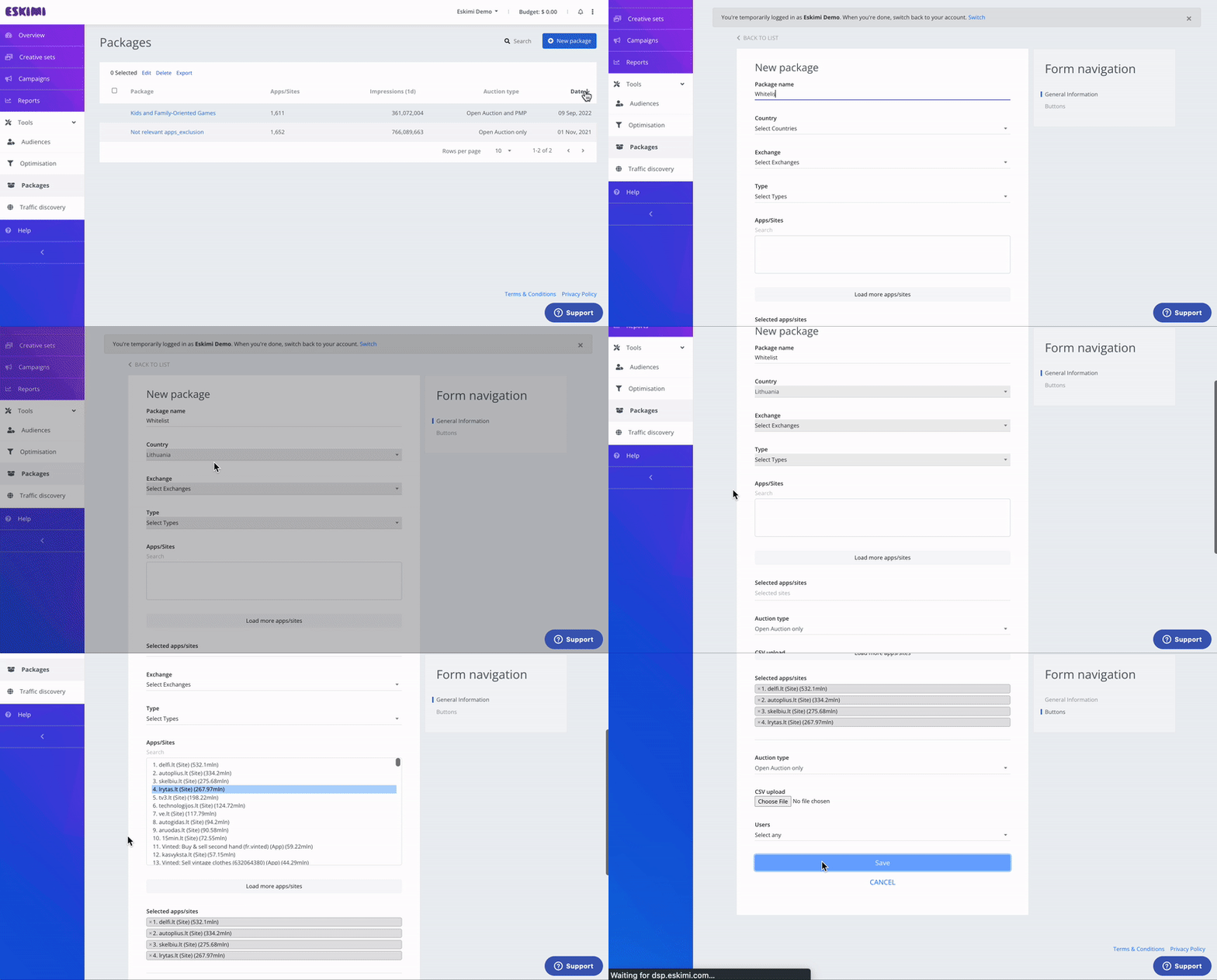](https://manual.eskimi.com/uploads/images/gallery/2023-03/pQJYNW45QovftMoI-ezgif-com-video-to-gif.gif)** ##### **Option 2: Uploading a Prepared List**Make sure apps/sites names **do not contain special characters or paths**.
**Correct apps/site format: [www.example.com](https://www.example.com)**
If you are unsure of the apps/sites names format, please **save CSV as UTF-8**
1. Instead of manually selecting apps/sites, prepare a list in **.csv format**. 2. Click **Upload List** and select your file. 3. The system will automatically populate the **Apps/Sites** section based on your list. 4. Click **Save** to finalize your package. [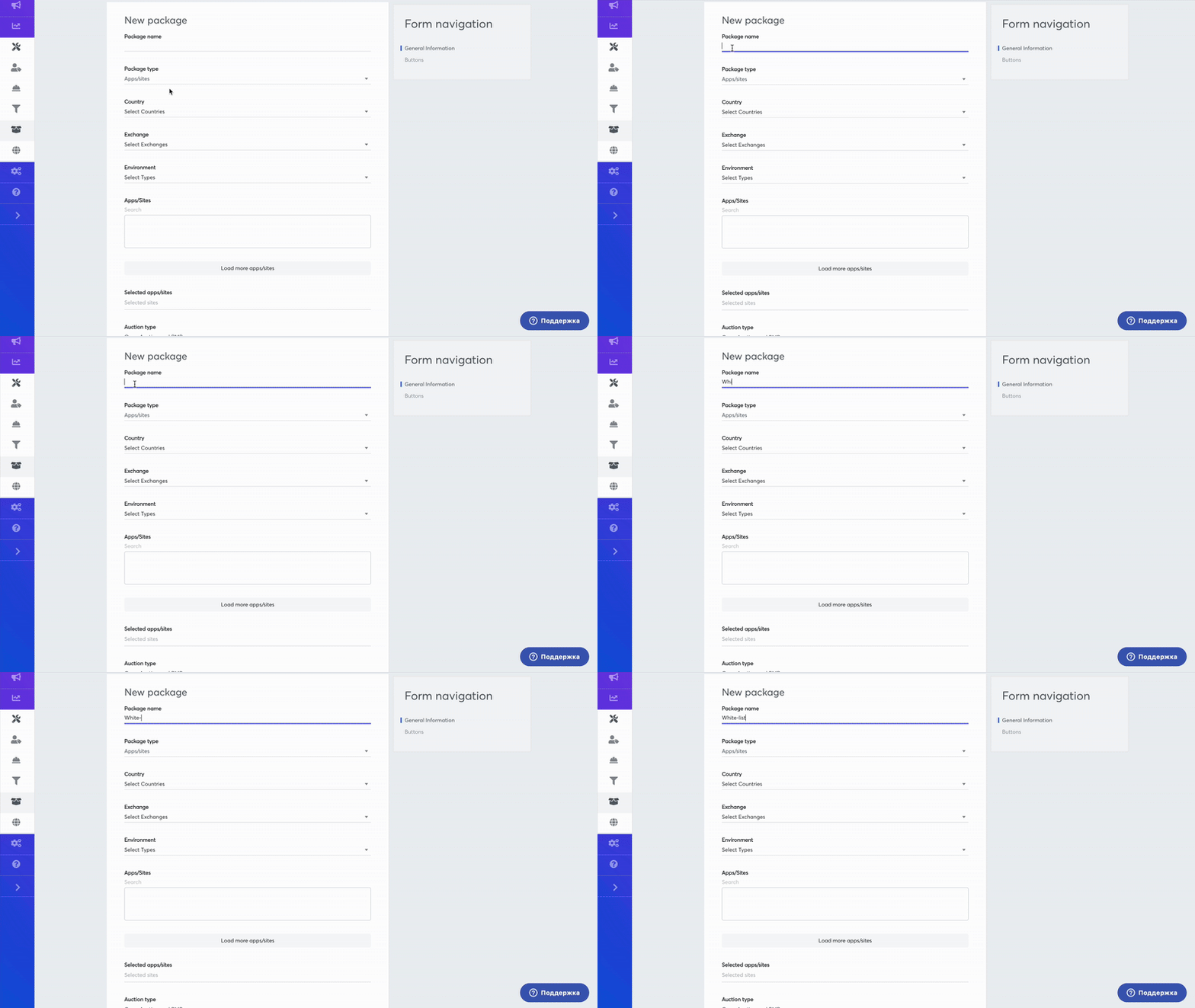](https://manual.eskimi.com/uploads/images/gallery/2025-03/jdRzv4GIGxqFJoZm-screenrecording2025-03-07at18-38-11-ezgif-com-video-to-gif-converter.gif) #### **Step 3: Implementing Your Package in a Campaign** 1. Access the **Campaign Creation** screen or select an existing campaign to edit. 2. Navigate to the **Deals & Packages** section. 3. Choose the newly created package and decide whether to include or exclude it from the campaign. Eskimi DSP offers additional customization options for packages, allowing advertisers to fine-tune their campaign settings. These options include: - **Custom Bid**: Set a specific bid value for the package. - **Custom Daily Budget**: Allocate a separate daily budget for the package. - **Custom Total Budget**: Define the total budget limit for the package. - **Include Only**: Ensure the campaign runs exclusively on the selected package. - **Exclude**: Prevent the campaign from running on the selected package. - **Disable Impression Capping**: Remove any limitations on the number of impressions per user. - **Disable Auto Optimization**: Stop the system from automatically adjusting campaign performance settings. - **Disable Budget Pacing for This Package**: Prevent budget distribution adjustments over time. - **Disable App/Site Category Exclusion**: Override default category exclusions and allow all listed apps/sites. - **Allow Multiple Bids Per User Per Second**: Enable multiple bids for the same user within one second. [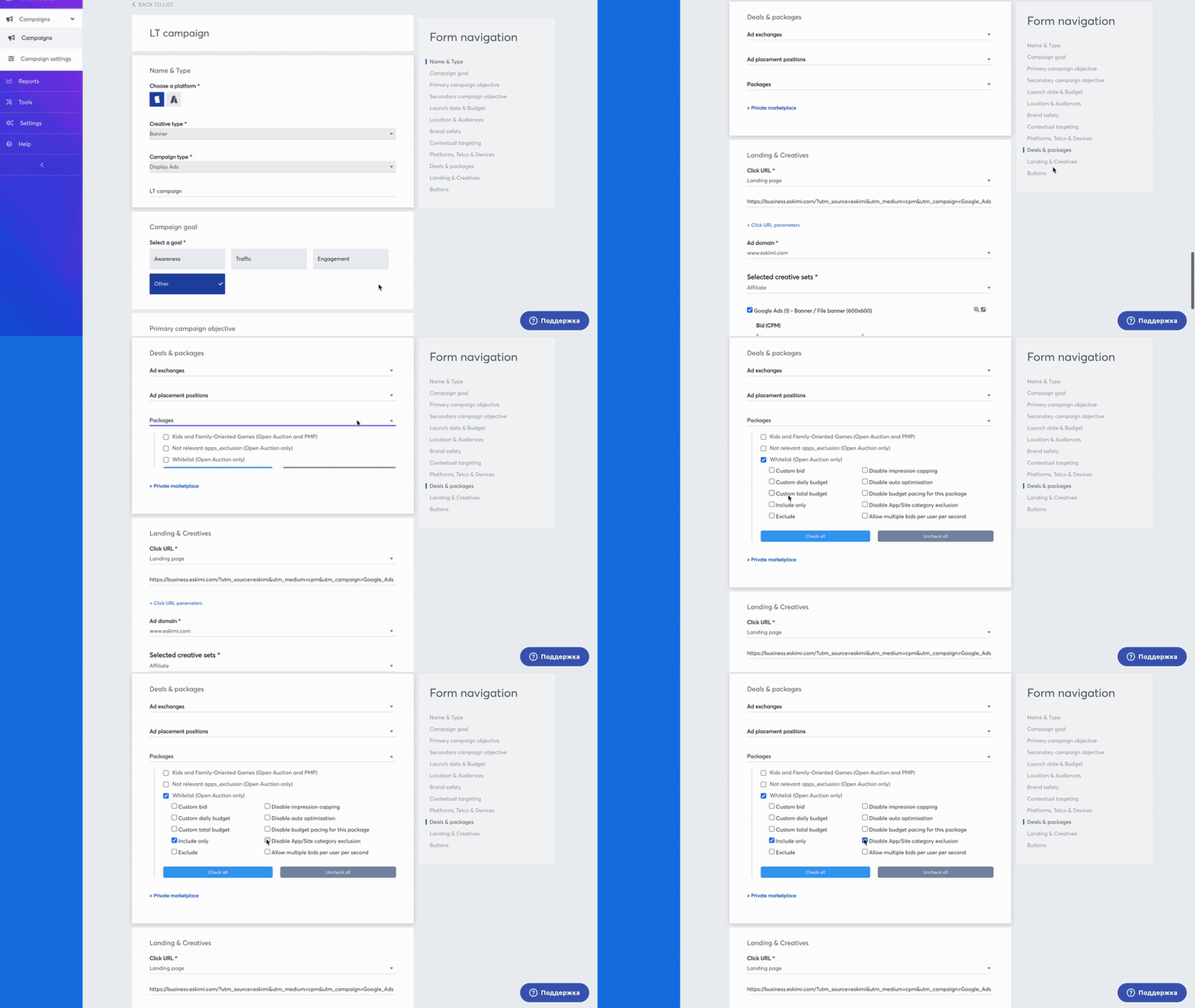](https://manual.eskimi.com/uploads/images/gallery/2025-01/udOrCWsyq6qFSOEd-screenrecording2025-01-29at18-27-03-ezgif-com-video-to-gif-converter.gif) 4. Continue setting up the campaign as needed. --- #### **Placement Packages** #### **Step 1: Accessing the Packages Feature** 1. Log in to your **Eskimi DSP** account. 2. Navigate to the **Tools** dropdown menu. 3. Click on **Packages** to access the package management page. [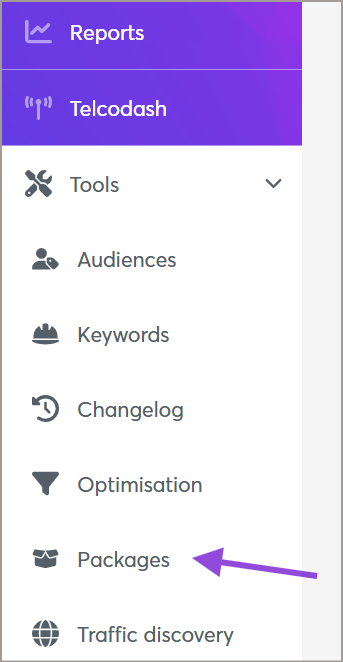](https://manual.eskimi.com/uploads/images/gallery/2025-09/XVW8Xg80OUZgc3gL-image.png) #### **Step 2: Creating a New Placement Package** You can create a Placement Package by uploading a prepared list of placement IDs. ##### **Uploading a Placement List** 1. On the **Packages** page, click **New Package**. [](https://manual.eskimi.com/uploads/images/gallery/2025-09/BpawaKSVtdjPeLTB-image.png) 2. Select **Package Type** -> **Placement**. 3. Upload a list of **Placement IDs** (numeric values only; other values will be filtered out). 4. Assign the package to specific user(s). 5. Click **Save** to finalize your package. #### **Step 3: Implementing Your Placement Package in a Campaign** 1. Access the **Campaign Creation** screen or select an existing campaign to edit. 2. Navigate to the **Deals & Packages** section. 3. Choose the newly created Placement Package and decide whether to include or exclude it from the campaign. 4. Continue setting up the campaign as needed. #### **Use Cases of Placement Packages** - Reuse high-performing placements across multiple campaigns by choosing placement IDs of well-performing campaigns. - Start a campaign with a specific list of placements and optimize from there. - Utilize placement data from external trackers that meet required metrics. #### **Limitations** - Other package functionalities are not supported for Placement Packages. --- ### **Conclusion** By following these steps, you can efficiently create and manage Packages within Eskimi DSP. Whether using **App/Site Packages** or **Placement Packages**, this feature allows for improved targeting, enhanced campaign control, and streamlined ad placement, ensuring better results for your digital advertising strategy. # Placement Packages You can choose between placement packages and app/site packages. **How it works** 1. Tools -> packages -> select package type -> placement [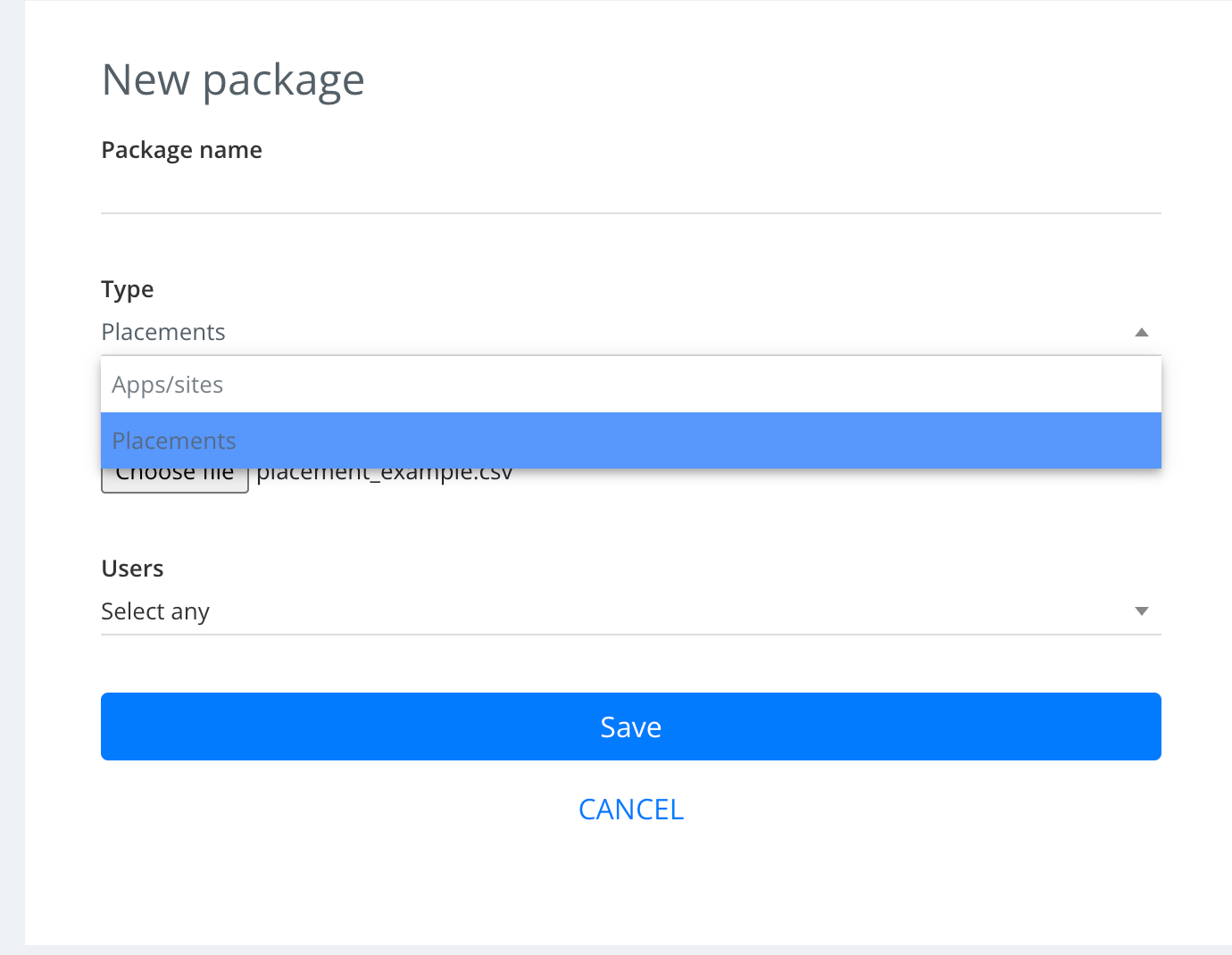](https://manual.eskimi.com/uploads/images/gallery/2023-06/VnBry7At6mUw1NPU-screenshot-2023-06-29-at-14-01-49.png) 2. Upload a list of placement IDs you want to have in the package - Placement ID is a numeric value. all other values will be filtered 3. Choose which user(-s) the package should belong to 4. Go to your campaign 5. Choose the package[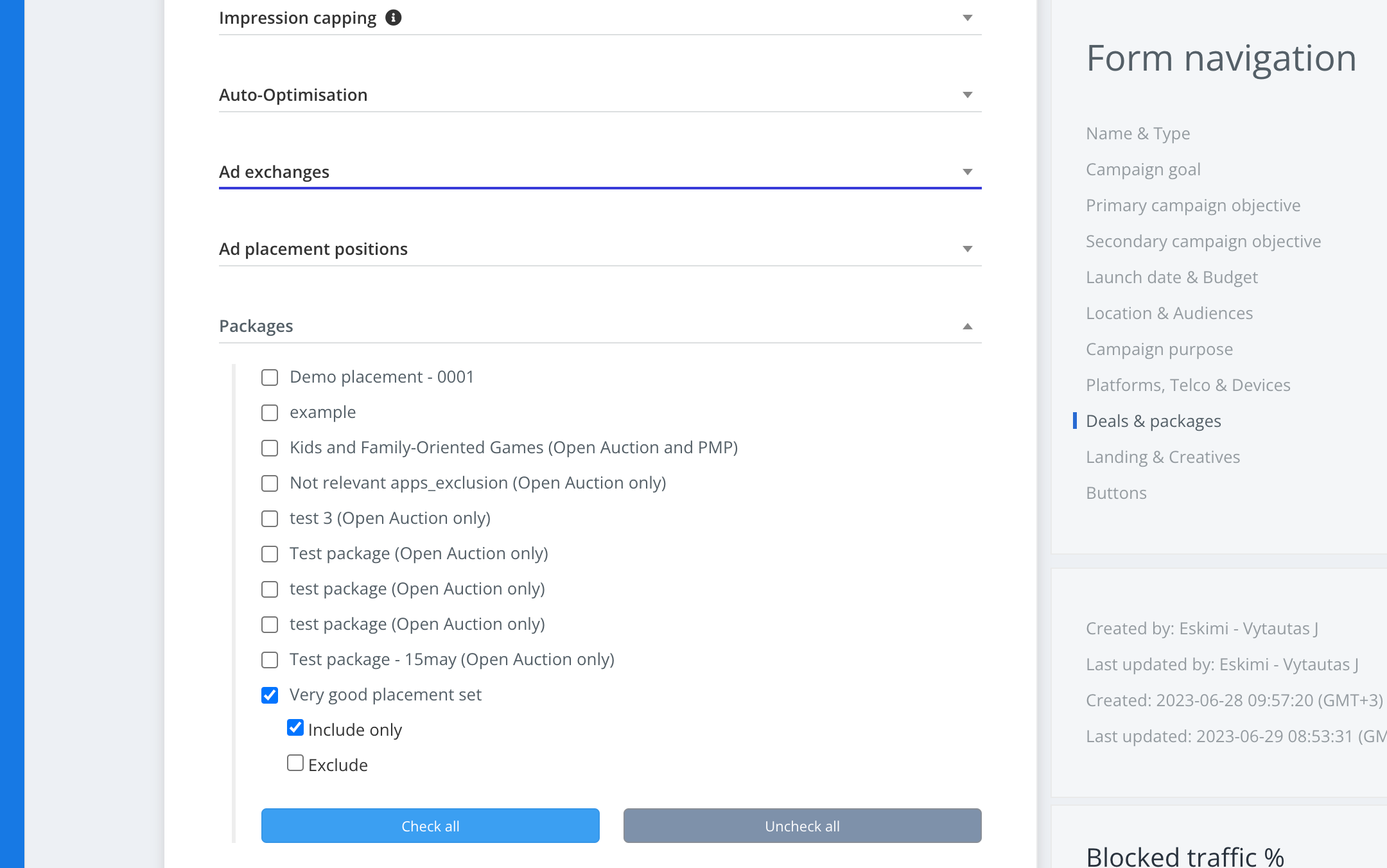](https://manual.eskimi.com/uploads/images/gallery/2023-06/qgo4234G51qFOAnD-screenshot-2023-06-29-at-15-46-14.png) 6. Decide if you want the package included or excluded