If you have multiple tickets open, the "+ Add" button will shift to the right but will remain at the top regardless.
[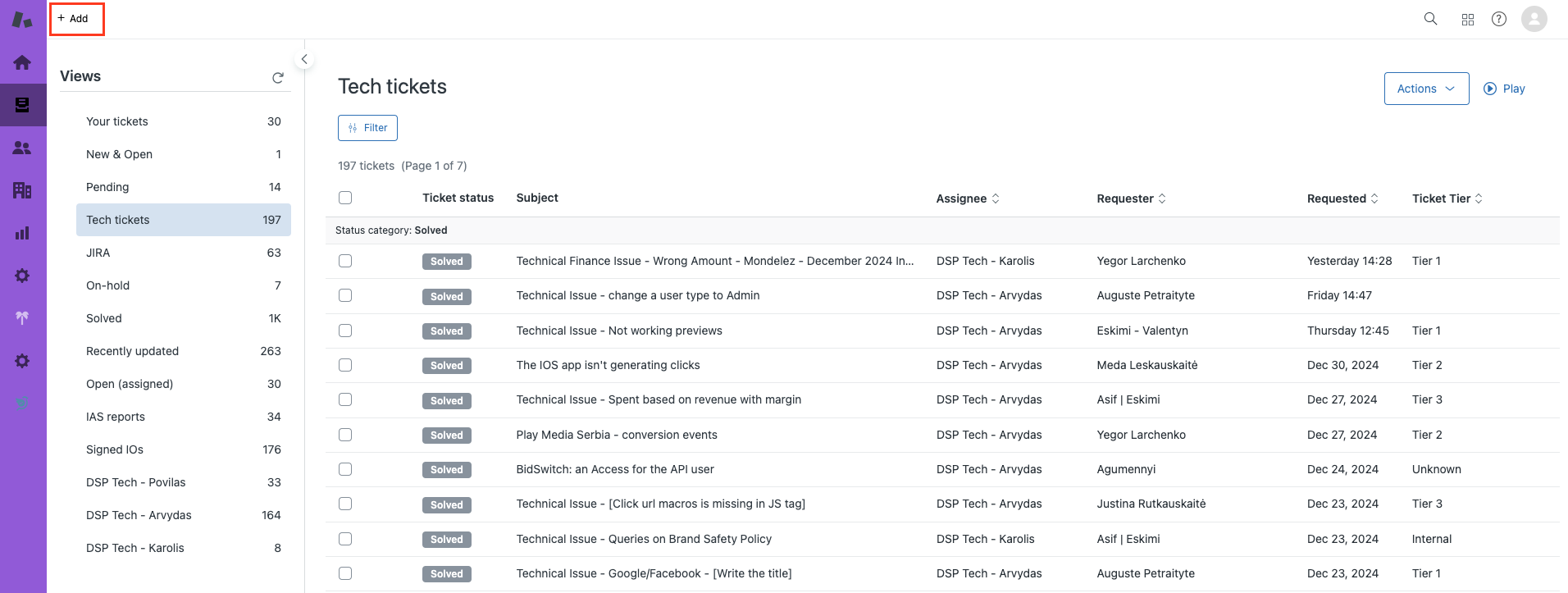](https://manual.eskimi.com/uploads/images/gallery/2025-01/sFvqvlSBijmZLmTK-screenshot-2025-01-07-at-13-08-41.png) #### **Filling ticket data** In the picture below you can see the steps of filling the ticket data.**Ticket statuses** and **templates** are covered more in-depth below.
[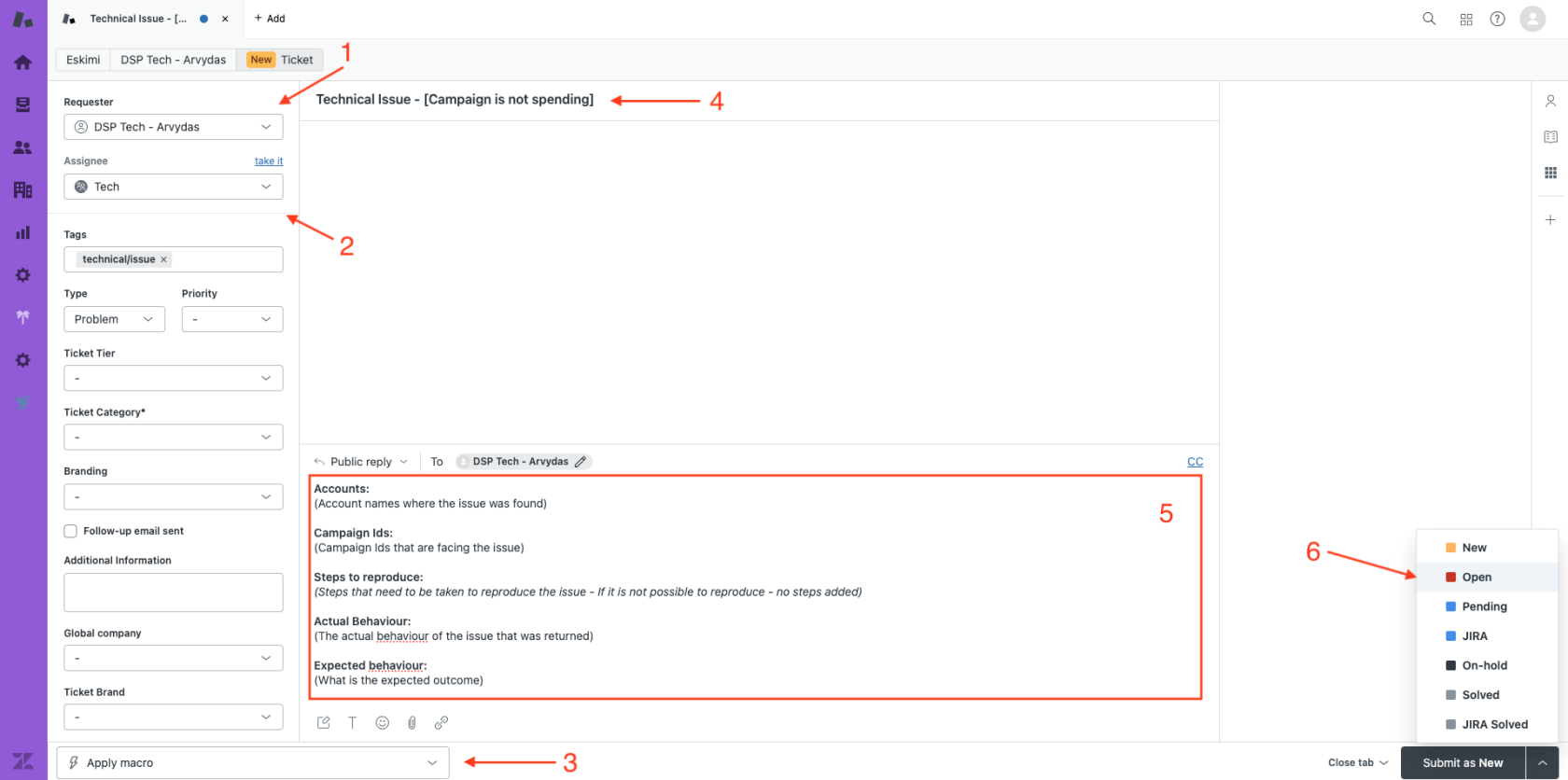](https://manual.eskimi.com/uploads/images/gallery/2025-01/zYZFdXIqY6JGDGJ1-screenshot-2025-01-07-at-13-15-58.png) 1. Select yourself as the requester 2. Select assignee "Tech" (group) 3. Select ticket template 4. Edit title according to your raised issue 5. Use template correctly (more information below) 6. Submit ticket as "Open"Optionally you can add tags, category and other fields related to your ticket but **most of it is automized.**
--- ### **Ticket statuses** As of writing this article, our Zendesk configuration includes seven possible ticket statuses: New, Open, Pending, JIRA, On-hold, Solved, and JIRA Solved.Tech related tickets should use only 5 of them: **Open, Pending, JIRA, Solved, JIRA Solved**
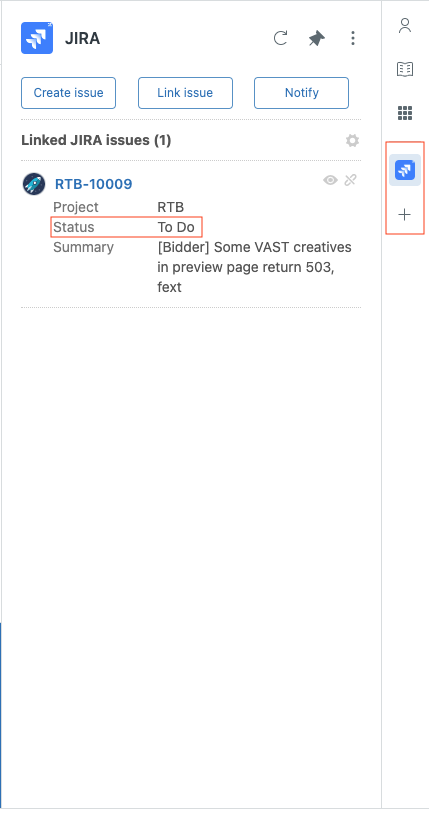
##### **Understanding Ticket Statuses** **Open** – this status should be used by AdOps when creating a new ticket for Tech Support or when replying to an unresolved Tech ticket. **Pending** – this status is used **only** by a Tech Support when a specialist is awaiting additional information or a response from AdOps. **JIRA** – this status is used **only** by Tech Support when a bug is logged in JIRA. AdOps can view the bug status on the right panel of the ticket.If you do not see the **JIRA** logo please press "**+**" sign and add it to your view
[](https://manual.eskimi.com/uploads/images/gallery/2025-01/qOQ3LuVyjHNAhlV2-screenshot-2025-01-07-at-12-49-08.png) **Solved** – this status is used by Tech Support when the provided solution resolves the issue. **JIRA Solved** - this status is used by Tech Support when the registered bug is resolved. --- ### **Ticket templates** There are templates available for tech-related tickets. The video below demonstrates how to select and complete the appropriate template. Please ensure you choose the template that corresponds to the topic of your ticket.If you cannot find a correct template for your needs please use \[Technical issues\] > General - \[Write the title\].
[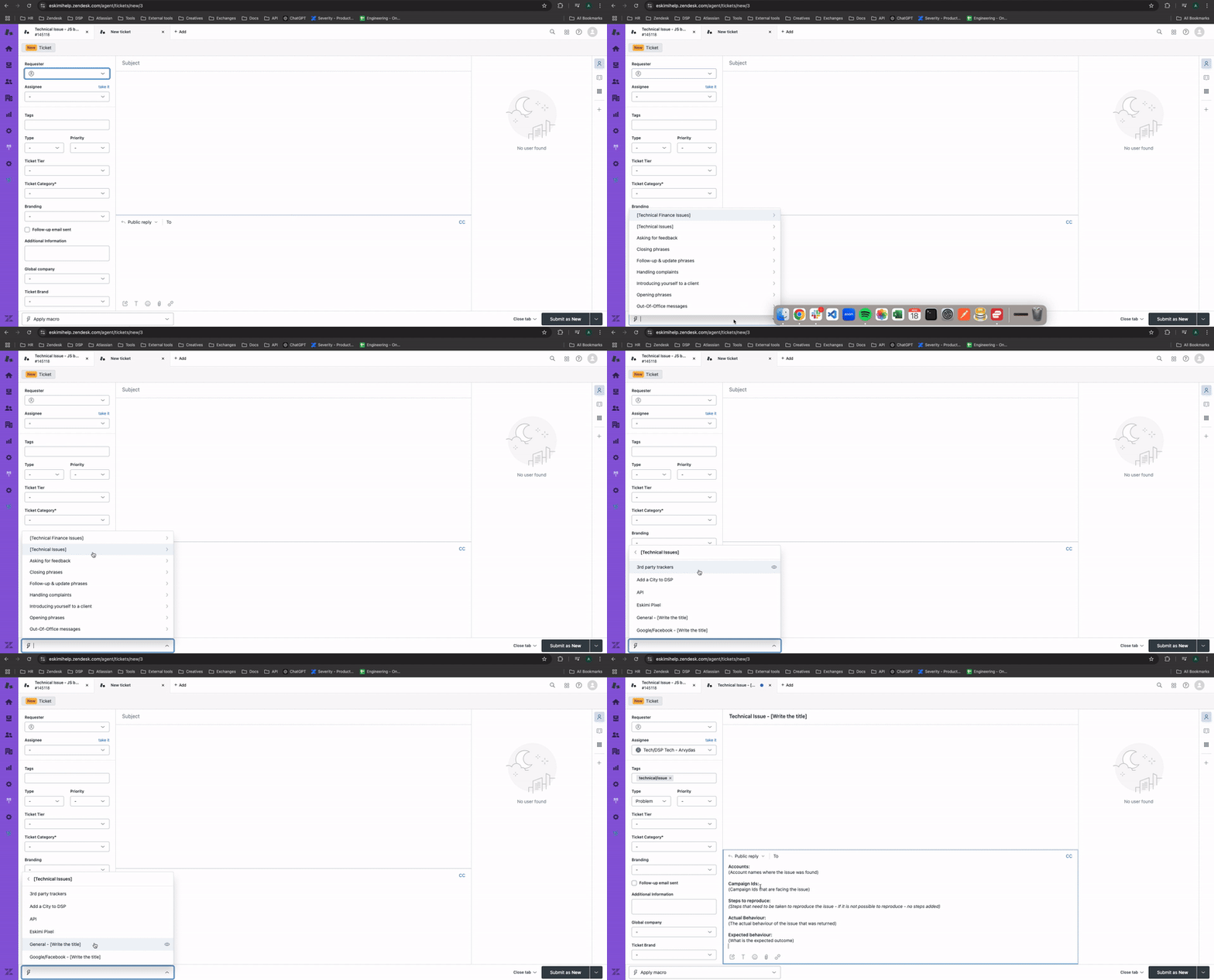](https://manual.eskimi.com/uploads/images/gallery/2025-01/Y74YTTWYa68bEIVH-screenrecording2024-11-18at09-23-35-ezgif-com-video-to-gif-converter.gif)It is important that you use the templates correctly. Account names, Campaign IDs must be written under and without additional text formatting
Links are acceptable and preferable
[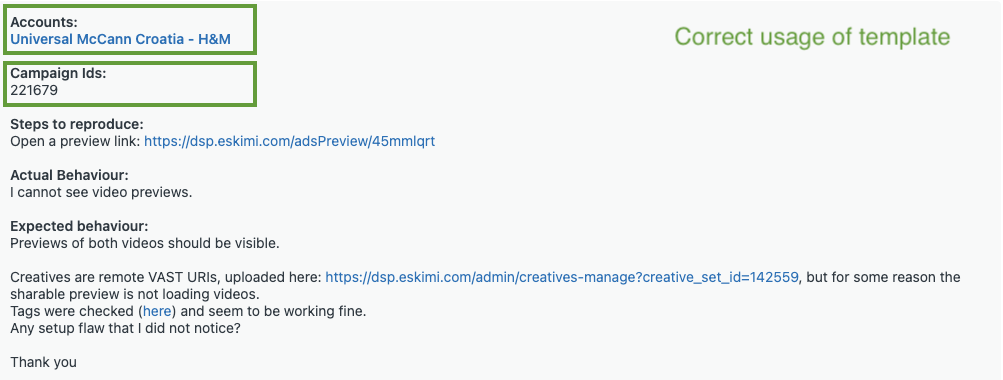](https://manual.eskimi.com/uploads/images/gallery/2025-01/4KkdnT4IwmkugBlV-screenshot-2024-11-18-at-09-06-09.png) ##### If you believe a new template is needed or have suggestions for improving existing templates from an AdOps perspective, please reach out to a Technical Support specialist via Slack. --- ### **Follow-ups** Solved tickets will automatically close after a certain period. To create a follow-up for the same issue, navigate to the closed ticket and click on "Create Follow-up." [](https://manual.eskimi.com/uploads/images/gallery/2025-01/SMw792uGBmldloE7-screenshot-2025-01-07-at-15-35-54.png)If the ticket is marked as "Solved" but not yet closed, please reply within the same ticket and change its status to "Open."
If the issue with a "Solved" ticket is unrelated to the new issue you're reporting, please create a new ticket and set its status to "Open."
--- ### **Additional notes**Please avoid adding Tech Support to the CC. Instead, provide a summary of your communication, highlighting the key issues and the specific areas where they occur.
# Tech ticket creation workflow for AMs/BDMsThe common practice for **AM/BDM** is to **reach out to AdOps first**. Please contact the Tech Support Specialist directly only in exceptional cases.
### **Templates**Templates are **mandatory**, they reduce back and forth communication, ensures faster issue resolution time.
#### **How to add a template** Unfortunately, Gmail has limitations on sharing templates across team accounts, so they will **need to be added manually.** 1. Copy the template from [here](https://manual.eskimi.com/books/tech-tickets/page/general-issue) (can be found in the Manual - General Issue) 2. Add subject and content to gmail compose tab (same as writing regular email) 3. Click **three dots** below and navigate to **Templates -> Save draft as template -> Save as new template** [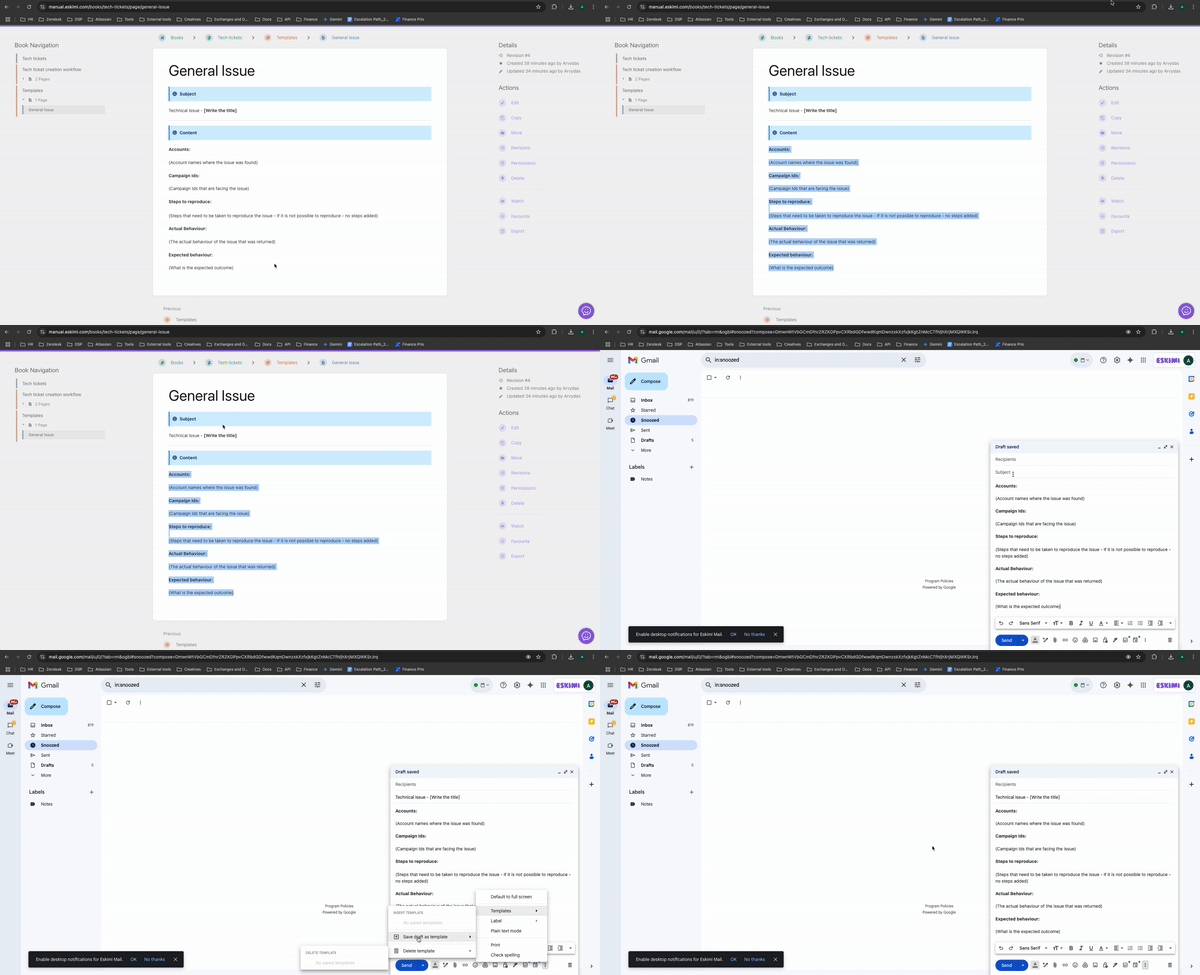](https://manual.eskimi.com/uploads/images/gallery/2025-03/xkdZ1ZBJwNbjA7bK-templateadd600kb.gif) You can check out this [official google guide](https://support.google.com/mail/answer/14864208?hl=en) for more information --- #### **How to use a template** 1. Open Gmail compose, **click on three dots** below and navigate to **Templates -> Select your template** 2. Fill in information **instead** of the text in brackets 3. Do not forget to write an appropriate subject as well --- ### **Contacting Tech support****Please consult with responsible AdOps before contacting Tech support**
Now that you have successfully added the template to your Gmail account, you can use it to report technical issues to the Tech support team by sending a **templated email** to **tech@eskimi.com** # Tech ticket creation workflow via Slack This workflow applies to **everyone with access to Eskimi Slack workspaces**. From now on, all Eskimi DSP tech support requests should be raised through the **Tech support help request** form in Slack **\#tech-support-request** channel instead of the previous email/Zendesk-based process. ### **Ticket creation process** To create a new tech support ticket, open Slack and trigger the Tech support help request form shortcut. [](https://manual.eskimi.com/uploads/images/gallery/2026-05/CRWha7ORpFvX0PmQ-image.png) Once opened, the request form will appear as shown below. [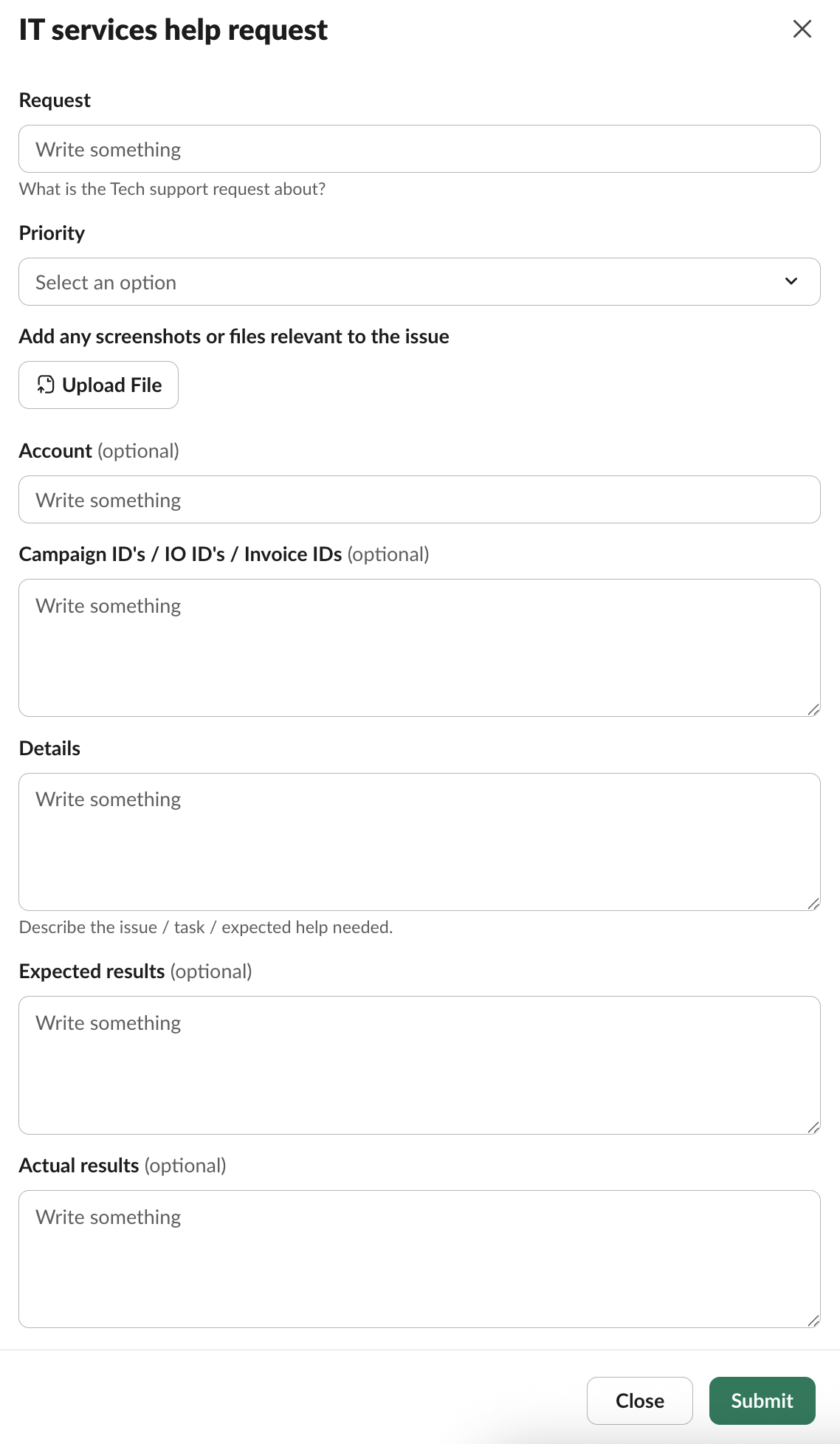](https://manual.eskimi.com/uploads/images/gallery/2026-05/USoMRiKtQPI7kXX1-image.png) ### **Filling ticket data** 1. **Request** *(required)* – A short summary of what the tech support request is about. Think of this as the ticket title. 2. **Priority** *(required)* – Select the appropriate priority level from the dropdown. Use this honestly — overusing high priority slows everyone down. 3. **Add any screenshots or files relevant to the issue** – Upload screenshots, screen recordings, exported reports, or any other files that help explain the issue. Visual context speeds up triage significantly. 4. **Account** *(optional)* – The affected account name. Write the name without additional text formatting. 5. **Campaign ID's / IO ID's / Invoice IDs** *(optional)* – Provide the relevant IDs, one per line where possible. Links are acceptable and preferable. 6. **Details** *(required)* – Describe the issue, task, or expected help needed. Be specific: what were you trying to do, where did it happen, and when did it start? 7. **Expected results** *(optional)* – What you expected to happen / see. 8. **Actual results** *(optional)* – What actually happened / what you are seeing instead. Once all relevant fields are filled in, press **Submit**.Always attach a screenshot if the issue is visual (UI bugs, unexpected numbers, error messages).
One issue per ticket — do not bundle unrelated problems into a single request.
### **Ticket statuses** After submission, the request is registered in Jira and tracked through the following statuses: - **To Do** – the ticket has been submitted and is waiting in the Tech team's queue. No one is actively working on it yet. - **In Progress** – a Tech team specialist has picked up the ticket and is actively working on it. You may be contacted for additional information at this stage. - **JIRA** – the issue has been identified as a bug or development task and has been **registered for the development team** in JIRA. Resolution timelines for JIRA tickets depend on the development team's priorities. - **Done** – the ticket has been resolved. If the provided solution does not actually fix your issue, reply in the original ticket thread in Slack and let the Tech team know it is not resolved. The status will be moved back to **In Progress**. [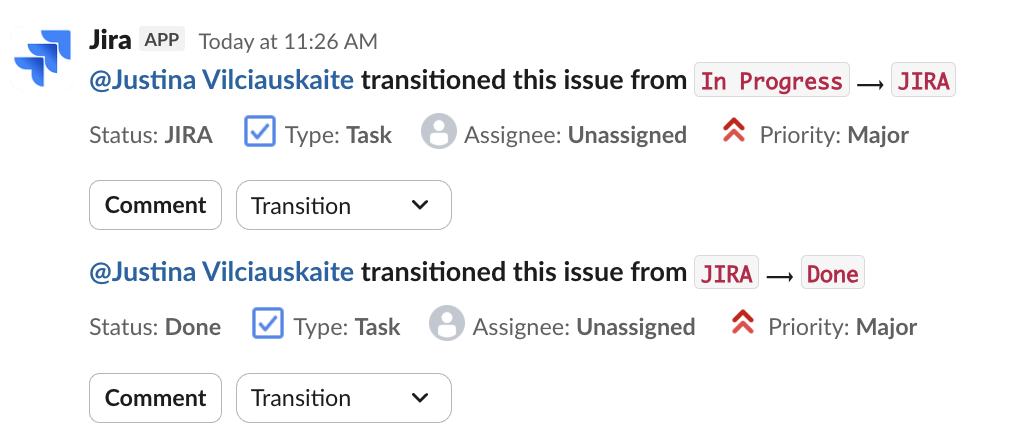](https://manual.eskimi.com/uploads/images/gallery/2026-05/PZ6KGjdDMhzbqDdX-image.png) ### **Additional notes** - **Always use the IT services help request form** as the primary channel for tech support. - Avoid pinging Tech Support specialists in DMs or other channels for issues that should be tickets — it makes work invisible to the rest of the team and slows everyone down. - For **AMs/BDMs**: the common practice is still to **reach out to AdOps first**. Submit a tech ticket directly only in exceptional cases or when explicitly advised by AdOps.