If you have multiple tickets open, the "+ Add" button will shift to the right but will remain at the top regardless.
[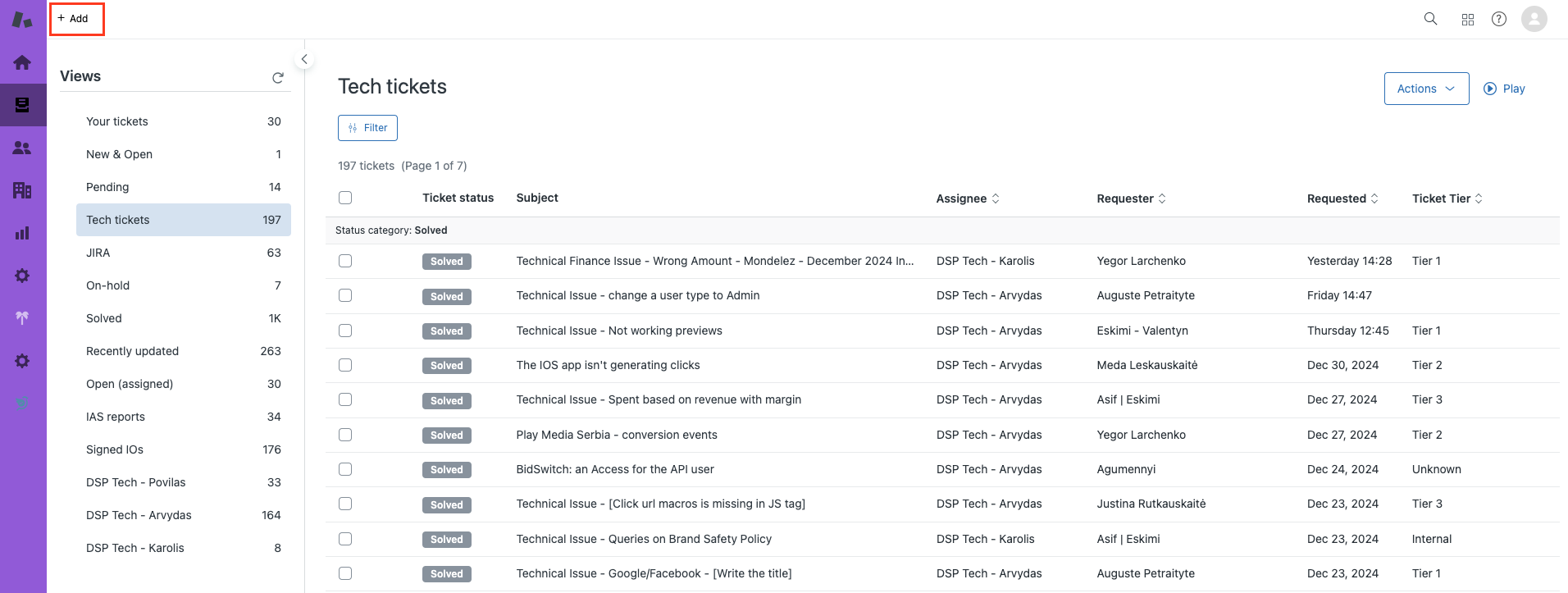](https://manual.eskimi.com/uploads/images/gallery/2025-01/sFvqvlSBijmZLmTK-screenshot-2025-01-07-at-13-08-41.png) #### **Filling ticket data** In the picture below you can see the steps of filling the ticket data.**Ticket statuses** and **templates** are covered more in-depth below.
[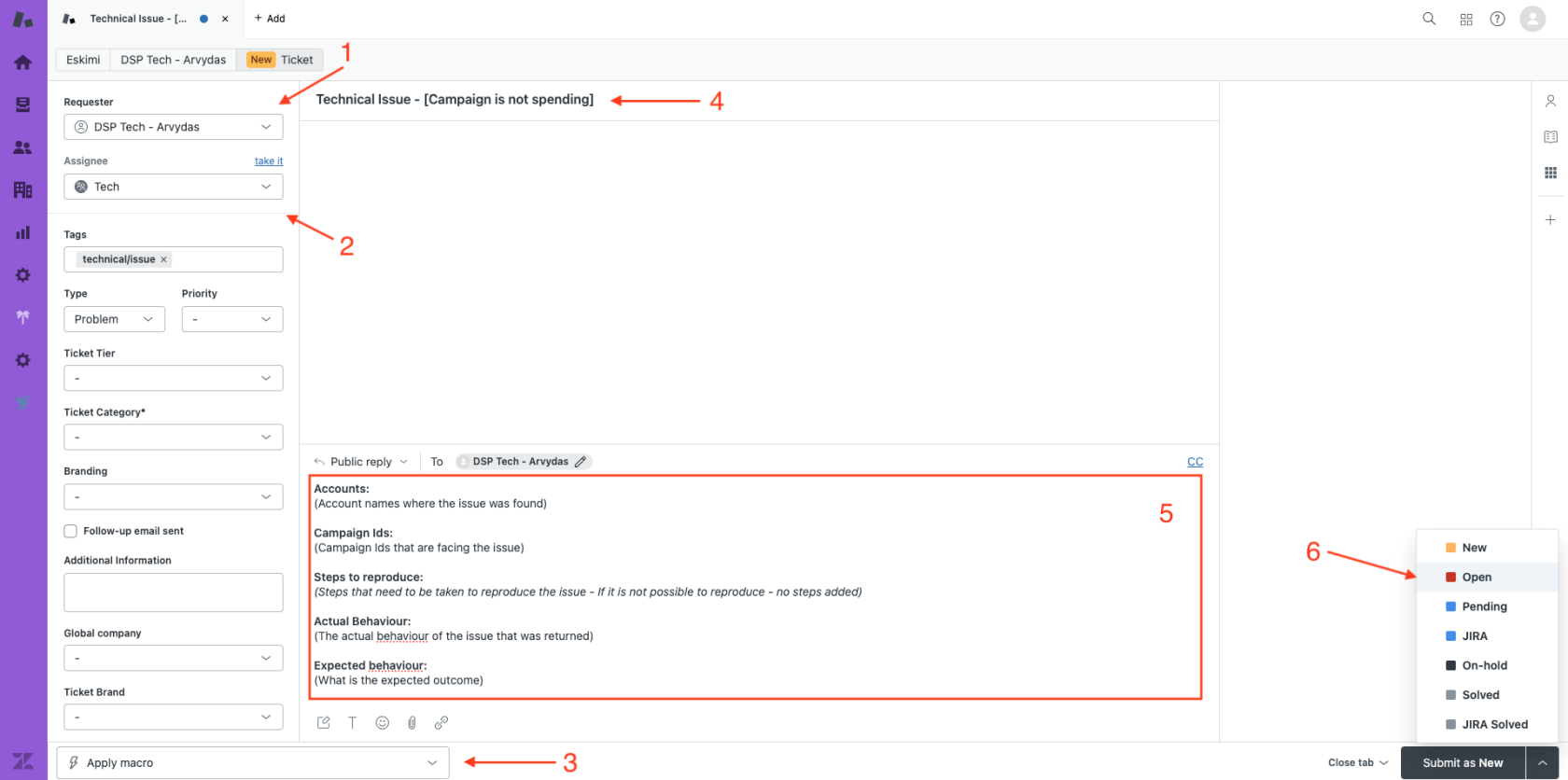](https://manual.eskimi.com/uploads/images/gallery/2025-01/zYZFdXIqY6JGDGJ1-screenshot-2025-01-07-at-13-15-58.png) 1. Select yourself as the requester 2. Select assignee "Tech" (group) 3. Select ticket template 4. Edit title according to your raised issue 5. Use template correctly (more information below) 6. Submit ticket as "Open"Optionally you can add tags, category and other fields related to your ticket but **most of it is automized.**
--- ### **Ticket statuses** As of writing this article, our Zendesk configuration includes seven possible ticket statuses: New, Open, Pending, JIRA, On-hold, Solved, and JIRA Solved.Tech related tickets should use only 5 of them: **Open, Pending, JIRA, Solved, JIRA Solved**
##### **Understanding Ticket Statuses** **Open** – this status should be used by AdOps when creating a new ticket for Tech Support or when replying to an unresolved Tech ticket. **Pending** – this status is used **only** by a Tech Support when a specialist is awaiting additional information or a response from AdOps. **JIRA** – this status is used **only** by Tech Support when a bug is logged in JIRA. AdOps can view the bug status on the right panel of the ticket.If you do not see the **JIRA** logo please press "**+**" sign and add it to your view
[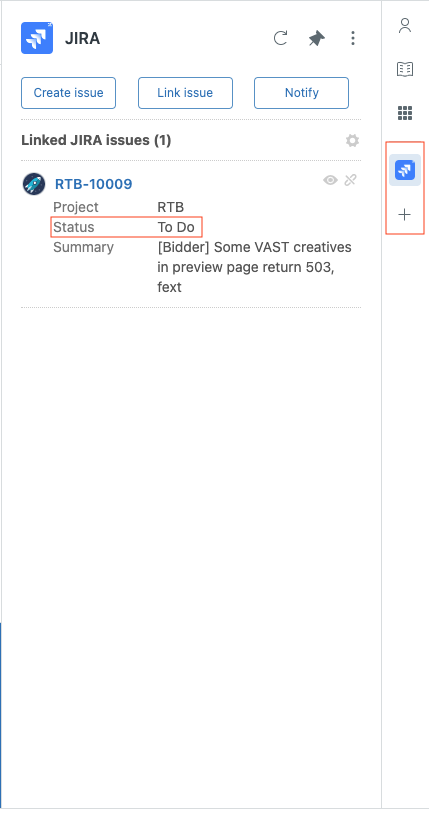](https://manual.eskimi.com/uploads/images/gallery/2025-01/qOQ3LuVyjHNAhlV2-screenshot-2025-01-07-at-12-49-08.png) **Solved** – this status is used by Tech Support when the provided solution resolves the issue. **JIRA Solved** - this status is used by Tech Support when the registered bug is resolved. --- ### **Ticket templates** There are templates available for tech-related tickets. The video below demonstrates how to select and complete the appropriate template. Please ensure you choose the template that corresponds to the topic of your ticket.If you cannot find a correct template for your needs please use \[Technical issues\] > General - \[Write the title\].
[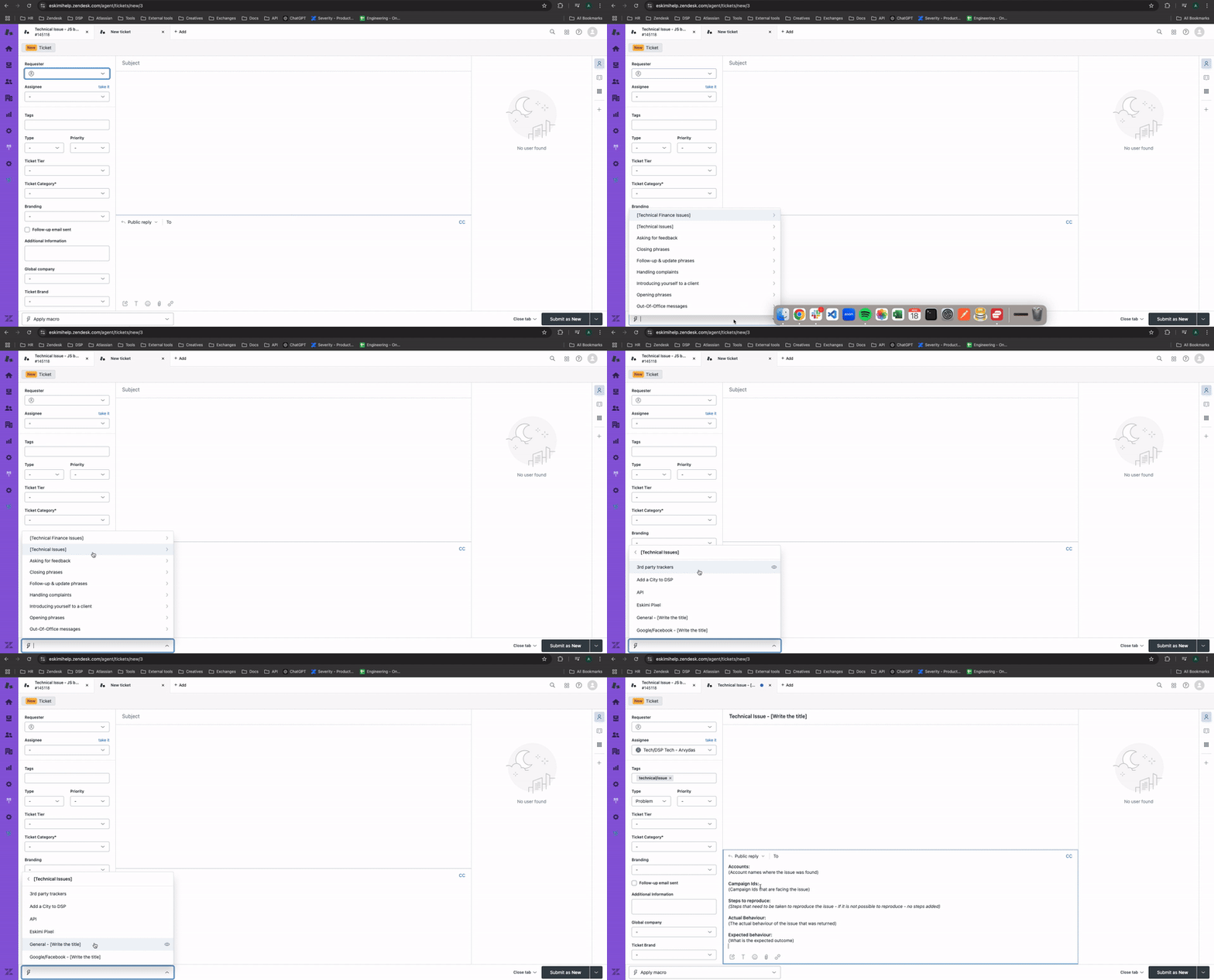](https://manual.eskimi.com/uploads/images/gallery/2025-01/Y74YTTWYa68bEIVH-screenrecording2024-11-18at09-23-35-ezgif-com-video-to-gif-converter.gif)It is important that you use the templates correctly. Account names, Campaign IDs must be written under and without additional text formatting
Links are acceptable and preferable
[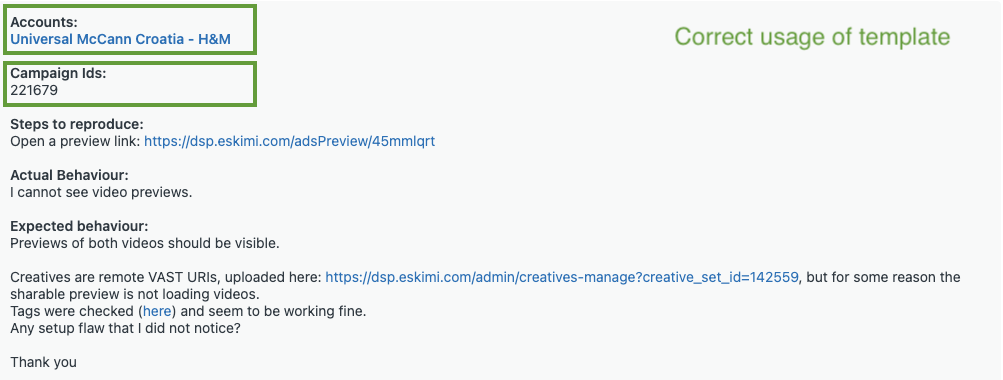](https://manual.eskimi.com/uploads/images/gallery/2025-01/4KkdnT4IwmkugBlV-screenshot-2024-11-18-at-09-06-09.png) ##### If you believe a new template is needed or have suggestions for improving existing templates from an AdOps perspective, please reach out to a Technical Support specialist via Slack. --- ### **Follow-ups** Solved tickets will automatically close after a certain period. To create a follow-up for the same issue, navigate to the closed ticket and click on "Create Follow-up." [](https://manual.eskimi.com/uploads/images/gallery/2025-01/SMw792uGBmldloE7-screenshot-2025-01-07-at-15-35-54.png)If the ticket is marked as "Solved" but not yet closed, please reply within the same ticket and change its status to "Open."
If the issue with a "Solved" ticket is unrelated to the new issue you're reporting, please create a new ticket and set its status to "Open."
--- ### **Additional notes**Please avoid adding Tech Support to the CC. Instead, provide a summary of your communication, highlighting the key issues and the specific areas where they occur.