The common practice for **AM/BDM** is to **reach out to AdOps first**. Please contact the Tech Support Specialist directly only in exceptional cases.
### **Templates**Templates are **mandatory**, they reduce back and forth communication, ensures faster issue resolution time.
#### **How to add a template** Unfortunately, Gmail has limitations on sharing templates across team accounts, so they will **need to be added manually.** 1. Copy the template from [here](https://manual.eskimi.com/books/tech-tickets/page/ticket-template-general-issue) (can be found in the Manual - General Issue) 2. Add subject and content to gmail compose tab (same as writing regular email) 3. Click **three dots** below and navigate to **Templates -> Save draft as template -> Save as new template** [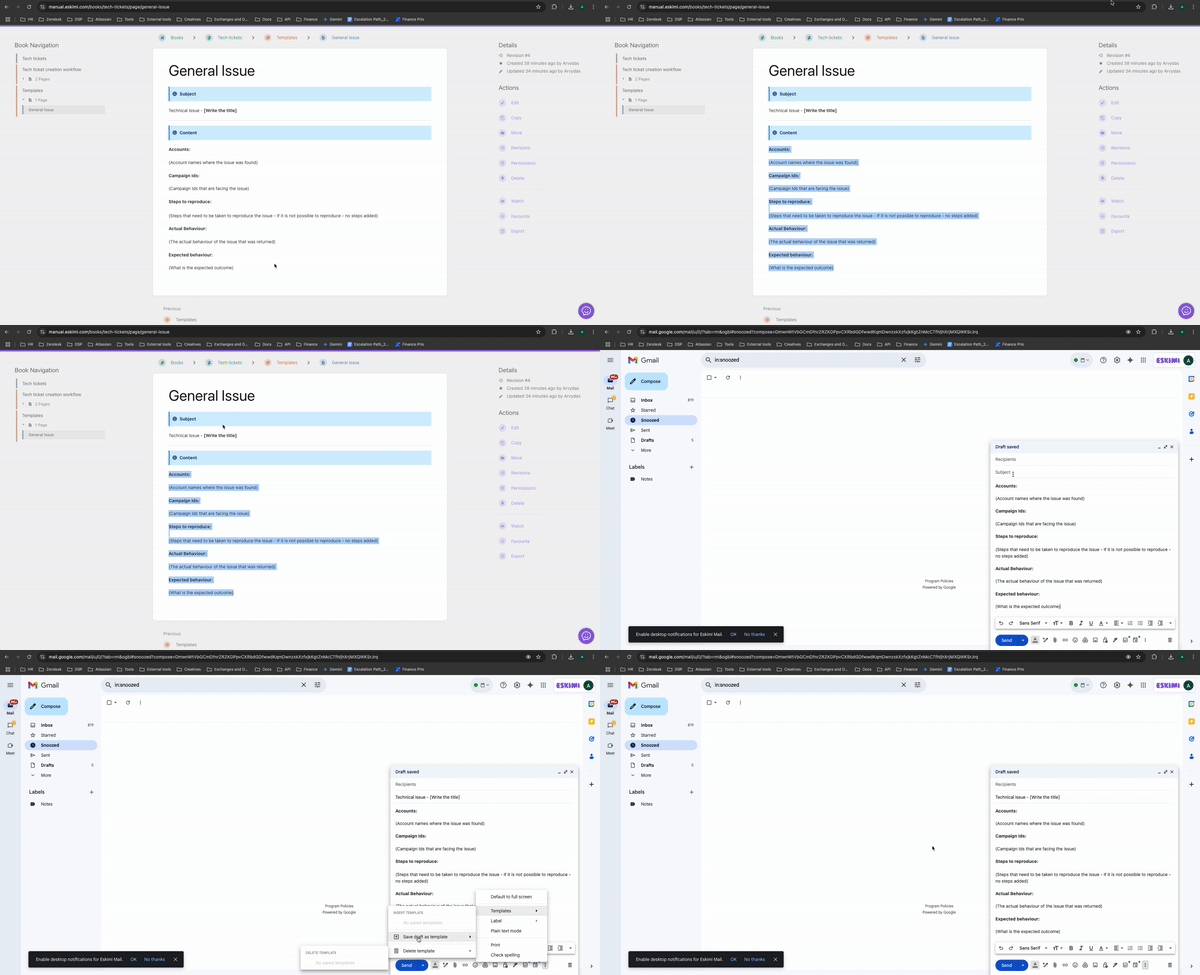](https://manual.eskimi.com/uploads/images/gallery/2025-03/xkdZ1ZBJwNbjA7bK-templateadd600kb.gif) You can check out this [official google guide](https://support.google.com/mail/answer/14864208?hl=en) for more information --- #### **How to use a template** 1. Open Gmail compose, **click on three dots** below and navigate to **Templates -> Select your template** 2. Fill in information **instead** of the text in brackets 3. Do not forget to write an appropriate subject as well --- ### **Contacting Tech support****Please consult with responsible AdOps before contacting Tech support**
Now that you have successfully added the template to your Gmail account, you can use it to report technical issues to the Tech support team by sending a **templated email** to **tech@eskimi.com**