# Tech ticket creation workflow via Slack
This workflow applies to **everyone with access to Eskimi Slack workspaces**. From now on, all Eskimi DSP tech support requests should be raised through the **Tech support help request** form in Slack **\#tech-support-request** channel instead of the previous email/Zendesk-based process.
### **Ticket creation process**
To create a new tech support ticket, open Slack and trigger the Tech support help request form shortcut.
[](https://manual.eskimi.com/uploads/images/gallery/2026-05/CRWha7ORpFvX0PmQ-image.png)
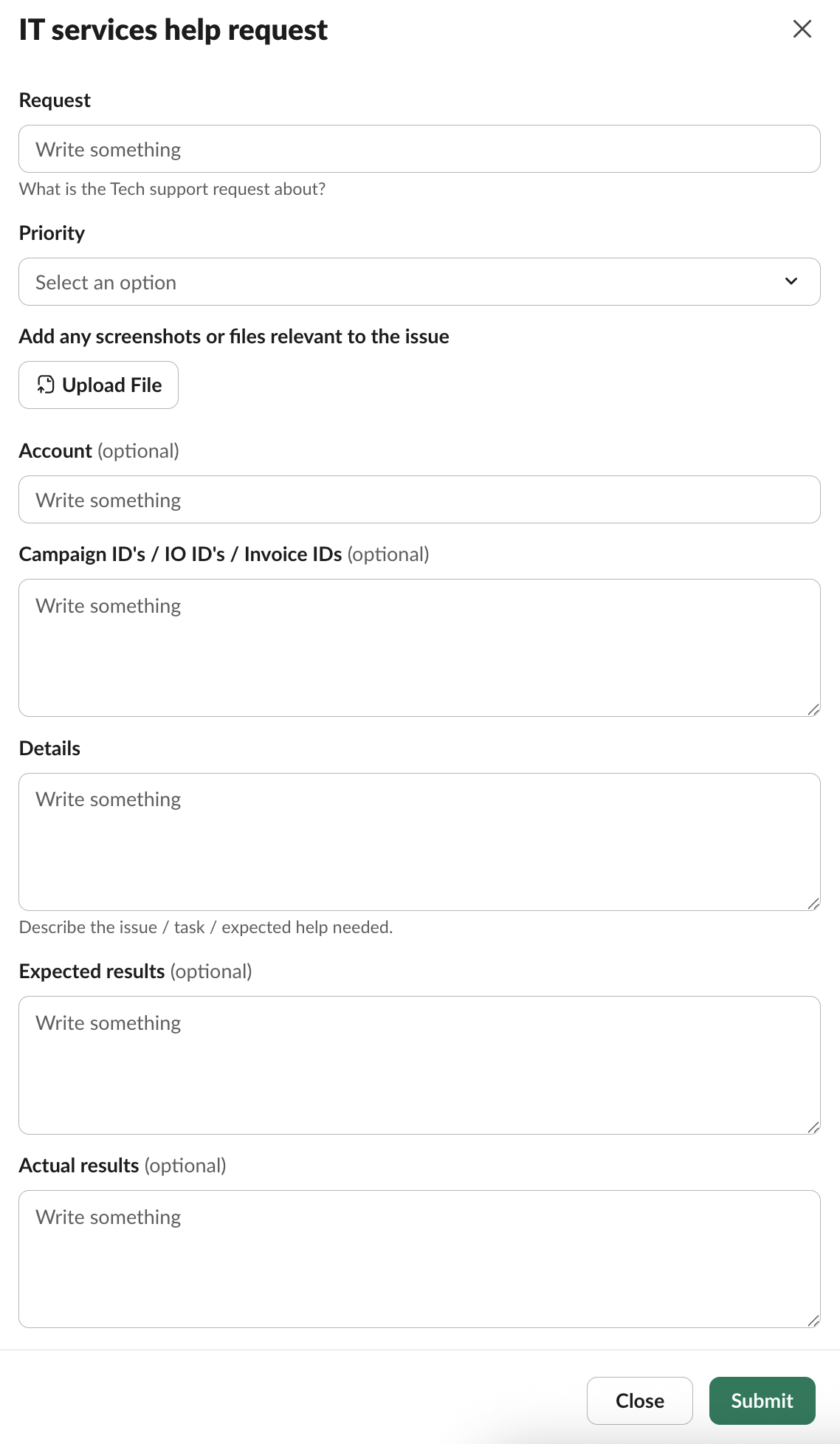
Once opened, the request form will appear as shown below.
[](https://manual.eskimi.com/uploads/images/gallery/2026-05/USoMRiKtQPI7kXX1-image.png)
### **Filling ticket data**
1. **Request** *(required)* – A short summary of what the tech support request is about. Think of this as the ticket title.
2. **Priority** *(required)* – Select the appropriate priority level from the dropdown. Use this honestly — overusing high priority slows everyone down.
3. **Add any screenshots or files relevant to the issue** – Upload screenshots, screen recordings, exported reports, or any other files that help explain the issue. Visual context speeds up triage significantly.
4. **Account** *(optional)* – The affected account name. Write the name without additional text formatting.
5. **Campaign ID's / IO ID's / Invoice IDs** *(optional)* – Provide the relevant IDs, one per line where possible. Links are acceptable and preferable.
6. **Details** *(required)* – Describe the issue, task, or expected help needed. Be specific: what were you trying to do, where did it happen, and when did it start?
7. **Expected results** *(optional)* – What you expected to happen / see.
8. **Actual results** *(optional)* – What actually happened / what you are seeing instead.
Once all relevant fields are filled in, press **Submit**.
Always attach a screenshot if the issue is visual (UI bugs, unexpected numbers, error messages).
One issue per ticket — do not bundle unrelated problems into a single request.
### **Ticket statuses**
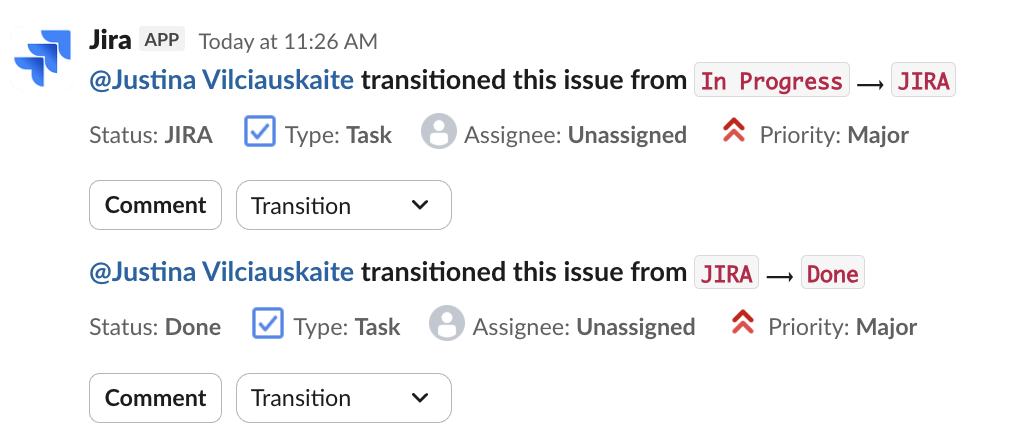
After submission, the request is registered in Jira and tracked through the following statuses:
- **To Do** – the ticket has been submitted and is waiting in the Tech team's queue. No one is actively working on it yet.
- **In Progress** – a Tech team specialist has picked up the ticket and is actively working on it. You may be contacted for additional information at this stage.
- **JIRA** – the issue has been identified as a bug or development task and has been **registered for the development team** in JIRA. Resolution timelines for JIRA tickets depend on the development team's priorities.
- **Done** – the ticket has been resolved. If the provided solution does not actually fix your issue, reply in the original ticket thread in Slack and let the Tech team know it is not resolved. The status will be moved back to **In Progress**.
[](https://manual.eskimi.com/uploads/images/gallery/2026-05/PZ6KGjdDMhzbqDdX-image.png)
### **Additional notes**
- **Always use the IT services help request form** as the primary channel for tech support.
- Avoid pinging Tech Support specialists in DMs or other channels for issues that should be tickets — it makes work invisible to the rest of the team and slows everyone down.
- For **AMs/BDMs**: the common practice is still to **reach out to AdOps first**. Submit a tech ticket directly only in exceptional cases or when explicitly advised by AdOps.