How to Upload Video Ads
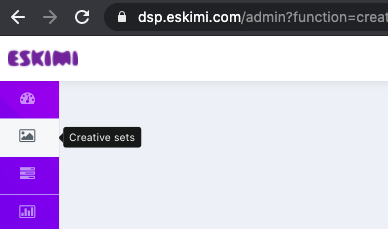
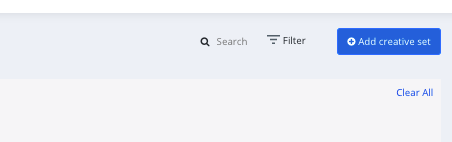
Log in to your DSP account, go to Creative Sets, and on the new page click "Add creative set".


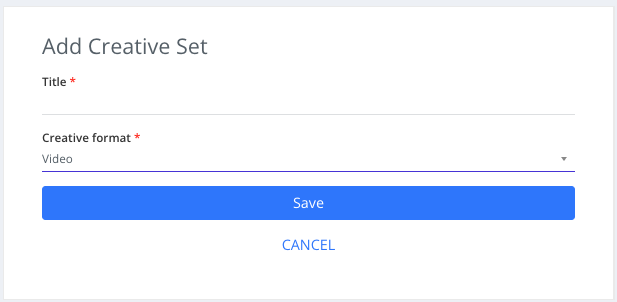
On the next page indicate the creative sets Title and select the format.

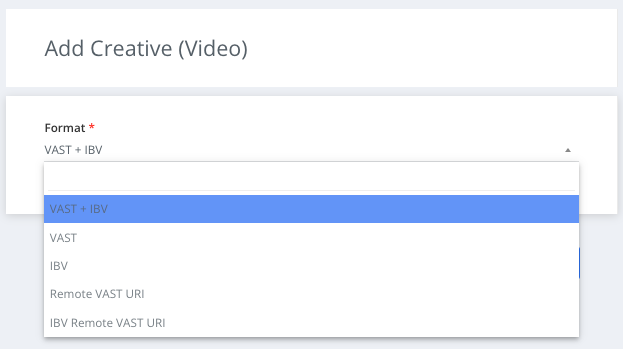
Select the type of video (VAST + IBV, VAST, IBV).

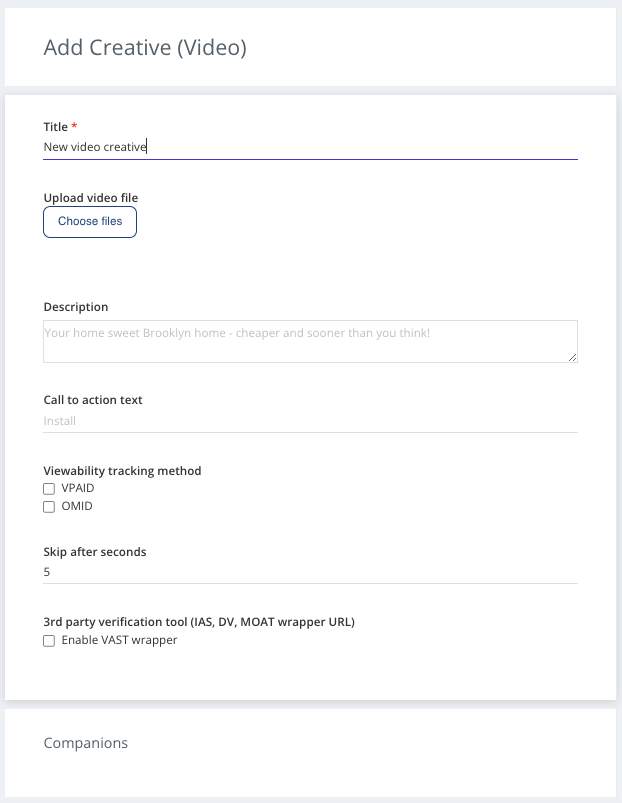
Choose file to use as creative
Select Viewability tracking method (VPAID - for websites inventory, OMID for in-app inventory) both can be selected.
if needed - update "Skip after seconds" value. For some exchanges this is a required value (i.e. DC), default is 5s.

Not necessary: Upload companion banners. Companion banner should be one from most popular sizes: 300x250px, 320x480px, or 480x320px.
Not necessary: Add description and Call to action text. Default CTA is "Lear more" and this is changed only in placements, which support that. It will describe a call to action button for the destination URL.Save your video ad.