
Audio VAST Creative
This page explains how to upload an audio file to Eskimi DSP as an Audio VAST creative. One thing to remember: an audio creative supports only an audio track, and video can’t be used.
Audio File Requirements
The audio file itself usually has the following requirements:
| Requirement | Value |
|---|---|
| Format | MP3, WAV, WMA or OGG |
| Bitrate | At least 128 kbps |
| Size | Max 50 MB |
| Duration | 15 to 30 seconds mostly, with very limited inventory supporting 60 s creatives |
How to Create an Audio VAST Creative
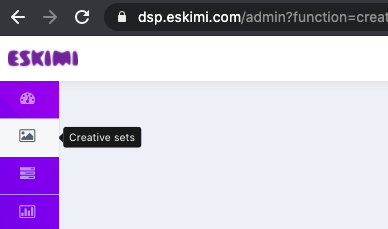
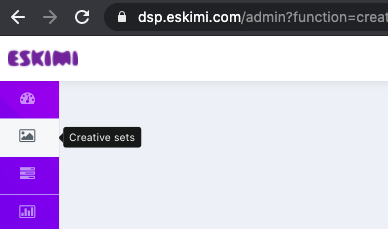
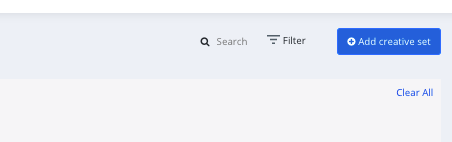
- Log in to your DSP account, go to Creative Sets, and click Add creative set.
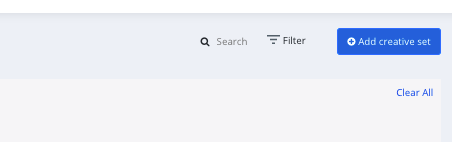
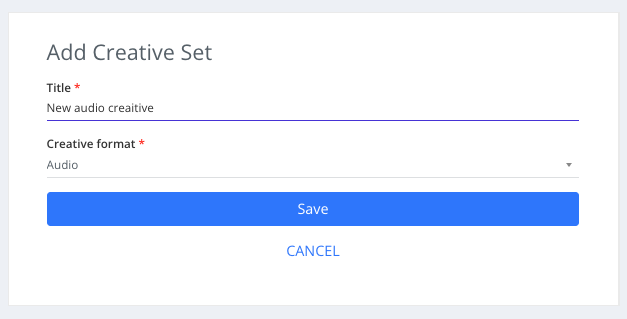
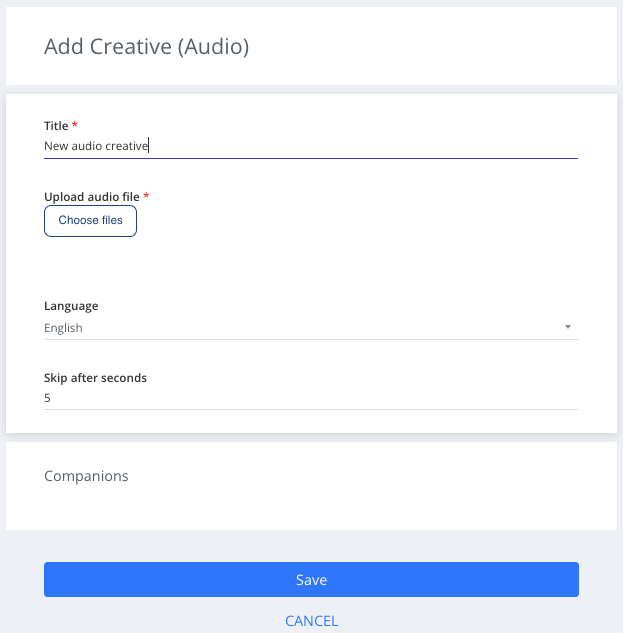
- Add a creative title, select Audio as the type of your creative set and click save.
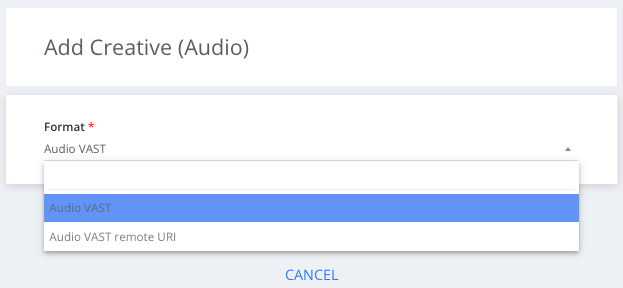
- Select the Audio VAST sub-type from the dropdown menu and click save.
- Select the creative language from the Language filter.
- Upload the creative audio file by selecting Choose files.


Companion Banners
Audio creatives (10-30% of the current audio inventory, depending on country) also support companion banners (static (95%) and HTML/JS (5%)). For a simple display ad, just upload it by selecting "Choose files". For HTML/JS, add the creative dimensions and upload or paste the creative tag.
We support one companion ad per creative. The companion should be one of the most popular sizes: 300x250px, 320x480px or 480x320px.
In the audio campaign report, under "Event metrics", you will see the "Companion impressions" and "Companion clicks" companion ad performance metrics (if available).

Summary
Audio VAST creatives are audio-only files uploaded directly to Eskimi DSP: create an Audio creative set, choose the Audio VAST sub-type, set the language and upload the file.
You can add one companion banner per creative in a popular size; its impressions and clicks appear under Event metrics in the report.