
Audio VAST Remote URI
This page explains how to add an Audio VAST remote URI creative: an audio ad hosted by a third party and delivered through its VAST tag. One thing to rememberremember: -an Audioaudio creative supports only an audio track andtrack, video creatives can'can’t be used.used, Creativeand the creative should not contain VPAID or OMID clients.
To
How createto Create an Audio VAST remoteRemote URI creative,Creative
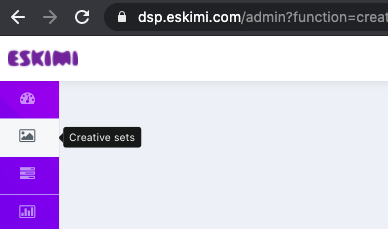
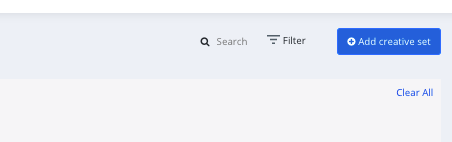
- Log in to your DSP account, go to Creative Sets, and click Add creative set.
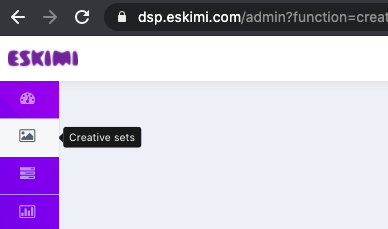
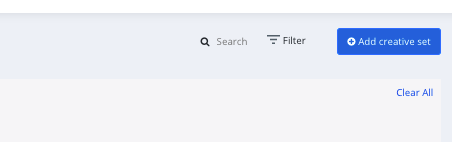
- Add
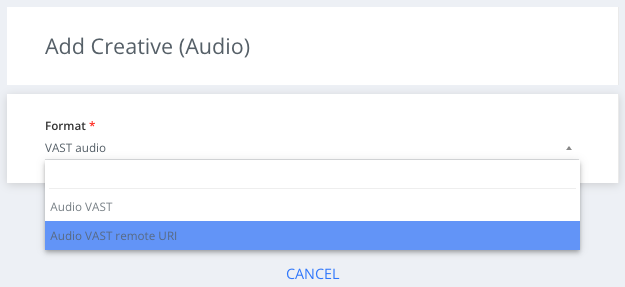
2: - Select the Audio VAST remote URI sub-type of audio from the dropdown menu and click
savesave.
- Select
4: - Paste the creative tag in the box and
hitclicksavesave.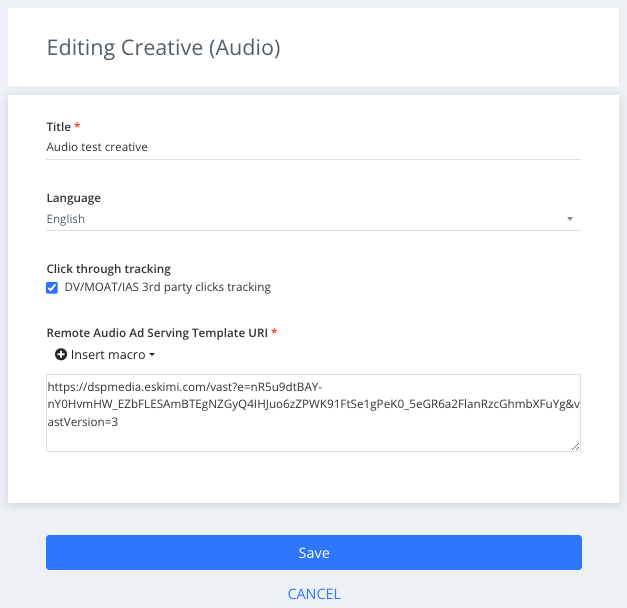
Step 1:
Step Adda creative title andtitle, select Audio as the type of your creative set and click save
save.
Step 3:

StepSelectthe creative language from the Language filter
Step 5:
Only de-select "Click through tracking" if you know that the main audio creative doesn't have a click-through URL inside the VAST XML (whenopen you openthe creative URL and search for "ClickThrough").
Summary

Keep click-through tracking on unless the VAST XML has no ClickThrough URL.