
How to Create Packages
Creating a Package on Eskimi DSP: A Step-by-Step Guide
Eskimi DSP’s Packages feature allows advertisers to create and manage custom lists of websites, mobile apps, or specific placements for their ad campaigns. There are two main types of packages:
-
App/Site Packages: These packages contain specific websites and mobile apps where ads will be displayed.
-
Placement Packages: These packages are based on placement IDs, allowing advertisers to specify exact placements for their campaigns.
This guide will walk you through the process of creating and implementing both types of Packages in your campaigns.
App/Site Packages
Step 1: Accessing the Packages Feature
-
Log in to your Eskimi DSP account.
-
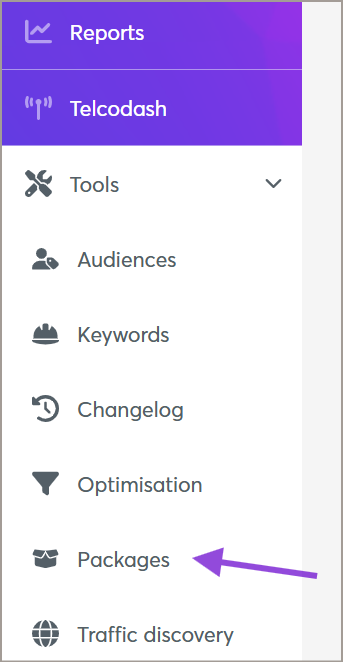
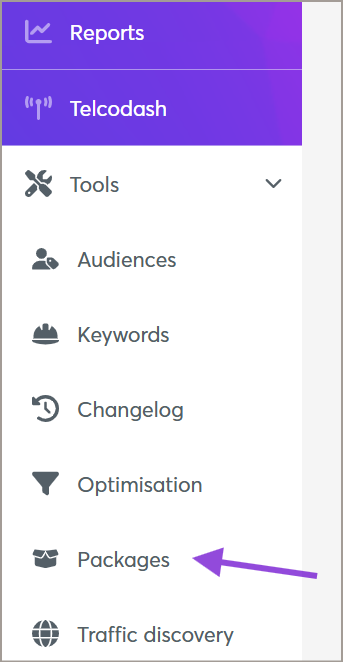
Navigate to the Tools dropdown menu.
-
Click on Packages to access the package management page.
Step 2: Creating a New App/Site Package
You can create an App/Site Package in two ways: manually selecting apps and sites or by uploading a prepared list.
Option 1: Manual Creation
VIDEO TUTORIAL: HOW TO CREATE A NEW APPS/SITES PACKAGE
-
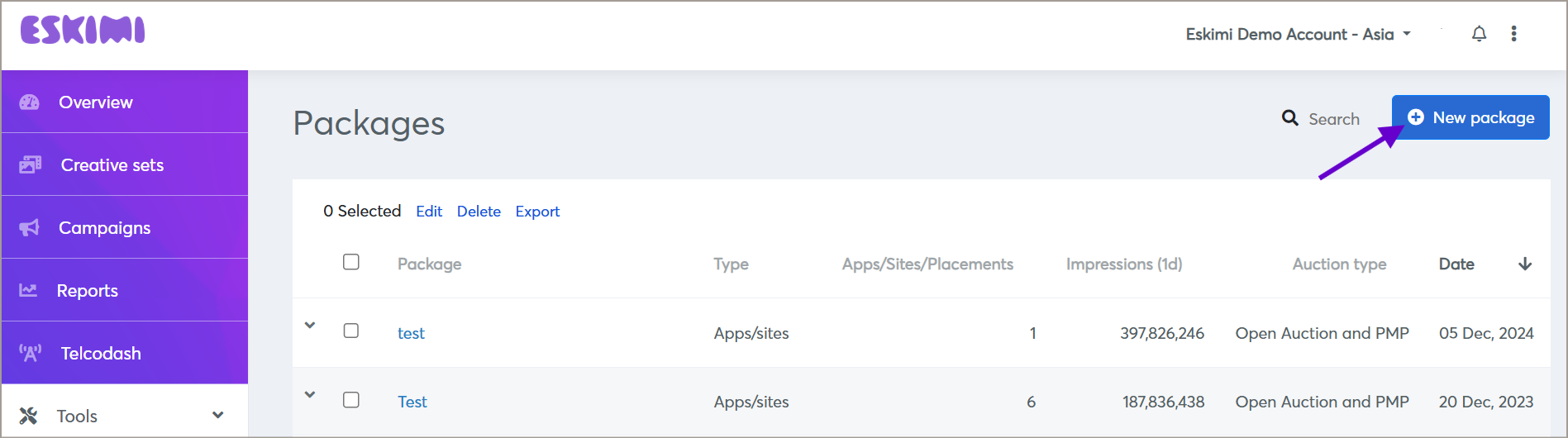
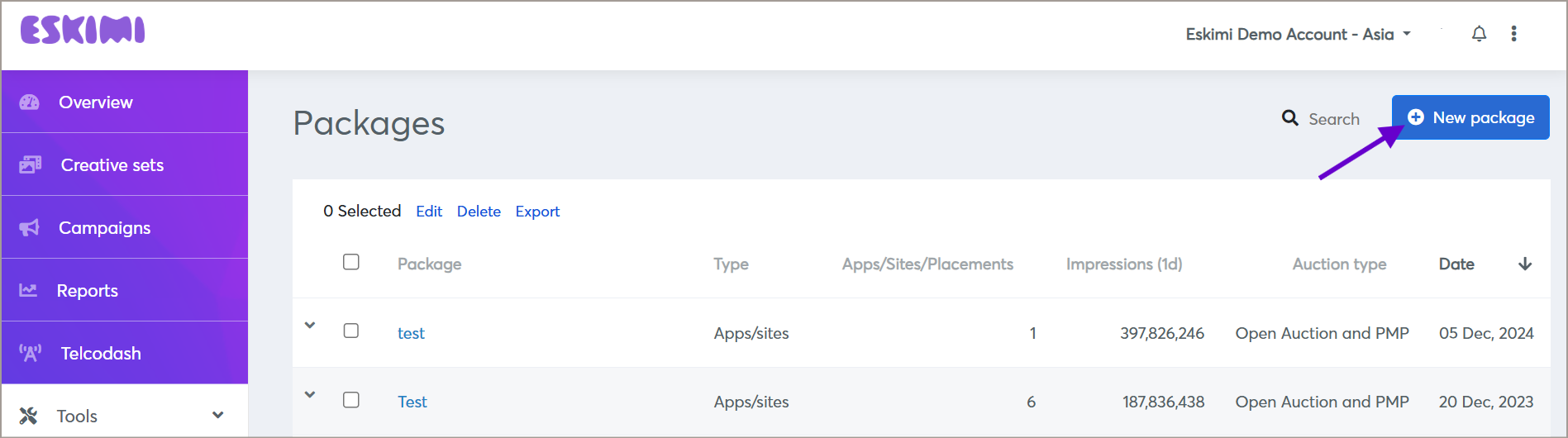
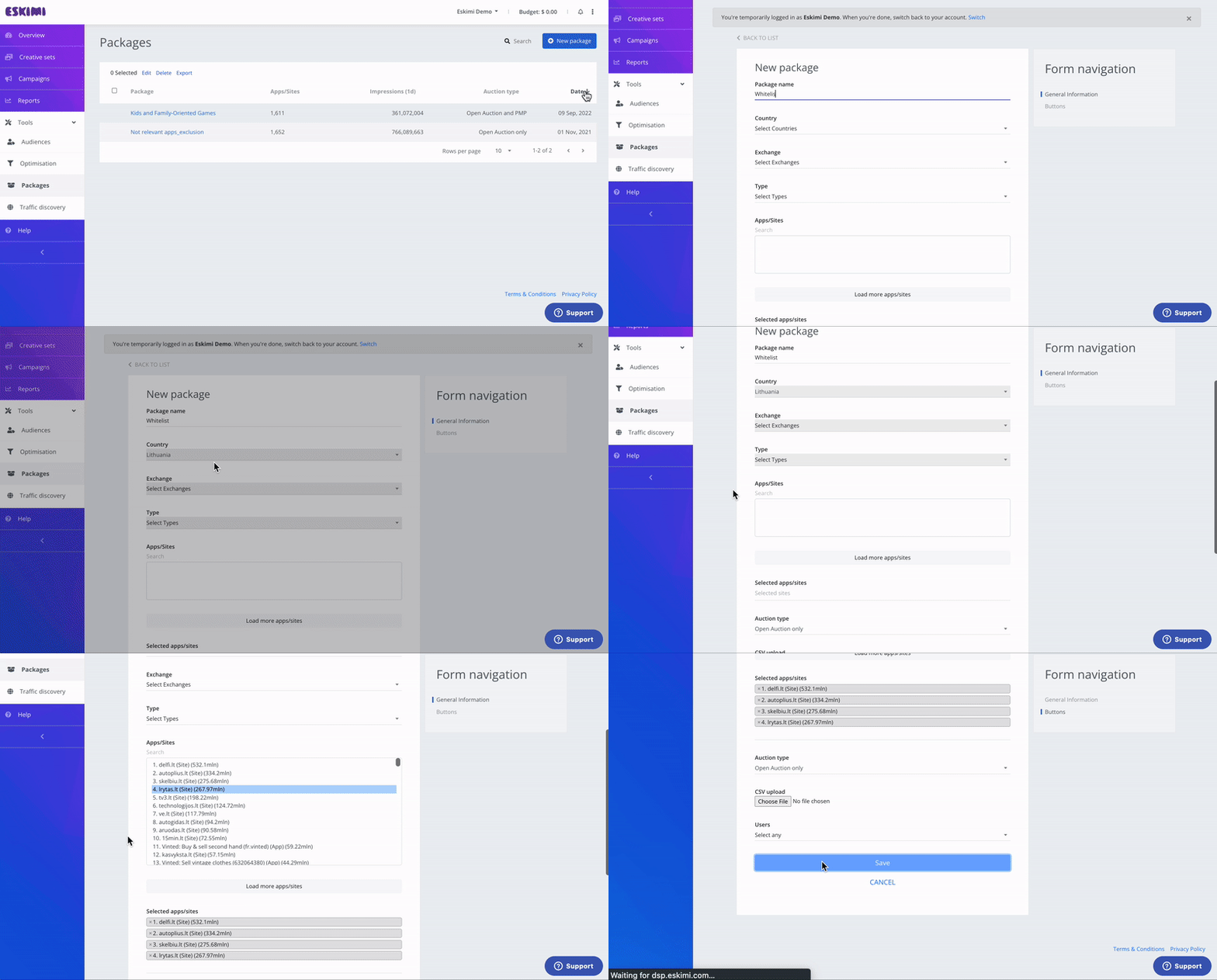
On the Packages page, click New Package to start creating a package.
-
Fill in the required fields:
-
Package Name: Enter a descriptive name for your package.
-
Country: Select the country where the apps or websites will be sourced.
-
Exchanges: Choose which exchanges you want to include. If unsure, skip this step to allow the system to optimize across all available exchanges.
-
Environment: Specify whether you want to filter for Apps or Websites. After applying this field, the available apps and sites will appear in the Apps/Sites section.
-
Apps/Sites: Use the search function to select specific apps or websites to include in your package.
-
-
Once all details are entered, click Save to finalize your package.
Option 2: Uploading a Prepared List
Make sure apps/sites names do not contain special characters or paths.
Correct apps/site format: www.example.com
If you are unsure of the apps/sites names format, please save CSV as UTF-8
-
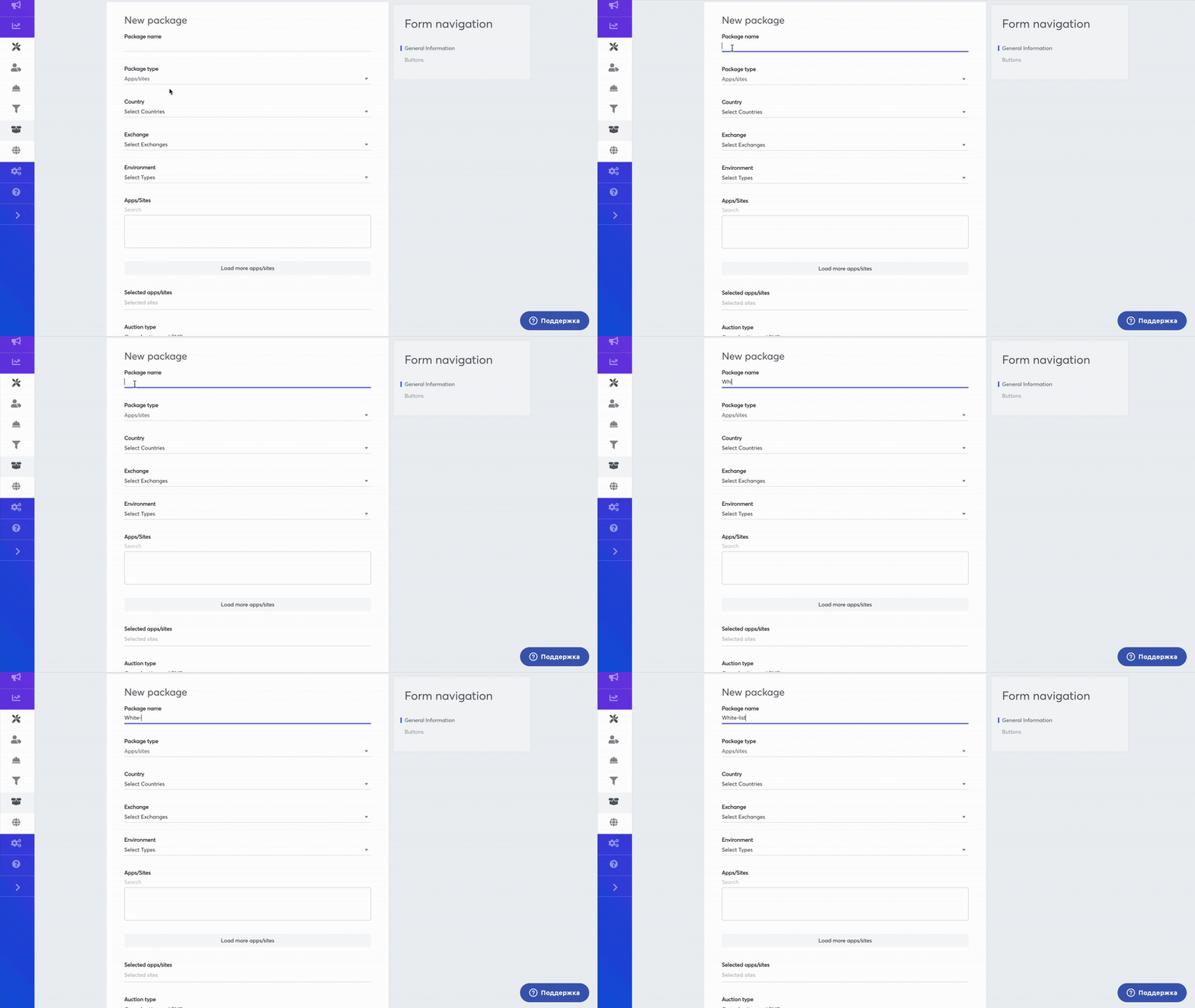
Instead of manually selecting apps/sites, prepare a list in .csv format.
-
Click Upload List and select your file.
-
The system will automatically populate the Apps/Sites section based on your list.
-
Click Save to finalize your package.
Step 3: Implementing Your Package in a Campaign
-
Access the Campaign Creation screen or select an existing campaign to edit.
-
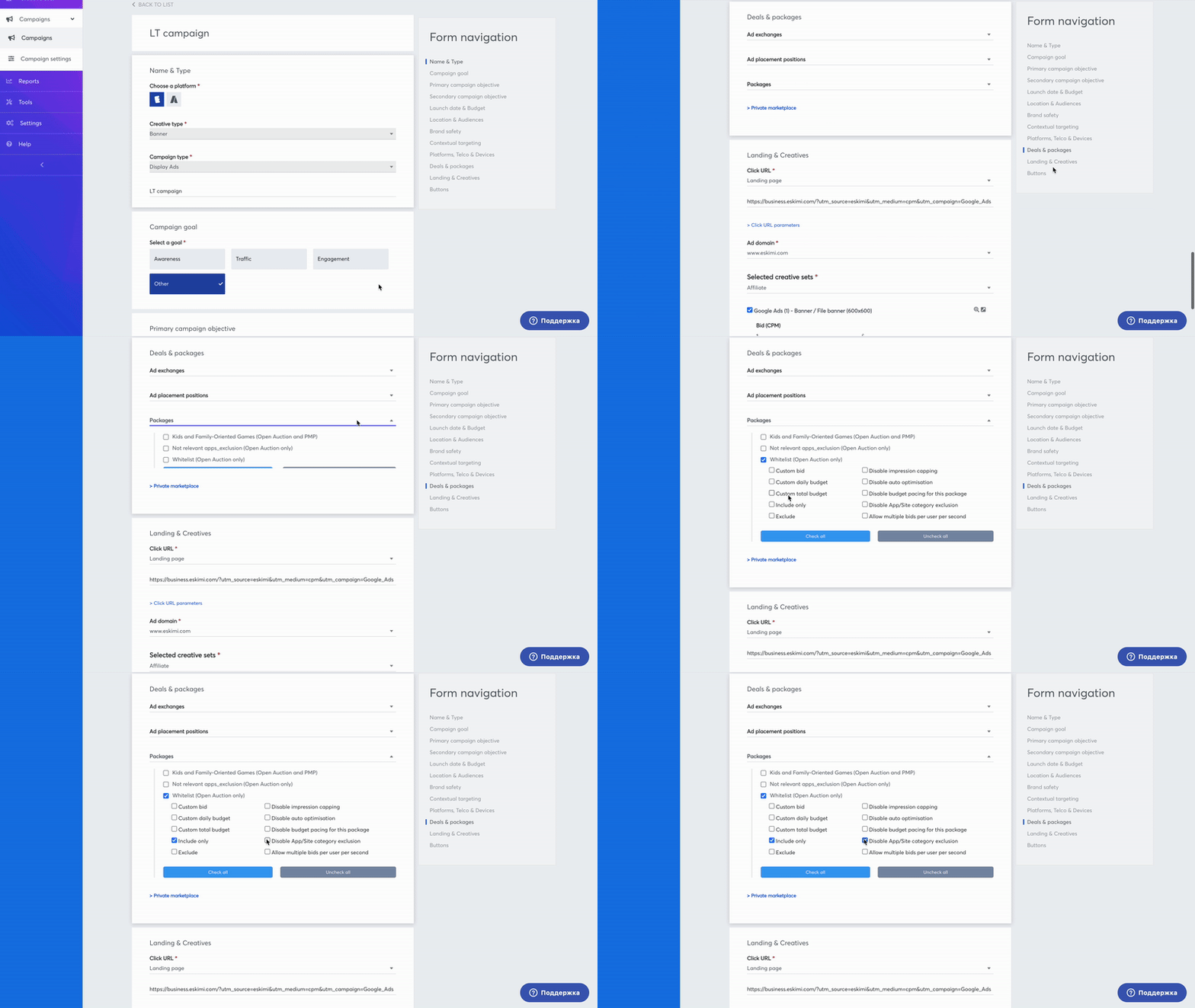
Navigate to the Deals & Packages section.
< -
Choose the newly created package and
decidetickwhetherattoleastincludeoneoroptionexcludeforitit.from the campaign. Eskimi DSP offers additional customizationThe optionsforarepackages,explainedallowing advertisers to fine-tune their campaign settings. These options include:below.
- Options
Only
CustomIncludeBidonly:Setand Exclude decide where your campaign runs. All other options change how the campaign bids, spends or is optimised on the package's apps/sites, and the campaign keeps running on all other inventory too. Example: aspecificpackage of Dutch sites with only Custom bid +20% still lets the campaign serve on German or Austrian sites. To run only on the package, also tick Include only.Option
What it does
Use it when
Include only
The campaign serves only on the apps/sites in this package. With several Include only packages, it serves on all of them together.
You want the campaign to run on a fixed list (a whitelist).
Exclude
The campaign never serves on the apps/sites in this package.
You want to block a list of apps/sites.
Custom bid
Enter a percentage: how much more you want to bid over your campaign CPM on this package's apps/sites (from -99% to +999%; a negative value bids lower). It does not limit where the campaign serves.
You want to pay more for premium apps/sites, or less for cheaper ones.
Custom daily budget
Limits spend on this package to a share of the campaign's daily budget, from 1% to 99%. When the share is spent, the campaign stops buying this package for the
package.rest of the day.CustomYouDaily Budget: Allocatewant aseparatefixed share of dailybudgetspendfortothego to this package.Custom
Total Budget: Define thetotal budgetlimitforLimits spend on this package to a share of the campaign's total budget, from 1% to 99%.
You want a fixed share of the whole budget to go to this package.
IncludeDisableOnly:impressionEnsurecappingThe campaign's frequency cap does not apply on this package's apps/sites. It still applies everywhere else.
A package needs more frequency than the rest of the campaign.
Disable auto optimisation
Automatic optimisation never removes this package's apps/sites, even if they miss the campaign's KPI.
The apps/sites must keep running, e.g. publishers agreed with the client. The KPI may be harder to reach.
Disable budget pacing for this package
Even pacing does not spread spend on this package across the day, so it can spend early.
Delivery on the package matters more than even spend during the day.
Disable App/Site category exclusion
The campaign's excluded app/site categories do not block apps/sites in this package.
You want specific apps/sites from a category that is otherwise excluded.
Allow multiple bids per user per second
Lets the campaign
runsbidexclusivelymoreonthanthe selected package.Exclude: Prevent the campaign from running on the selected package.Disable Impression Capping: Remove any limitations on the number of impressionsonce peruser.Disable Auto Optimization: Stop the system from automatically adjusting campaign performance settings.Disable Budget Pacing for This Package: Prevent budget distribution adjustments over time.Disable App/Site Category Exclusion: Override default category exclusions and allow all listed apps/sites.Allow Multiple Bids Per User Per Second: Enable multiple bidssecond for the same userwithinon this package. The frequency cap still applies.Inventory that sends several ad requests per user at once.
Rules to Keep in Mind
- Every package you add to a campaign needs at least one
second.option ticked. - If you use several Include only packages and give one of them a Custom daily budget (or Custom total budget), give all of them one.
- Custom daily and total budget accept 1% to 99%. To send 100% of the budget to one package, use Include only on its own.
- Package settings override the campaign settings for that package's apps/sites.
- A package marked PMP only needs a private marketplace deal selected in the campaign.
- Placement packages support Include only and Exclude only.
-
Continue setting up the campaign as needed.
Placement Packages
Step 1: Accessing the Packages Feature
-
Log in to your Eskimi DSP account.
-
Navigate to the Tools dropdown menu.
-
Click on Packages to access the package management page.
Step 2: Creating a New Placement Package
You can create a Placement Package by uploading a prepared list of placement IDs.
Uploading a Placement List
-
On the Packages page, click New Package.
-
Select Package Type -> Placement.
-
Upload a list of Placement IDs (numeric values only; other values will be filtered out).
-
Assign the package to specific user(s).
-
Click Save to finalize your package.
Step 3: Implementing Your Placement Package in a Campaign
-
Access the Campaign Creation screen or select an existing campaign to edit.
-
Navigate to the Deals & Packages section.
-
Choose the newly created Placement Package and decide whether to include or exclude it from the campaign.
-
Continue setting up the campaign as needed.
Use Cases of Placement Packages
-
Reuse high-performing placements across multiple campaigns by choosing placement IDs of well-performing campaigns.
-
Start a campaign with a specific list of placements and optimize from there.
-
Utilize placement data from external trackers that meet required metrics.
Limitations
-
Other package functionalities are not supported for Placement Packages.
ConclusionSummaryByPackagesfollowing these steps,let youcanreuseefficientlyacreatelist of apps/sites, or of placement IDs, across campaigns. Create the package under Tools > Packages, then add it to a campaign in the Deals & Packages section andmanagetickPackagesatwithinleastEskimioneDSP.optionWhetherforusingit.App/SiteOnly
PackagesInclude only and Exclude decide where the campaign runs. Custom bid, custom budgets and the other options change how the campaign bids, spends orPlacementisPackages,optimisedthisonfeaturetheallowspackage'sforapps/sites.improvedTicktargeting,Includeenhancedonly as well when the campaigncontrol,shouldandrunstreamlinedonadthatplacement,packageensuring better results for your digital advertising strategy.alone.