
GTM + GA4: How to Track Videos on a Website
Youtube video tracking with GTM trigger and GA41.
-
Disable Video Engagement tracking features in Enhanced Measurement.
Otherwise, there's a high risk of occasional duplicate data.How to disable Video Engagement tracking in GA4:
GA4 Admin > Data Streams > Gear Icon > disable Video Engagement tracking.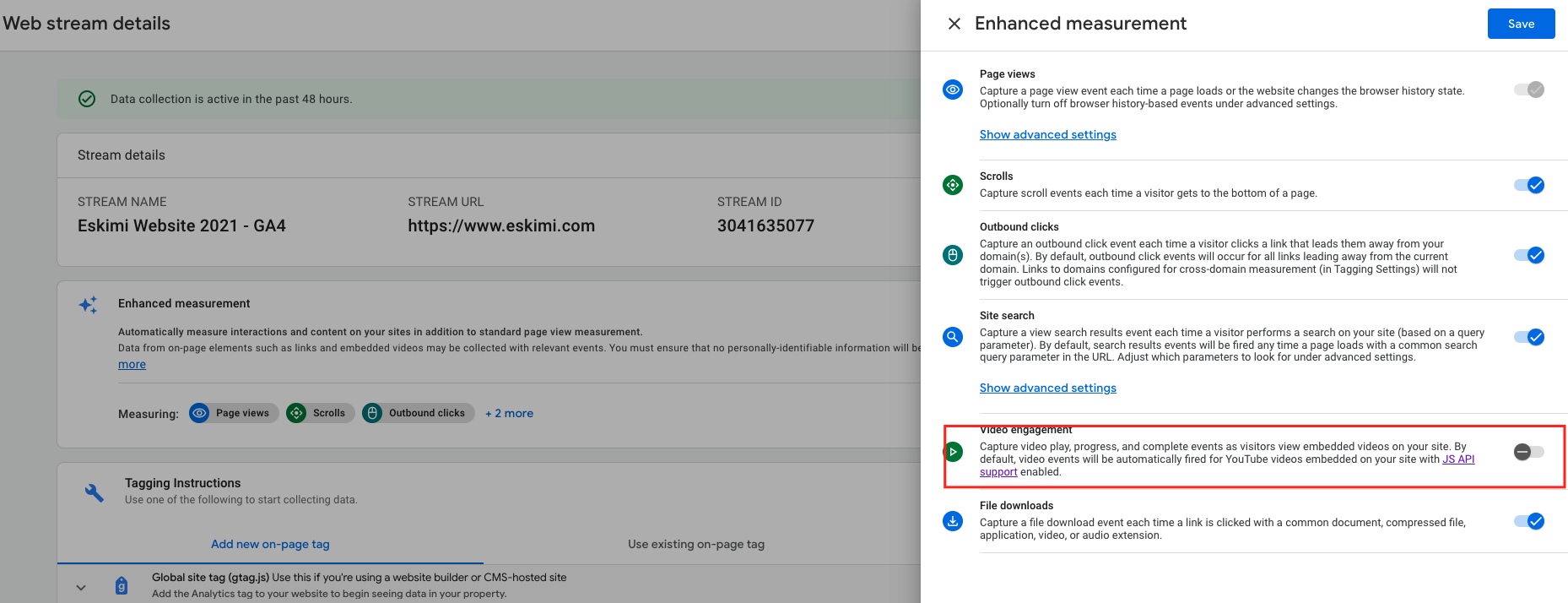
-
2.GTM > Create a Youtube Video trigger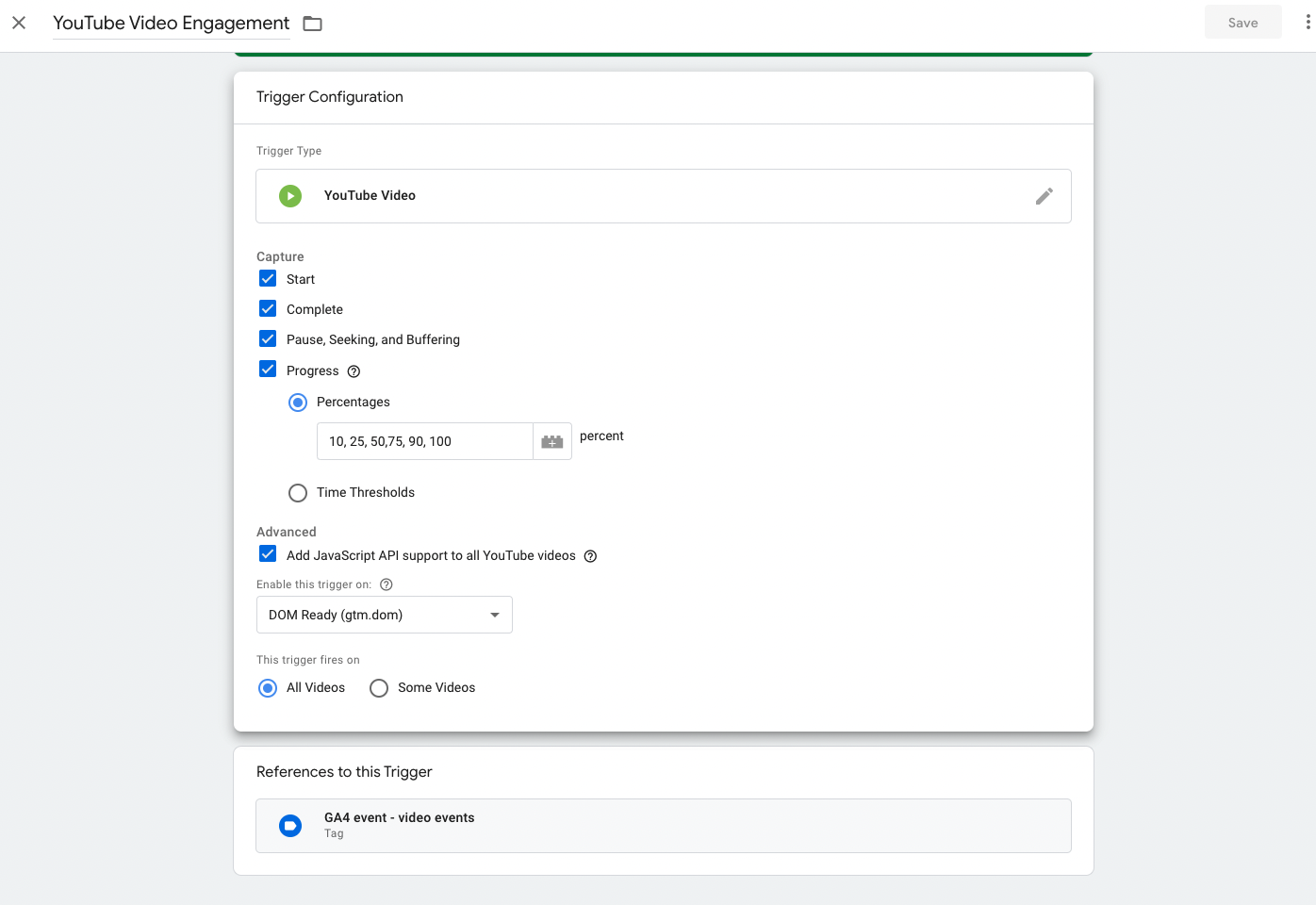
Put the details as you see it above and then hit > SAVE -
3.GTM > Enable built-in video variables
GTM > Variables > Configure > Select all variables that refer to videos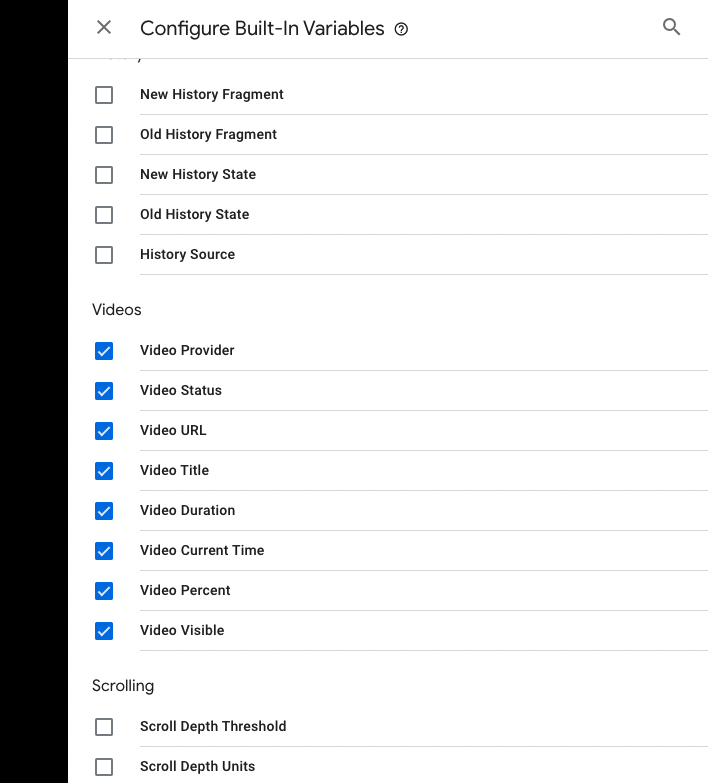
-
4.GTM > Create a GA4 tag
GTM >Tags > New > GA4 Event Tag as you see it below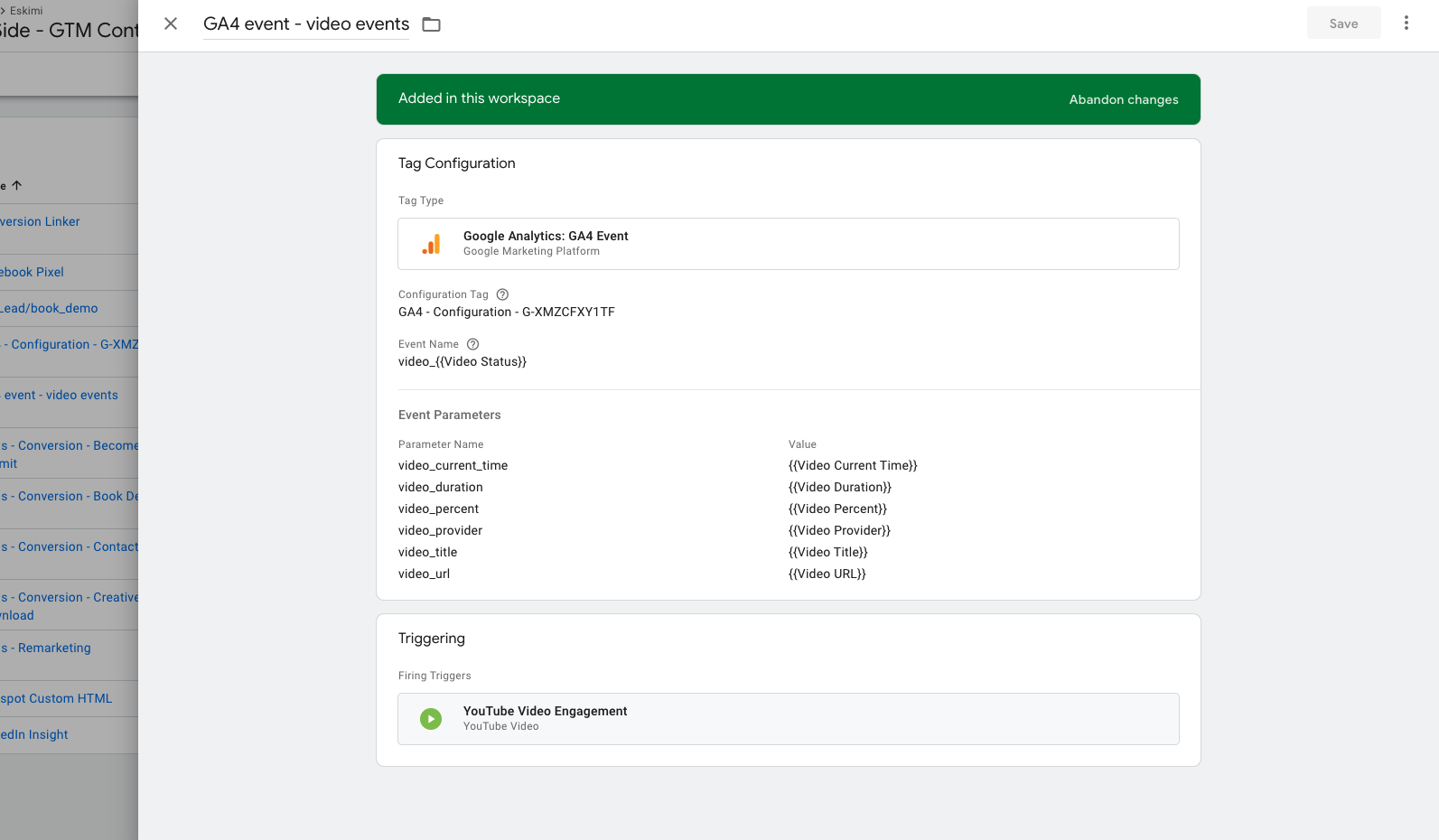
Don't forget to SAVE -
5.Test the setup in debug view5.1-
Go to your website and find a page that contains a Youtube player, for example https://www.eskimi.com/about-us
Then go back to GTM, refresh, select Preview and paste the link of the website.
Choose CONNECT.
Then, you will see that a new tab will open. Activate the video (in order to trigger the events that we just created).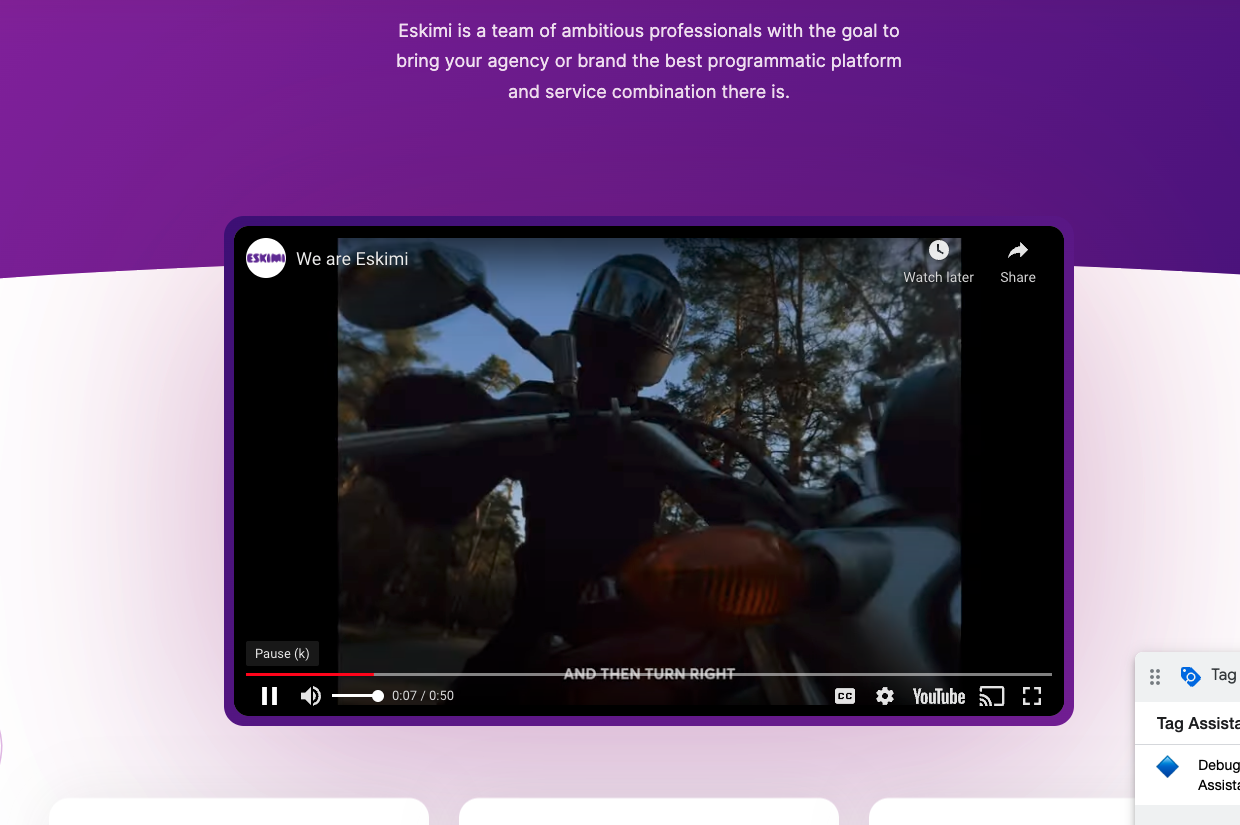
Go back to GTM and see that the tag is fired :D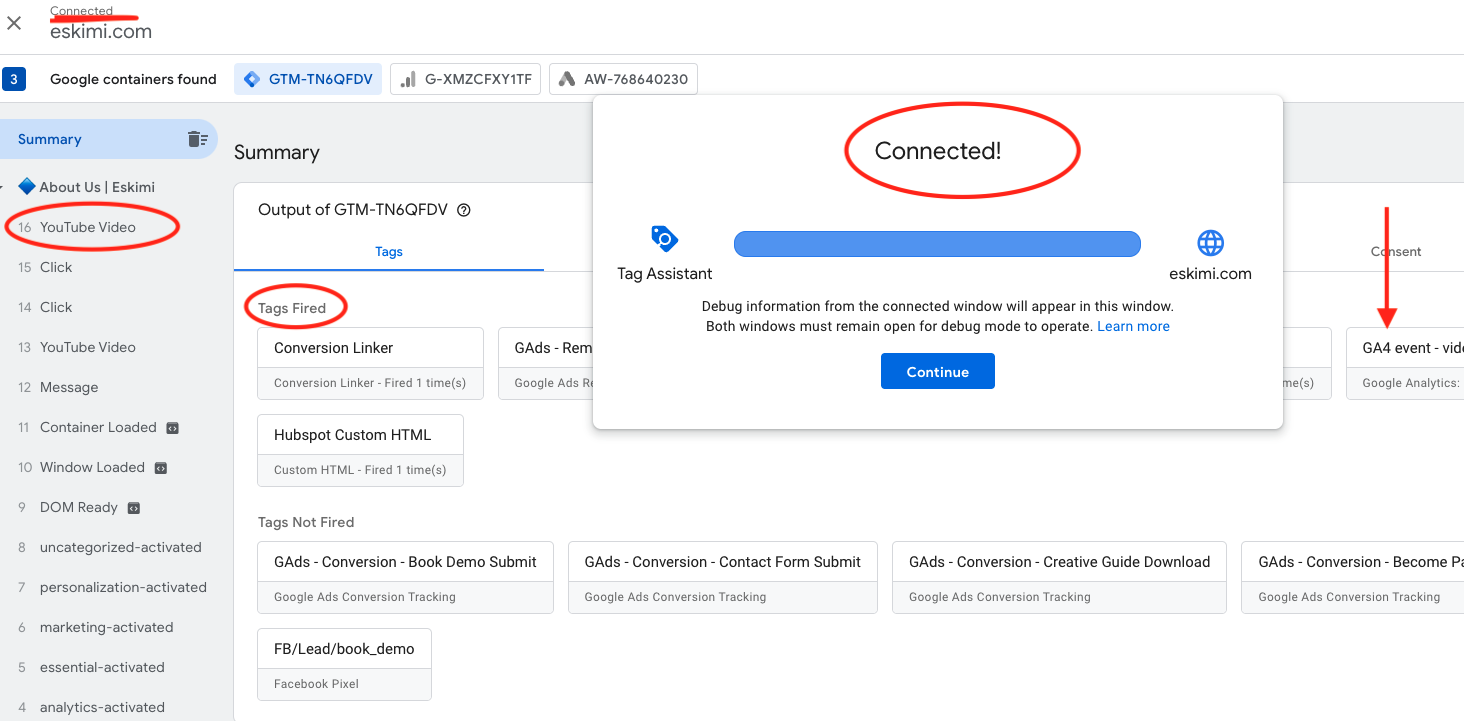
5.2 -
GA4 > Debug view
GA4 > Configure > DebugView > see the events
Also, don't forget to add the events in the Custom Dimensions [in order to be able to add these dimensions into your reports (Explorations)]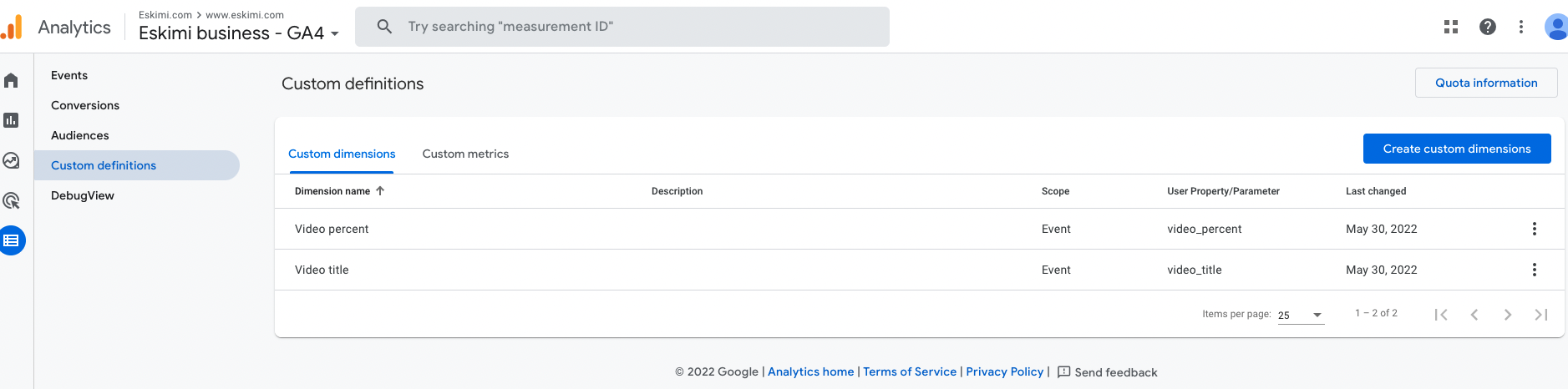
-


See how to make a Custom Report for Video Engagement Metrics here.