
Native
This page explains what native ads are, why advertisers use them, what assets they need and how to upload a native ad in Eskimi DSP.
What Is Native Advertising
Native ads match the look, feel and purpose of the content around them. You will often see them in social media feeds or as suggested content on a website.
Unlike display banners, native ads don't look like typical advertisements: they appear as part of the site's editorial flow. Their main benefit is that they are non-disruptive, so they show marketing content without interrupting the user.
Why Native
-
Effectiveness: users look at native ads more than at display ads, and they can increase purchase intent.
-
Engagement: visual engagement with native ads is similar to, and sometimes better than, engagement with editorial content.
-
Less disruptive: native ads sit within the content, so they change the user experience very little.
-
Less ad fatigue: users get tired of ads and start ignoring them; native ads blend into the content, so they wear users out less.
Requirements
|
Element |
Size or limit |
What it is |
|---|---|---|
|
Icon |
128x128 px |
App or product icon |
|
Cover image |
1200x627 px |
Main creative image |
|
Cover alt image (optional) |
600x600 px, plus up to 10 other sizes (most used: 300x250 px, 300x174 px) |
Additional creative images |
|
Title / headline |
25 characters |
Product or service name |
|
Description |
90 characters |
Advertising text |
|
Call to action text |
15 characters |
Call-to-action button text |
|
Advertiser |
25 characters |
Advertiser name |
Character limits include spaces.
Limitations
Viewability of native ads is not tracked or reported.
Example

How to Upload a Native Ad
-
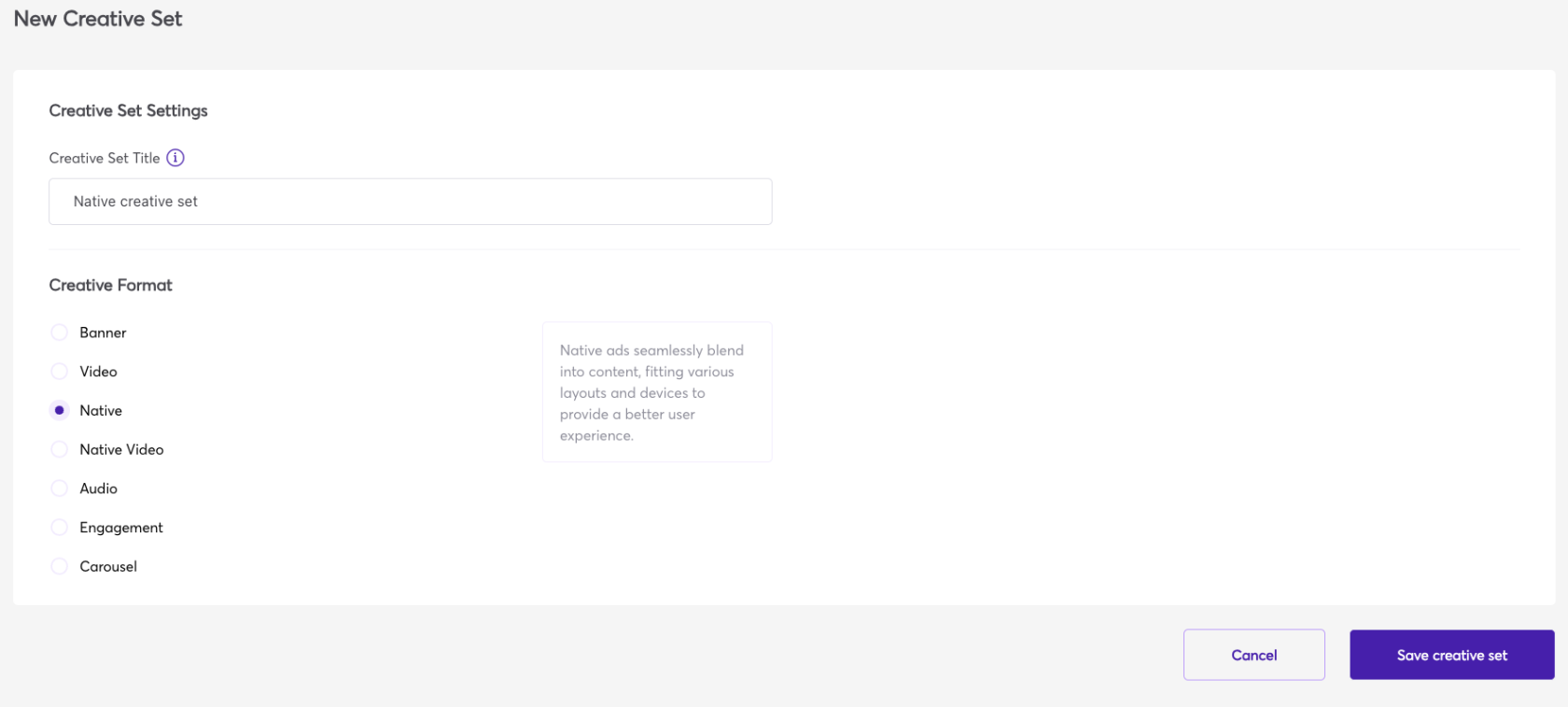
Log in to Eskimi DSP, go to Creative Sets and click Add creative set.
-
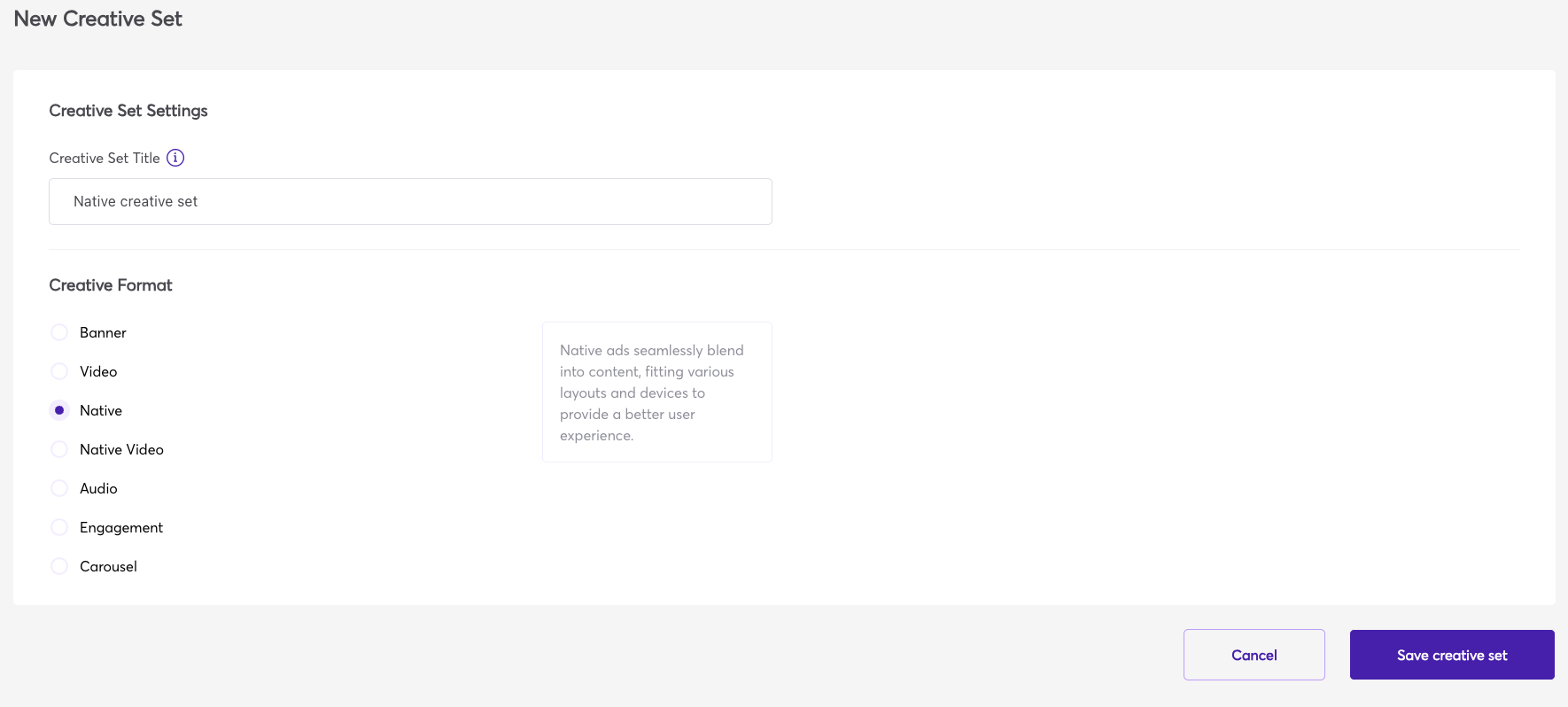
Enter the Creative Set Title, select Native under Creative Format and click Save creative set.
-
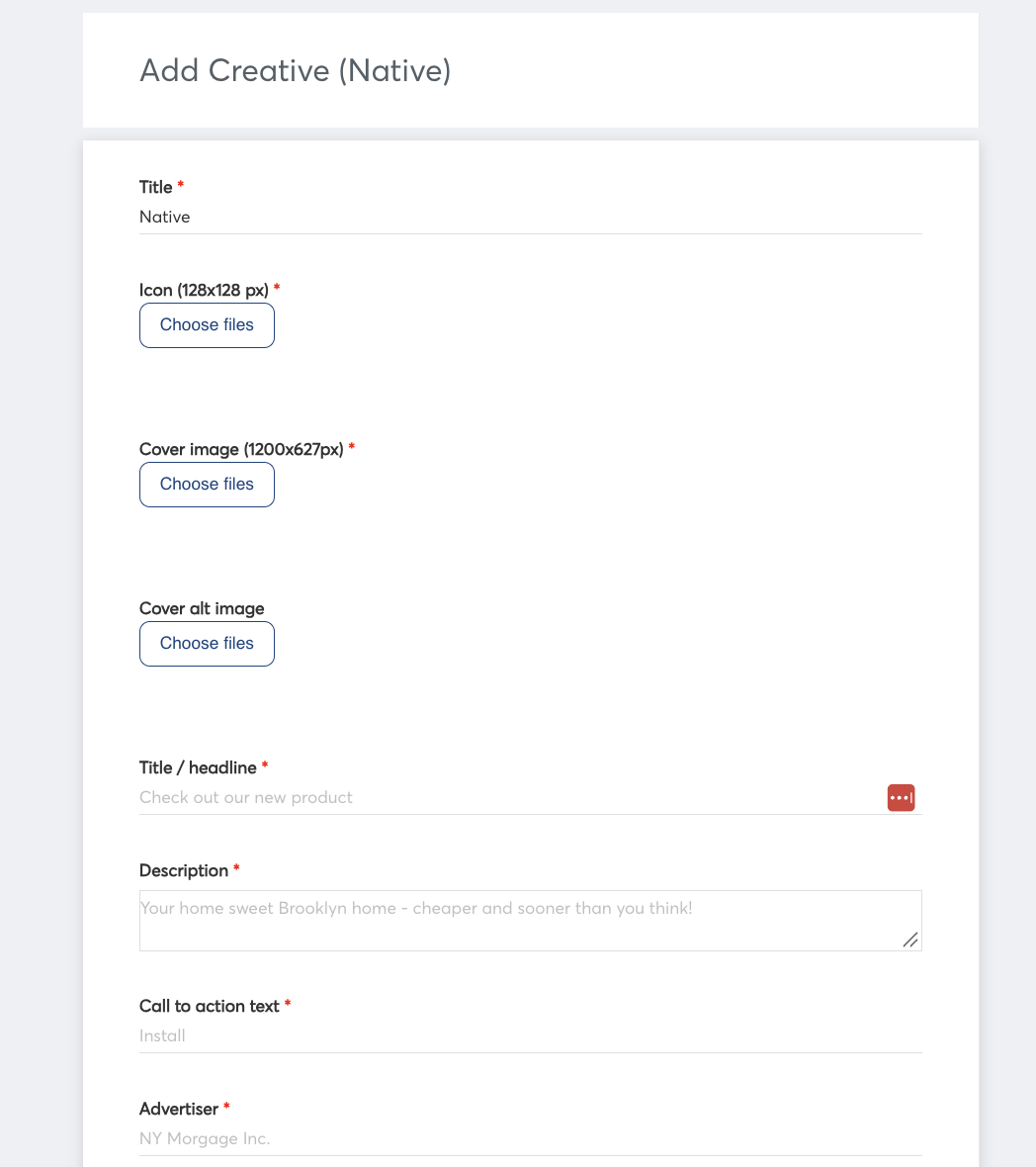
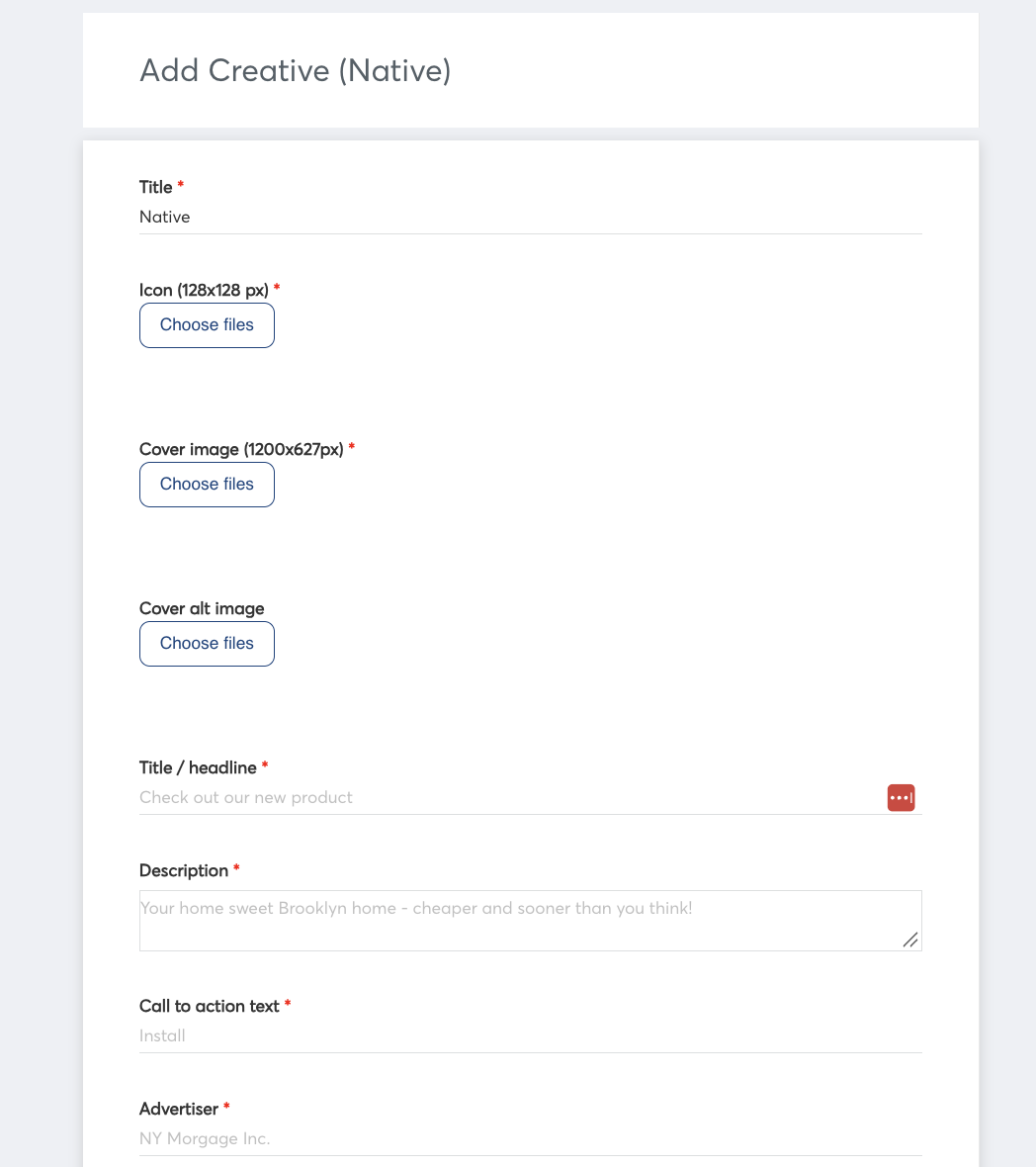
Add a creative to the set. Enter a Title for the creative, then upload the Icon (128x128 px) and the Cover image (1200x627 px). The Cover alt image is optional.
-
Write the Title / headline, for example "Lowest mortgage rates" (up to 25 characters).
-
Write the Description, for example "Your home sweet Brooklyn home – cheaper and sooner than you think!" (up to 90 characters).
-
Write the Call to action text for the button, for example "Learn more" (up to 15 characters).
-
Write the Advertiser name (up to 25 characters).
-
Optional, mostly for app-install campaigns: add likes, downloads, price, sale price, phone, address, star rating, an extra description or a display URL. You can leave these fields empty.
-
Save the native ad.
Summary
Native ads blend into the content around them, which makes them less disruptive than display banners. To run one, prepare the icon, the cover image and the four texts within their character limits, then upload them as a Native creative set.
Limitations
Viewability of native ads is not tracked or reported.