How to Upload Video Ads

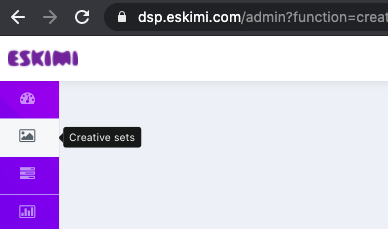
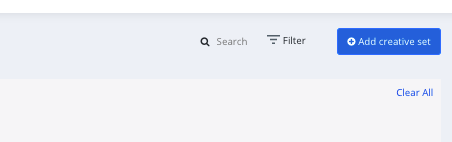
  1. Step 1: Log in to your DSP account, go to Creative Sets, and on the new page click "Add creative set".
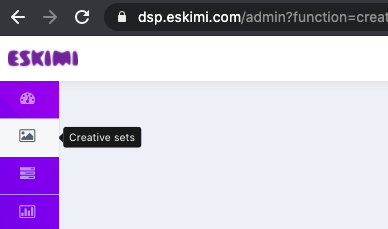
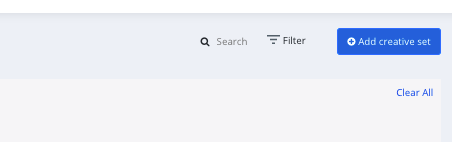
    image-1613663648296.pngimage-1613663648296.png

    image-1613663832858.pngimage-1613663832858.png

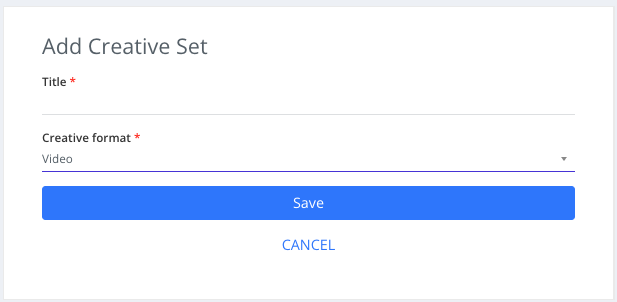
  2. Step 2: On the next page indicate the creative sets Title and select the format. 
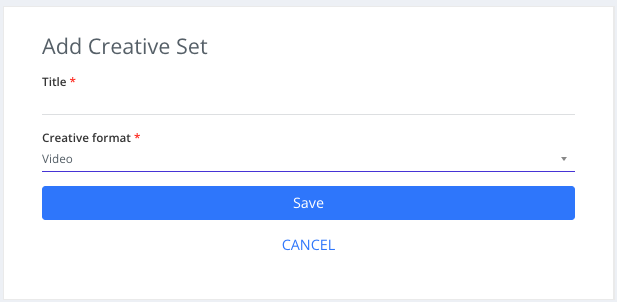
    image-1705394175513.pngimage-1705394175513.png

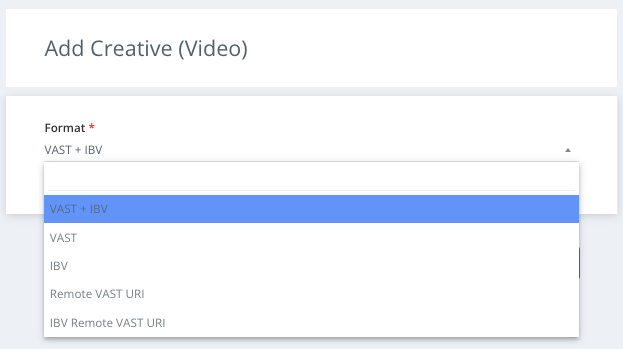
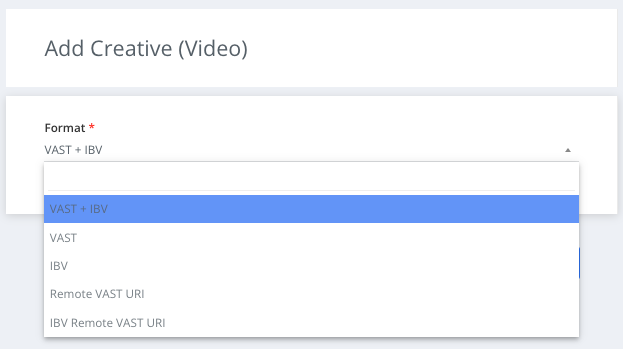
  3. Step 3: Select the type of video  (VAST + IBV, VAST, IBV).

    image-1705394241911.pngimage-1705394241911.png

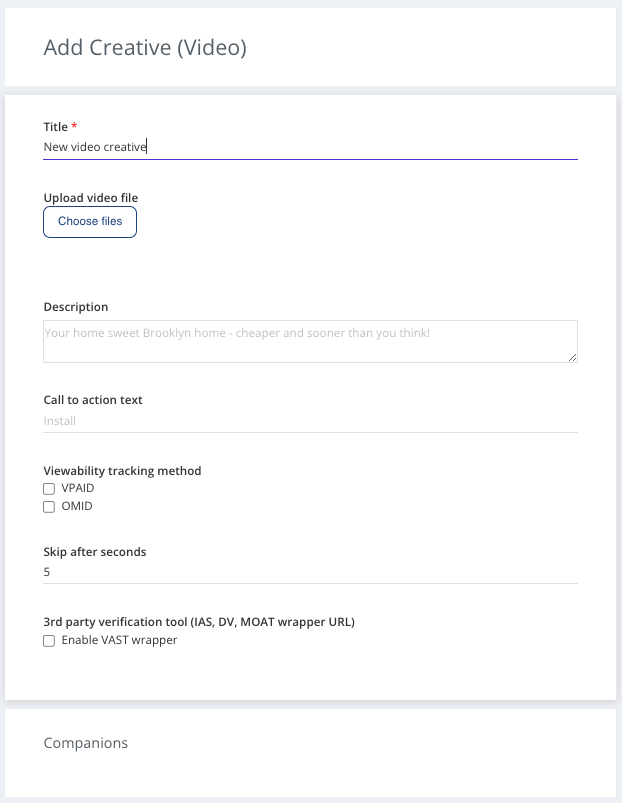
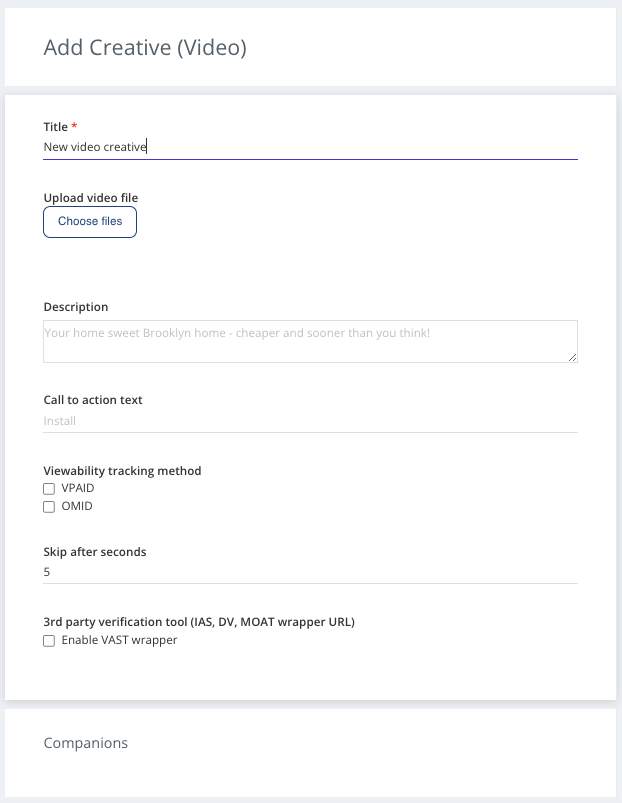
  4. Step 4: Choose file to use as creative

  5. Step 5: Select Viewability tracking method (VPAID - for websites inventory, OMID for in-app inventory) both can be selected.

  6. Step 6: if needed - update "Skip after seconds" value.  For some exchanges this is a required value (i.e. DC), default is 5s.

    image-1705394296959.pngimage-1705394296959.png

    Not necessary: Upload companion banners. Companion banner should be one from most popular sizes: 300x250px, 320x480px, or 480x320px.
    Not necessary: Add description and Call to action text. Default CTA is "Lear more" and this is changed only in placements, which support that. It will describe a call to action button for the destination URL.

  7. Step 7: Save your video ad.