
Uploading Creatives
To set up a campaign the very first thing need to be created / uploaded are the Creatives. Some creatives can be uploaded by the Clients themselves for Self-Served accounts and some creative types needs Ad Ops help to upload / create.
➜ There are 3 types of creative formats / Ads that can be created by the Clients themselves while using their Self-Served accounts:
➣ Banner Ads:
You can find the requirements for banner ads here: What are the most popular ad banner formats?
Steps to follow:
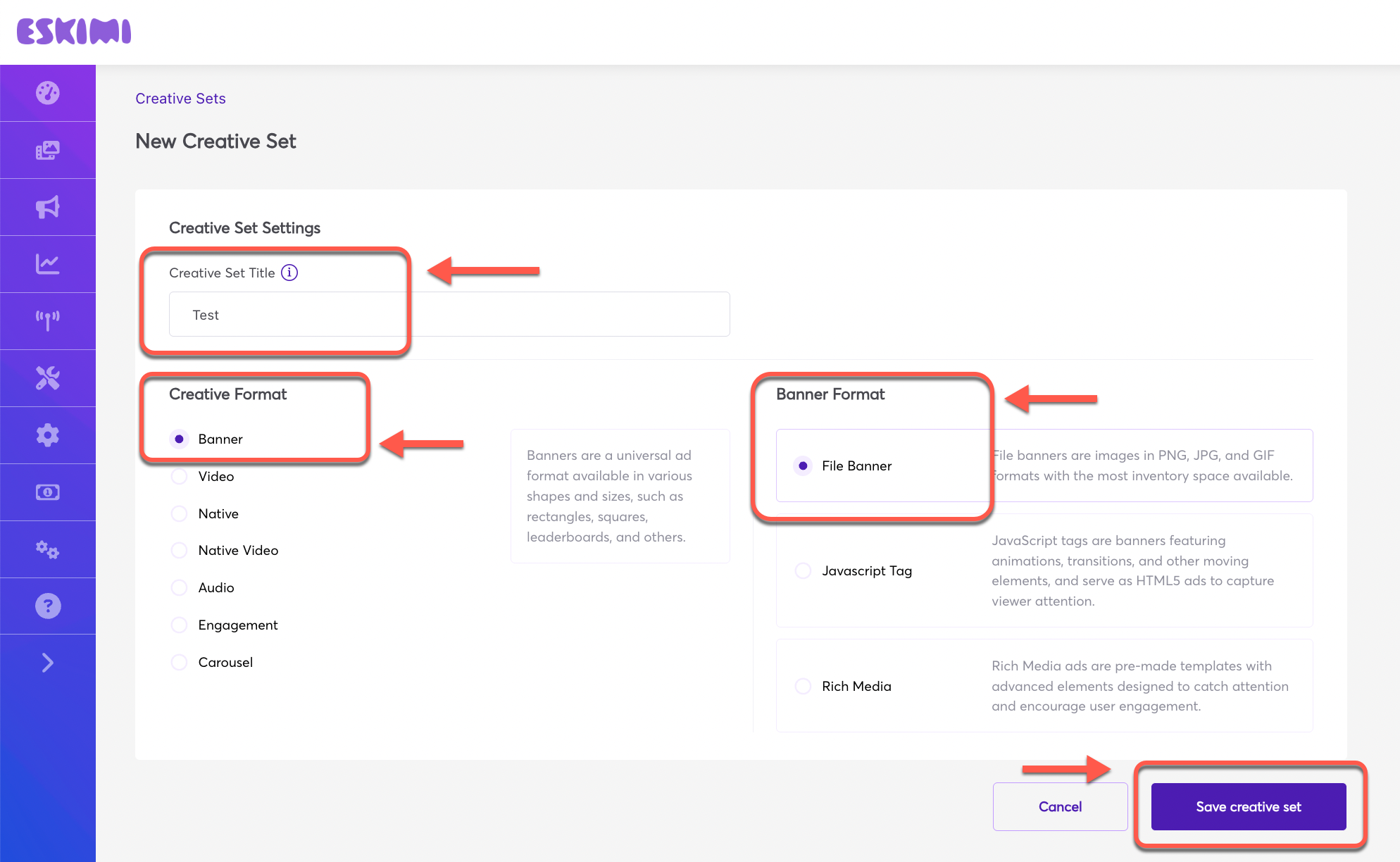
➜ Log in to your DSP account > Go to "Creative Sets" > on the new page click "Add creative set".

➜ Under "Creative set title" set the name > Select "Creative Format" and "Banner Format" > Click "Save creative set".
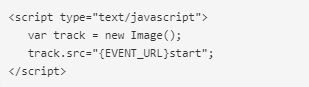
- Rich Media - This are animated creatives. Find more about Rich Media creatives and how to create them "Here" in the article.
After selecting and uploading the desired creative format / creatives, click "Save" and and the Creative set will be created which can be selected later while setting up the campaign.
➣ Video Ads:
You can find the requirements for Video Ads here: Video ad formats
Steps to follow:
➜ Log in to your DSP account > Go to "Creative Sets" > on the new page click "Add creative set".
➜ Under "Creative set title" set the name > Select "Creative Format" and "Video format" from the 04 provided options > Click "Save creative set".
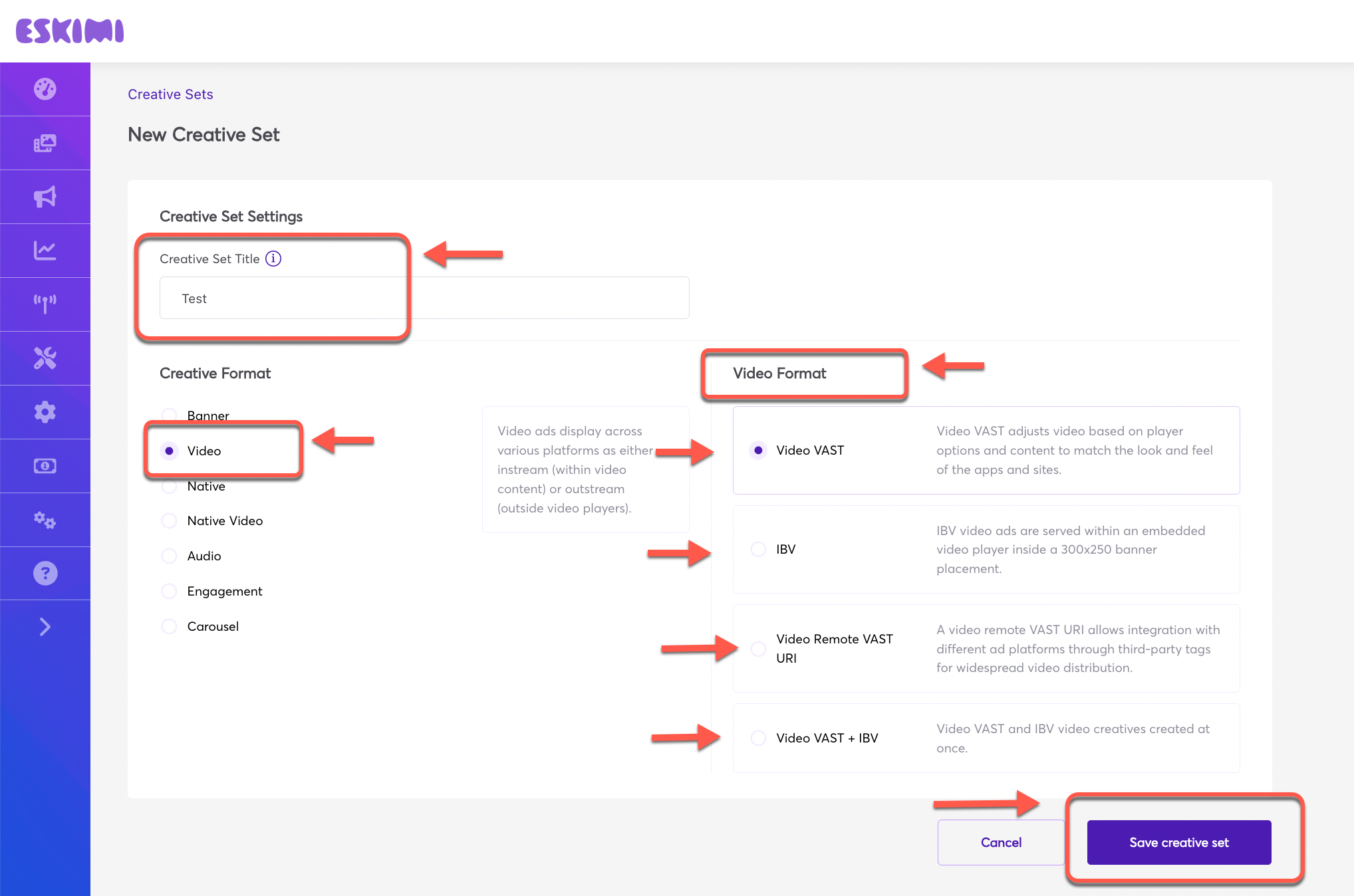
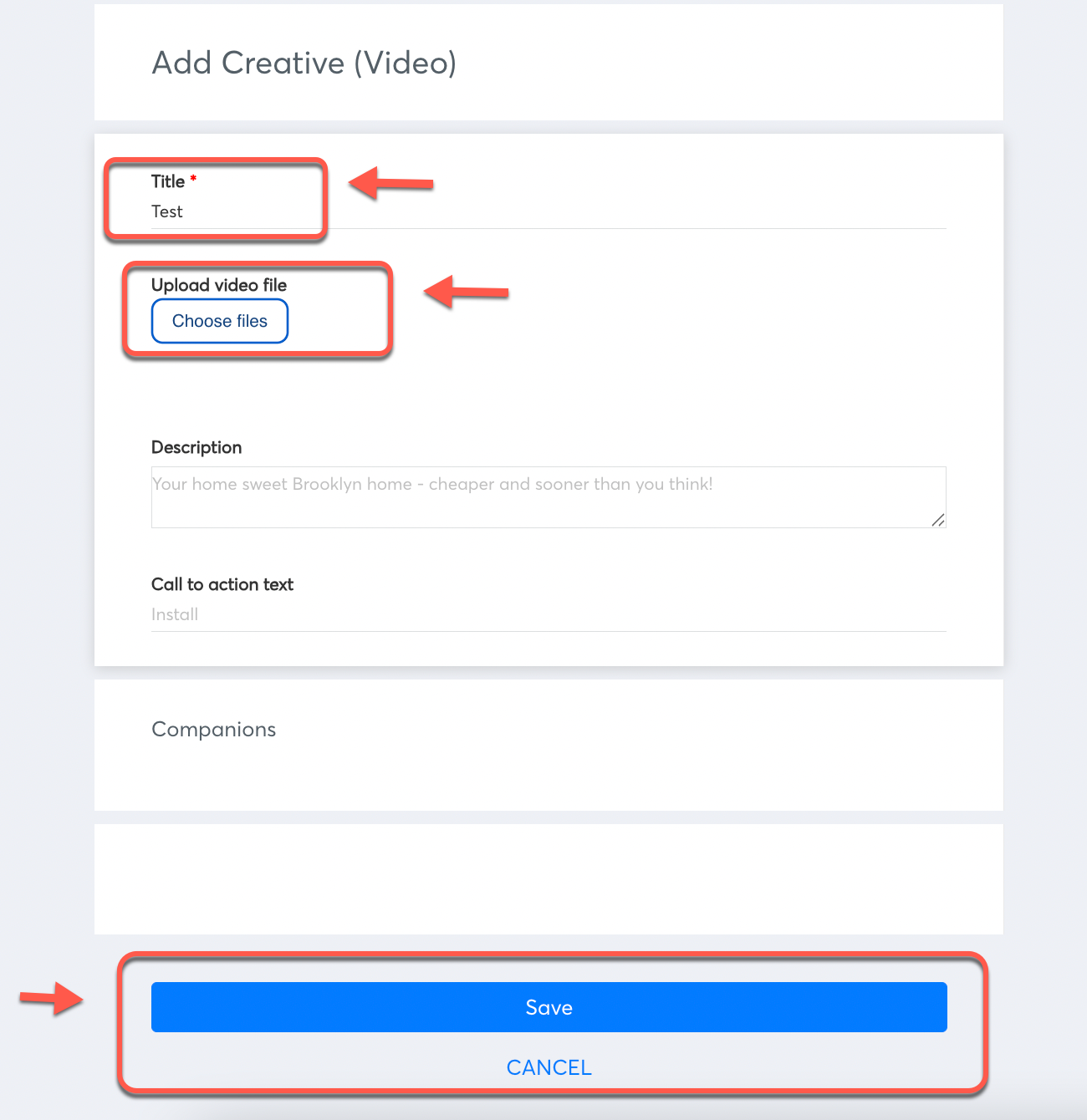
➜ If you select "Video Vast" or "IBV" or "Video Vast + IBV", the interface will take you to the next video file upload page.
➜ Now give it a name under "Title" > Click "Choose files" and upload the video files from your computer > and click "Save". The creative set will be saved.
➜ If you select the "Video Remote VAST URI" option, it will take you to the next interface where you can upload your video creative tag.
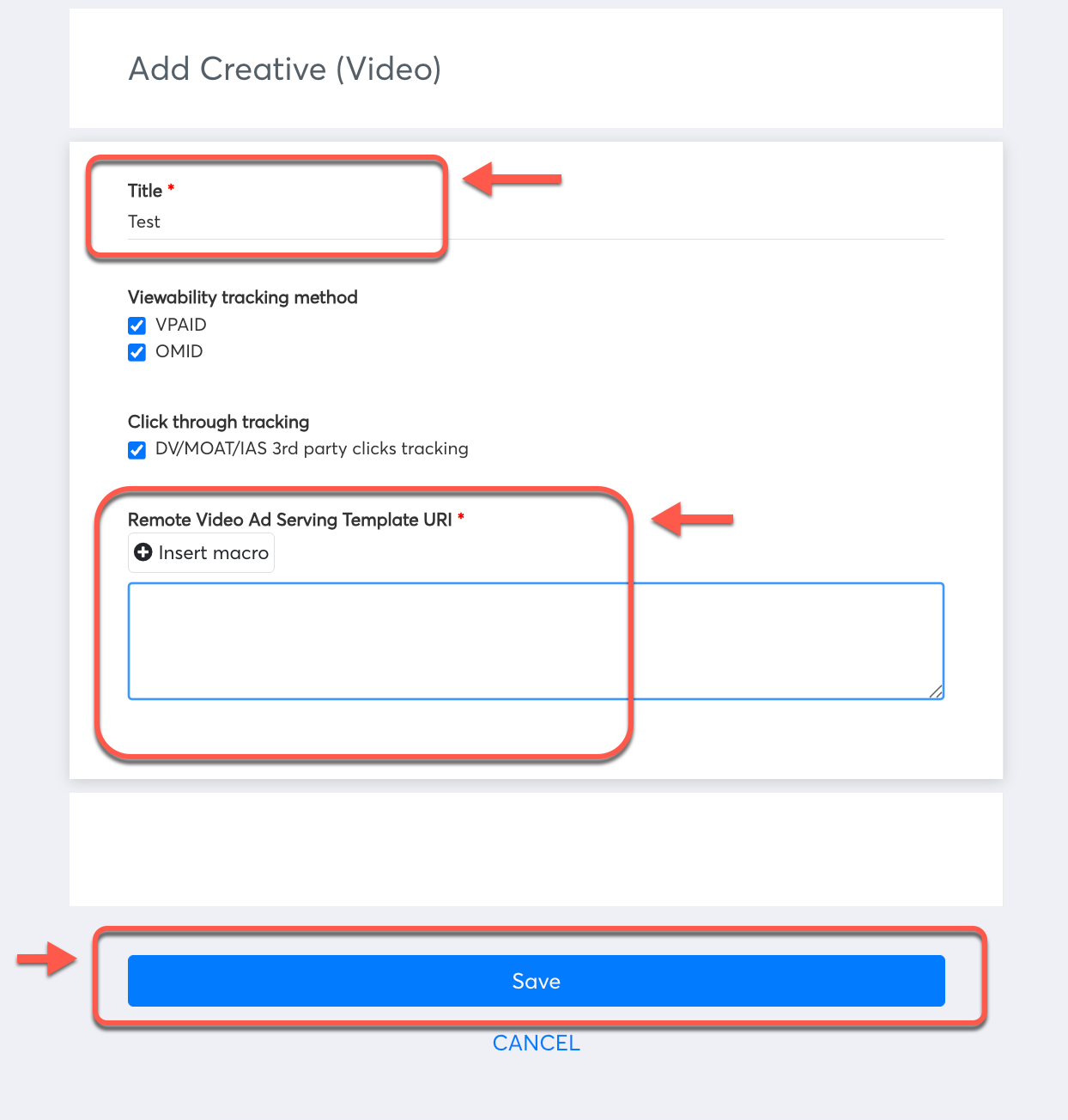
➜ Click "Save". The creative set will be saved.